
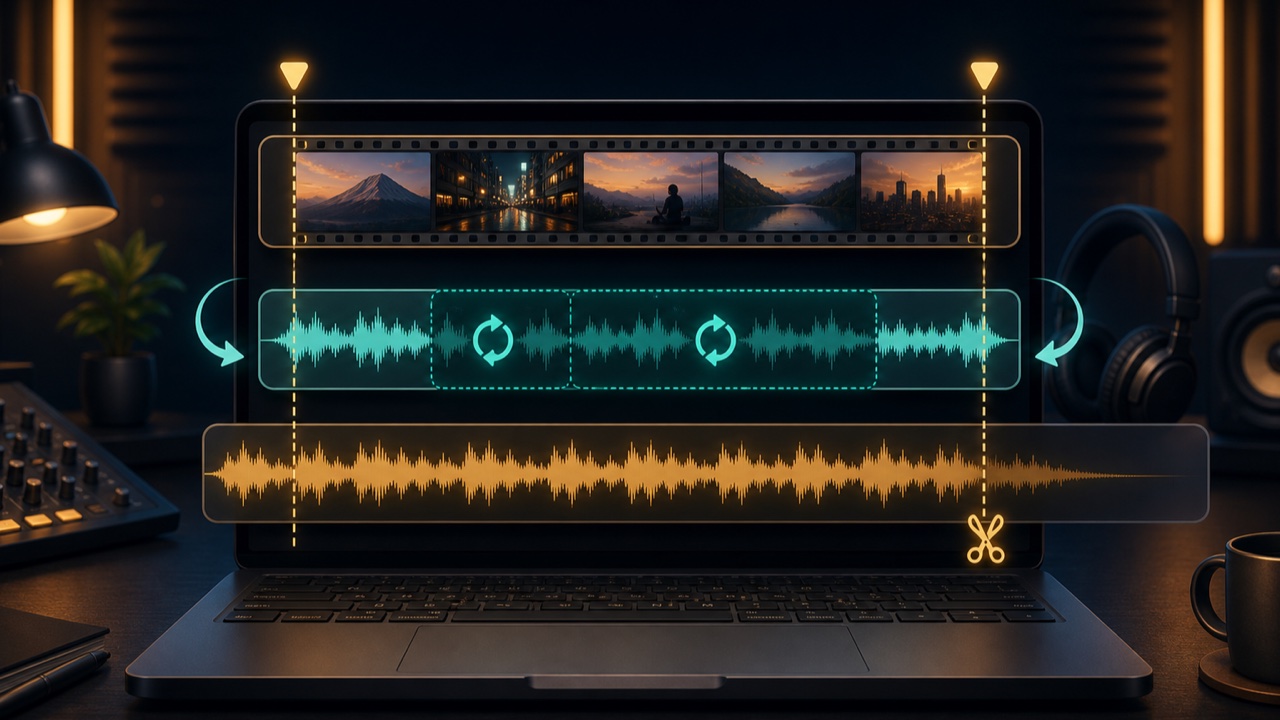
When you add background music to a video, the track may be shorter than the video and end too soon, or it may be longer and get cut off at an awkward point. Simply changing the playback speed also changes the tempo and sound quality, so start by choosing between a cut, a loop, and a fade.
The most natural method depends on the structure of the music and the length of the video.
If the Music Is Longer Than the Video, Create a Natural Ending
When shortening background music, do not cut it off abruptly where the video ends. Look for a point that creates a musical break, such as the start of a measure, the end of a chord progression, or a rest in the melody.
If there is no suitable ending point, add a fade-out of about three to five seconds at the end of the video. This can soften the impression that the track was cut off midstream.
If the Music Is Shorter Than the Video, Extend the Middle
Repeating the intro or outro can make the track sound as though it keeps starting over. Instead, find a section in the middle where the instrumentation and energy are steady, then repeat a passage with similar chords and rhythm.
Background music with a steady BPM and time signature makes it easier to find natural connection points at measure boundaries.
Blend the Connection with a Crossfade
A crossfade, which overlaps the end and beginning of the section being extended, can smooth out abrupt waveform changes and prevent reverb tails from being cut off.
Use a shorter crossfade for tracks with strong drum attacks and a slightly longer one for tracks with pads or long reverb tails. If it is too long, the kick, bass, and chords may sound doubled, so listen to the connection repeatedly.
Use Tempo Changes Only for Minor Adjustments
Changing the tempo substantially to fit the video length alters the mood and groove of the music. It may work when you only need to make up a difference of a few seconds, but larger differences sound more natural when handled with cuts or loops.
If you need a musical peak to align with narration, it is more reliable to return to the DAW project and arrange the track section by section instead of editing the finished song.
Match Background Music to a Specific Length with Tadaoto
Load your track into the Match Background Music to Video Length tool and enter the desired duration in minutes and seconds. If the target is shorter than the original track, the tool trims it. If it is longer, the tool analyzes similar passages in the middle and extends the track.
You can preview and select a proposed connection point, and the completed audio ends with a four-second fade-out. Processing takes place in your browser, and the result is created as a WAV file with the specified length.
Choose Background Music That Is Easy to Adjust
- It is performed at a steady tempo
- The same chord progression or rhythm repeats in the middle
- The intro and outro are clearly defined
- The melody does not play continuously and includes rests that make editing easier
- Its mood and volume suit the video
Watch the Entire Video After Editing
A connection can sound natural on its own but feel awkward when it coincides with a scene change. Place the music in the video and check the intro, every loop point, and the ending from start to finish.
If you want to create background music that can repeat continuously, see the related article How to Make a Seamless Background Music Loop. To prepare a video for posting, continue with How to Make a Music Video for YouTube and Social Media.
