
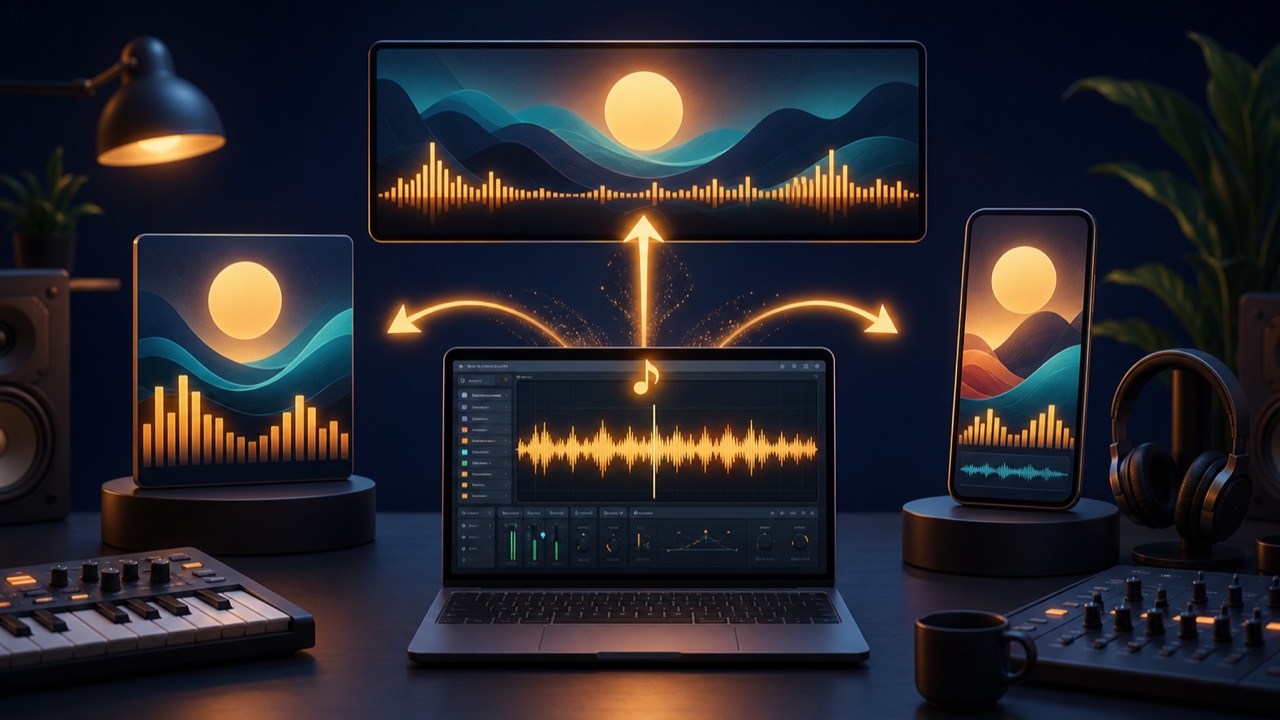
If you want to share music created in a DAW on YouTube or social media, some platforms will not accept an audio file by itself. In that case, combine the finished audio with an image and create a music video in a format such as MP4.
You do not need to shoot a full-scale music video. A song title, cover art, and an animated waveform or spectrum are enough to create a video that keeps the music front and center.
Prepare the Finished Audio First
Before adding the song to a video, finish its mix and mastering, then play it from beginning to end. Review the level, distortion, silence at the beginning, and the final decay.
Using a WAV as the source prevents an unnecessary additional round of compression before the video is exported. Because the completed video will be compressed to AAC or another format, keep a high-quality copy of the original audio.
Choose an Aspect Ratio for the Platform
- 16:9: landscape video for YouTube and similar platforms
- 1:1: square posts displayed in a timeline
- 9:16: vertical video for Shorts, Reels, and similar formats
Forcing the same image into every crop can push the title or a person outside the frame. Keep important elements near the center and preview each aspect ratio.
A Waveform Video Presents the Song Simply
The Create an Audio Waveform Video tool lets you combine an audio file with an animated waveform, title, and color scheme. You can make a video without a background image, making it useful when you want to turn a song into a video quickly.
Choose landscape, square, or vertical orientation to create versions of the same song for different platforms.
A Spectrum Video Can Put the Cover Art First
The Create an Audio Spectrum Video tool lets you overlay sound-reactive bars or a circular spectrum on cover art. You can also create a gradient video without a background image.
Choose a layout that centers the cover art or expands the image to fill the screen, then adjust the title display, background darkness, and spectrum shape and color.
Add the Song Title and Artist Name to the Cover Art
If you have an image without text, use the Add a Song Title and Artist Name to Cover Art tool. Check that the song title and artist name remain legible even on a small smartphone screen.
Adding text to both the video and the image creates duplication, so decide which one should carry the main title treatment.
Review the Audio and Video from Start to Finish Before Posting
After rendering the video, do more than spot-check the beginning, middle, and end. Play the entire video if possible. Pay particular attention to the following points.
- Does the audio start partway through or lose its final decay?
- Are the song title and artist name spelled correctly?
- Does the waveform or spectrum obscure the image or text?
- Are important elements cropped in the vertical or square version?
- Does the exported video contain audio?
Check the Browser and Output Format
Tadaoto’s video tools process files in your browser and save MP4 in supported environments or WebM in other environments. Exporting takes about as long as the song itself, so keep the page open while processing is underway.
If the destination platform does not support WebM, convert the file to MP4 before posting. Before publishing, also review the rights and credit requirements for the images, fonts, and audio assets you used.
A Music Video Is an Entry Point to the Finished Song
Clearly communicating the song title, artist name, and audio matters more than making the visuals flashy. Start with a simple waveform video, then expand to a spectrum video once you have cover art.
For export settings before creating the video, see the related article WAV or MP3: Which Should You Choose?.
