
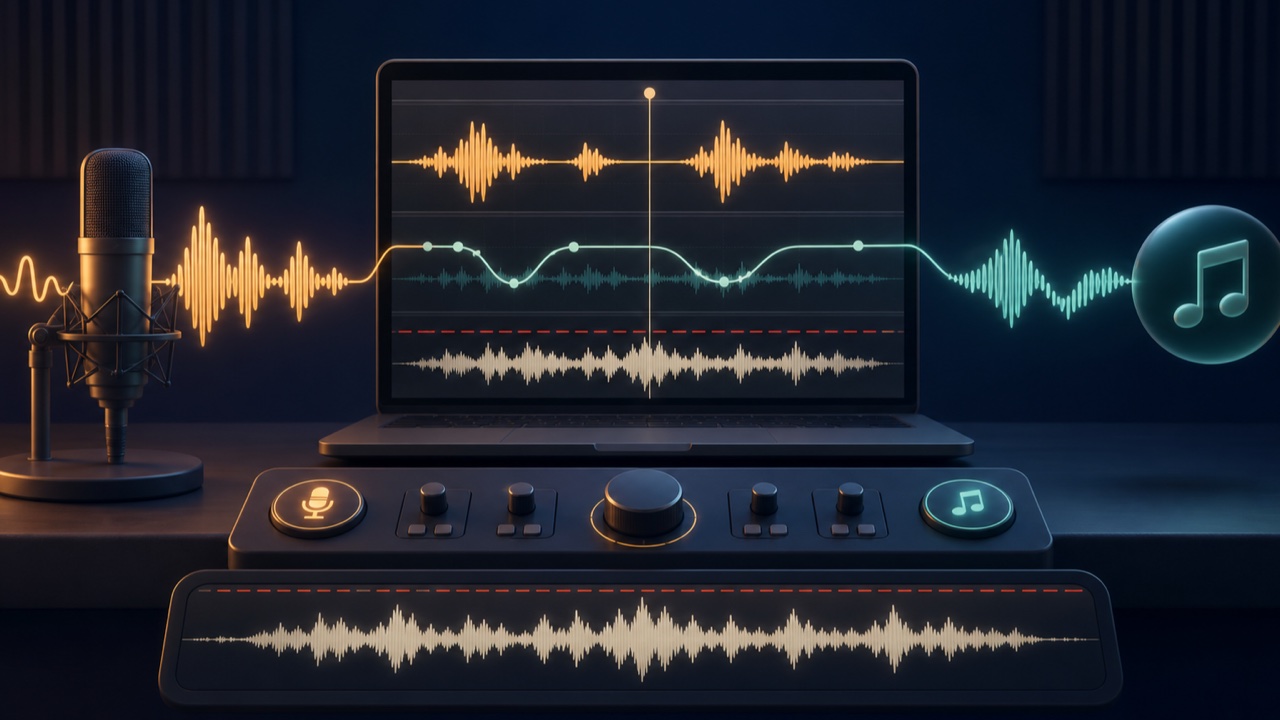
When you add background music to an explainer video or project showcase, music that is too loud can make the narration hard to understand. On the other hand, keeping the music too quiet throughout can weaken the atmosphere of the video.
Lowering the music while the voice is present and bringing it back up slightly when the voice stops preserves the role of both. This process is called ducking.
Clean Up the Narration First
Before adjusting the background music, make the narration easy to hear on its own. Check quiet words, loud words, background noise, and distortion, then make sure the voice level does not change abruptly across the video.
You can use LUFS as a reference for voice level, but do not rely on the number alone. Also confirm that the message remains understandable through a smartphone’s small speaker.
Define the Role of the Music Under the Voice
Instead of trying to eliminate the background music, lower it enough to support the mood and tempo. Music with vocals or a strong melody is more likely to compete with narration, so an instrumental track or a sparse arrangement may be easier to use.
If the music contains a lot of the same midrange frequencies as the voice, making a small adjustment with EQ in addition to lowering the volume can make them easier to distinguish.
Ducking and Sidechain Compression
In a DAW, you can create ducking with a compressor on the background music triggered by a narration-detecting sidechain, or with volume automation.
Abrupt changes in music level sound unnatural, so begin lowering it smoothly just before the voice starts and bring it back slowly after the words end. Use deeper ducking for content focused on explanation and lighter ducking for projects in which the music should also be heard.
Match the Music Length to the Narration
If the music is too short, extend it by creating a loop from a similar section in the middle. If it is too long, cut it to match the end of the narration and fade it out.
A middle section with a consistent rhythm and chord progression will usually loop more naturally than repeating an intro or outro several times.
Mix Narration and Background Music with tadaoto
Load two audio files into the Mix Narration and Background Music tool to bring the narration to an intelligible -16 LUFS and automatically lower the music only while the voice is present.
You can choose from three ducking strengths: subtle, standard, and strong. If the music is too short, the tool finds a natural section to loop. If it is too long, the tool trims it to the narration and fades out the ending.
Prevent Final Clipping with True Peak
When narration and music are layered, their combined peak may become high even if each file is fine on its own. Keeping the finished audio’s True Peak at or below -1.0 dBTP helps prevent distortion during conversion and playback.
Check the Finished Audio in Multiple Listening Environments
- Can you understand even the quieter words?
- Does the music level change too abruptly?
- Does the music suddenly become too loud during pauses?
- Is the loop point in the music noticeable?
- Does the audio end before the video, or is the decay cut off?
- Does the balance hold up on a smartphone, headphones, and speakers?
To create a ducking setup in a DAW, also see How to Create Ducking. For selecting background music for video, continue to How to Choose Background Music for Video Editing.
