
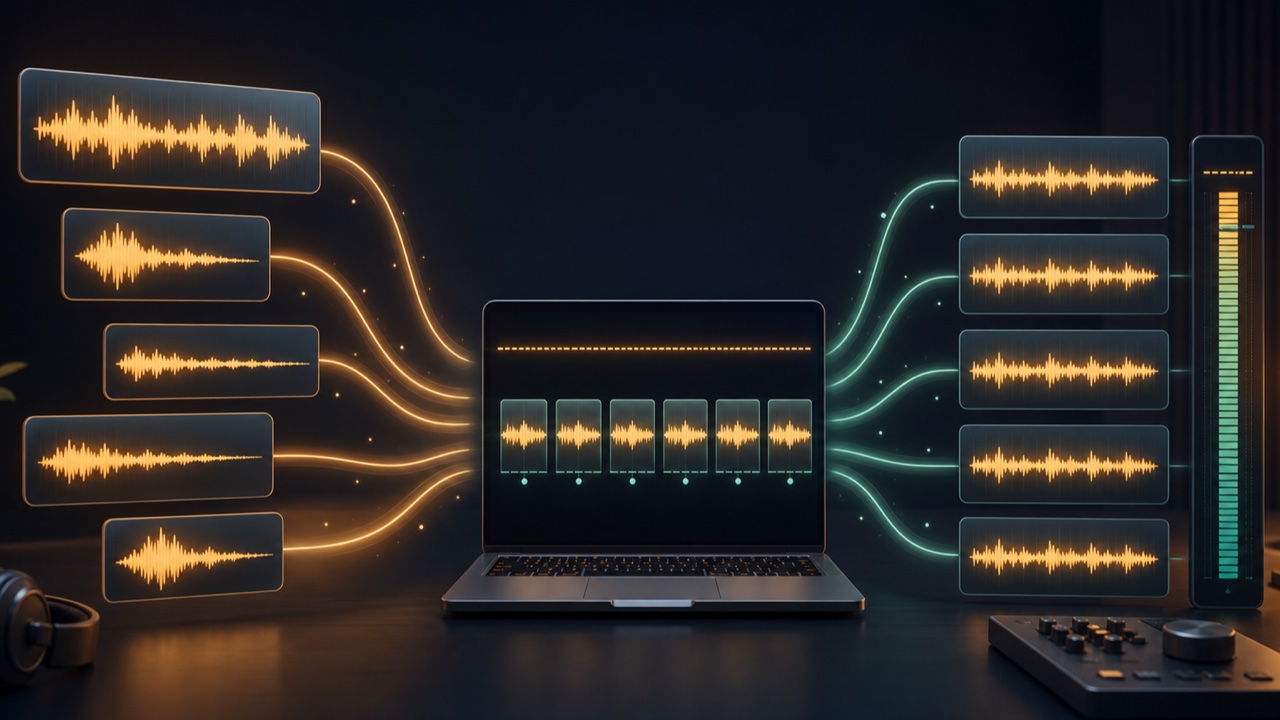
When you arrange several background music tracks or finished songs in a playlist, you may want to adjust the volume every time the track changes. Even if every master fader reaches the same maximum value, the tracks will not necessarily sound equally loud.
For an album, video series, game soundtrack, streaming playlist, or similar project, it is important to reduce abrupt loudness changes between tracks while preserving the character of each one.
Matching Peaks Does Not Match Perceived Loudness
Peak level indicates the loudest instantaneous part of the audio. A quiet song with one loud snare hit and a song with a consistently dense arrangement can have the same peak value, yet the latter will sound louder.
Simply applying peak normalization to every track does not correct this difference in perception. Normalization can be based on either peak level or loudness.
Compare the Overall Perceived Loudness with LUFS
LUFS measures audio level in a way that more closely reflects how loud people perceive it. Comparing LUFS-I, which represents the average across an entire track, makes loudness differences between tracks easier to understand.
For example, forcing a quiet ambient track and an intense rock song to exactly the same value may make the texture of the quiet track sound unnatural. The goal is not merely to match numbers but to reduce distracting differences when the tracks are heard in sequence.
Use True Peak to Prevent Clipping
If increasing the level causes playback peaks to exceed the limit, the result may distort. Leave adequate headroom in the True Peak value to prevent clipping after conversion to MP3 or AAC.
Forcing an extremely quiet source up to the target can make a limiter work heavily and crush the drums or low end. In that situation, choose a more restrained result.
Match Multiple Tracks with tadaoto
The Match Loudness Across Multiple Audio Files tool can load two to ten tracks at once and show each track’s LUFS-I value and current loudness difference. You can choose a finished target from presets of -16, -14, or -11 LUFS-I.
During processing, True Peak is kept at or below -1.0 dBTP. You can save the results individually as WAV files or together in a ZIP file. The audio is not uploaded to a server; analysis and processing take place in your browser.
Choose a Target That Fits the Intended Use
- Background music used with narration or ambient sound: Start with a restrained setting
- Songs played consecutively on YouTube or social media: Use a standard setting as a starting point
- Uses where background music or songs should remain prominent: Audition a stronger setting before deciding
Some platforms adjust playback volume, but reducing inconsistencies in the source files makes editing and review easier.
Always Listen Through in the Actual Track Order
After processing, do not check each track only in isolation. Listen to the transitions in the actual sequence. A song with a quiet intro, one that begins immediately with drums, and one with a lot of low end can make different impressions even at the same LUFS value.
Even after loudness differences are reduced, tracks will not feel cohesive if their tone or mastering direction differs greatly. Return to the DAW as needed and review the EQ, low end, and dynamics as well.
This Has a Different Purpose from Adjusting One Song’s Loudness
Matching multiple audio files is a process for balancing how tracks sound relative to one another. When finishing one song as a completed master, also see What to Check When a Song Exported from Your DAW Sounds Too Quiet.
