
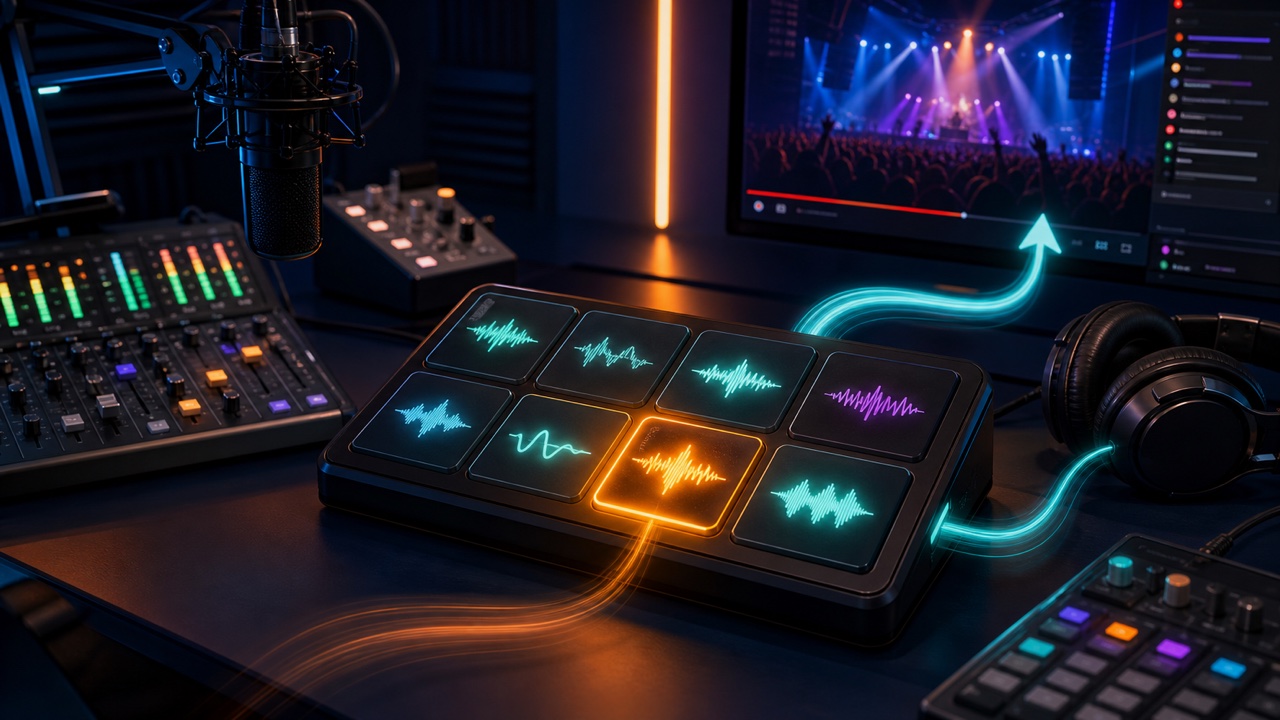
Short jingles and sound effects can make the progression of a live stream easier to follow when used for the opening, scene changes, answer reveals, mistakes, reactions to comments, and similar moments. However, an unexpectedly loud sound, a long delay after pressing a button, or repeatedly triggering the same sound can startle viewers.
It is important to prepare the audio and establish a fixed order and volume before going live.
Assign a Purpose to Each Sound and Limit the Number of Options
Start with about five categories: opening, scene change, success, failure, and alert. If you arrange too many similar sounds, you will not be able to choose between them during the live stream. For short stingers and hits, decide in advance what each one means and when it should be played.
A sound may be funny on its own, but shorten it if its length interferes with the conversation.
Clean Up Silence at the Beginning and the Tail at the End
Remove unnecessary silence from the beginning so the sound plays immediately when you press the button. However, cutting off the attack can make the sound feel weak, so zoom in on the waveform to check it. Preserve the tail at the end while keeping it short enough that it does not overlap the next part of the conversation excessively.
The audio trimming tool and the batch audio finishing tool can process several assets using consistent settings.
Set Levels in the Context of the Full Stream Mix
Do not set the volume while listening to sound effects in isolation. Adjust them while the microphone, game audio, and background music are all playing. A jingle should be noticeable, but it does not need to be dramatically louder than the speaker’s voice.
You can check inconsistencies among files with the tool for matching the volume of multiple audio files. For short sounds, do not rely on LUFS alone; pay more attention to peak levels and perceived loudness.
Organize the Sounds Clearly on a Soundboard
Add your audio to the soundboard tool for triggering sound effects and arrange the files by purpose or the order in which you will use them during the stream. Give files names such as “start,” “success,” and “warning” that you can identify immediately at a glance.
Test how to stop a sound during playback, how to prevent repeated triggers, and how simultaneous playback behaves.
Check the Audio Routing into Your Streaming Software
A sound can be audible in your headphones without being sent to the stream. Check which inputs your streaming software receives, such as desktop audio, virtual audio devices, or browser audio.
Make a test recording and play the streamed audio on another device. Also check that speaker output is not feeding back into the microphone and creating a doubled sound.
Prepare for Accidental Input
- Keep the stop button in a fixed location
- Do not register dangerously loud audio
- Reset volume levels before starting the stream
- Avoid conflicting keyboard shortcuts
- Keep live and test assets separate
Confirm That You Have Permission to Use Each Sound
Even a short excerpt from a commercial song or someone else’s voice is not necessarily free to use in a live stream. Use sounds you created yourself or material whose terms you have reviewed, and check that the license covers archived streams and monetization.
For the basics of adjusting the length and volume of sound effects, see “How to Finish Sound Effects and Other Short Audio Assets After Exporting.”
