
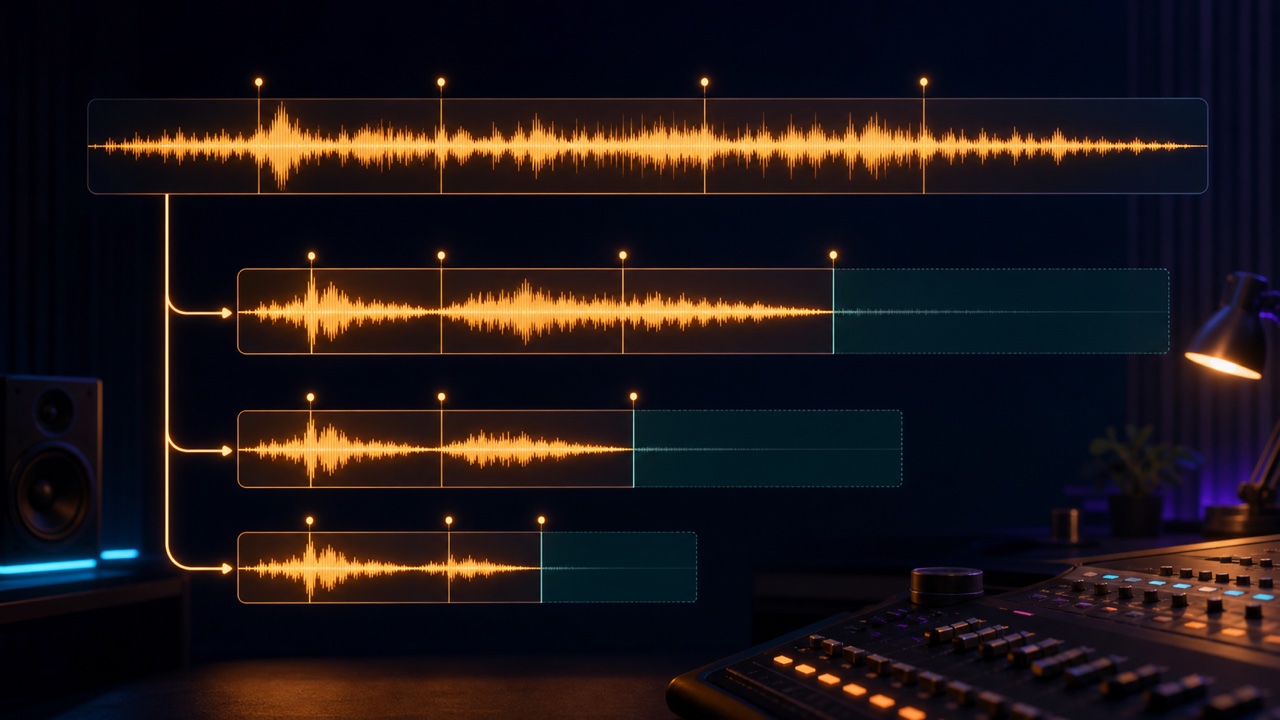
If you create a 15-, 30-, or 60-second version of background music by simply cutting the full version at the specified time and fading it out, the track may end before it develops or be forced to close in the middle of a phrase. Giving even a short version a beginning, a defining feature, and an ending preserves the appeal of the original track.
First confirm whether the file must be exactly 15.000 seconds or simply around 15 seconds. For advertising and broadcast use, exceeding the duration by even one frame may be a problem.
Choose the Track’s Defining Feature to Keep in the Short Version
Choose one identifiable part of the track, such as the chorus melody, a distinctive riff, the sound palette, or the rhythm. Rather than compressing every development from the full version, focus on a hook that communicates within the short duration.
As a general guide, a 15-second version should reveal its character immediately, a 30-second version can include a brief introduction and development, and a 60-second version can form a small structure that moves from a verse into a chorus.
Look for Edit Points at Musical Boundaries
Instead of cutting in the middle of a beat, look for four- or eight-bar groupings, fills, breaks, or places where the harmony resolves. If the keys or instrumentation differ greatly on either side of an edit point, choosing another section will often sound more natural.
Display both time and bars in the DAW, then place a marker at the required duration. Do not begin by cutting at the exact second. First create a musical ending, then adjust the duration before and after it.
Stems Make It Easier to Reconstruct Transitions
If you have stems for drums, bass, melody, pads, and other parts, you can preserve a tail or fill instead of cutting every part at the same point. You can also reconstruct the arrangement by using the melody from the start of the chorus while bringing in the drums from the preceding fill.
If only the finished stereo mix is available, avoid forcing a complicated edit. Connect sections that share the same chord or similar sounds. A crossfade that is too long can double the kick or snare, so keep it short and adjust it while listening to the rhythm.
Remove Hesitation from the Beginning of a 15-Second Version
Omit a long intro or silence so the character of the track is clear within the first one or two seconds. However, cutting too close to a strong attack can make the sound feel incomplete. Leave the few dozen milliseconds of space needed at the beginning.
Prepare the Ending First
Choose an ending that fits the use, such as sustaining the final chord, closing with a short hit, or applying a natural fade-out. A clear resolution may work well for an advertisement that cuts to the next shot, while a gentle fade may be easier to use for background music.
The match background music to a video tool lets you try cutting, looping, and fading to a specified duration.
Check the Actual Duration of the Exported File
The end position in the DAW, audio tails, or timing shifts introduced by MP3 conversion can make the finished file differ from the configured duration. Open the exported file in another player and confirm that it fits within 15, 30, or 60 seconds.
Name the files “song_full,” “song_60s,” “song_30s,” and “song_15s” so the full and short versions cannot be confused, and apply any revisions to every version. Continue with “How to Manage Full, Looping, and Short Versions of the Same Track” for a complete management method.
