
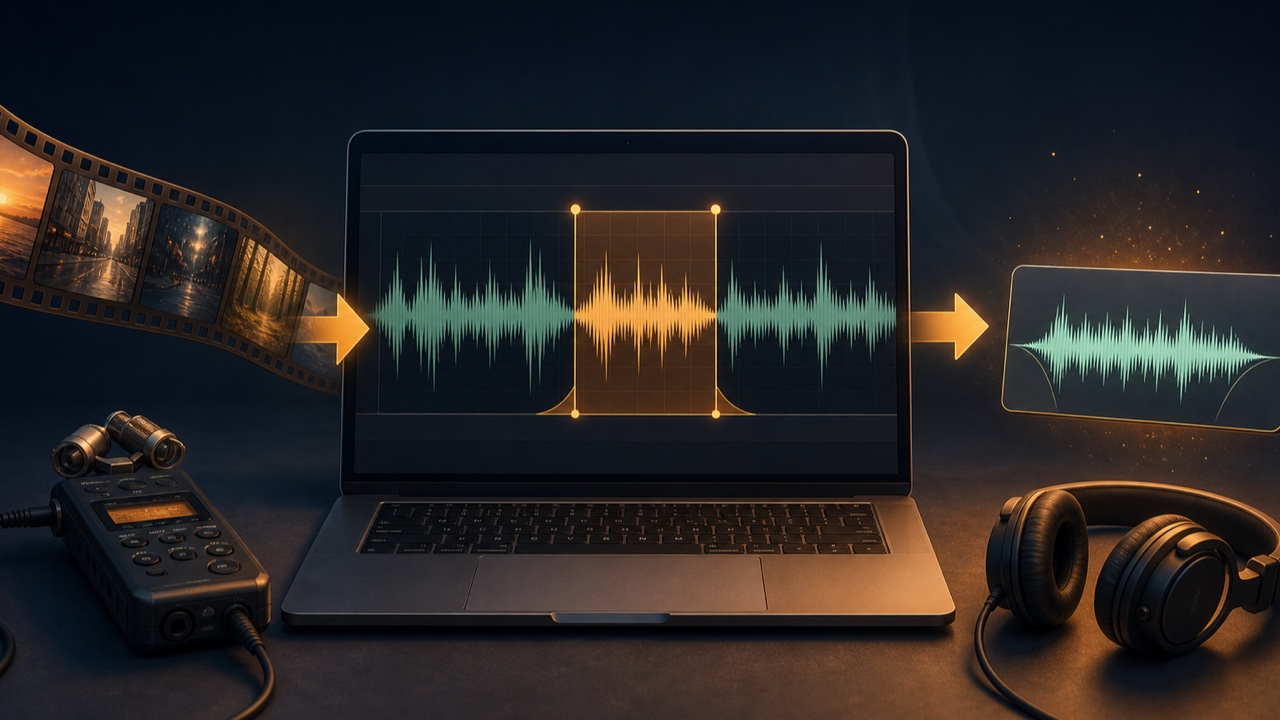
A performance video, ambient sound recorded on a smartphone, or archived stream may contain audio that you want to use in a song or sound effect. Without opening a video editor, you can extract only the audio and trim the section you need into a production-ready sample.
Keep the original video or recording, and save the extracted, trimmed, and edited files separately.
Extract an Audio File from a Video
The Extract Audio from Video tool can load videos in formats such as MP4, MOV, and WebM and save the audio as MP3 or WAV.
WAV is suitable for editing in a DAW, while MP3 works well for reviewing the content or sharing a lightweight file. WAV files are created as 16-bit PCM and do not contain the original video’s picture.
Note the Time of the Section You Want First
To avoid repeatedly searching through a long recording, play the video or audio and note the start and end times of the section you want. Leaving extra room from just before the performance begins until just after the decay ends will make editing easier.
If you plan to use several sections, list their content and timestamps. Including the original video name or timestamp in each filename also makes the files easier to manage.
Trim the Required Range While Viewing the Waveform
When you load the extracted audio into the Trim Audio to Any Range tool, you can adjust the start and end positions with the waveform, sliders, or time fields.
After auditioning only the selected range, you can save it as an editable 16-bit WAV file. The natural-cut setting adds short 10-millisecond fades to both ends to prevent clicks.
Preserve the Attack and Decay
Cutting off the initial transient of a drum, impact sound, or instrument removes the sound’s energy. Audition from just before the loud part of the waveform, not only from where it becomes large.
For audio with reverb or room ambience, trimming the end too short will make it disappear unnaturally. Decide whether to preserve the decay as part of the sample or create a short one-shot, then trim accordingly.
Automatically Remove Only the Silence at the Beginning and End
If you have chosen the section you want but long stretches of silence remain before and after it, you can use the Trim Silence from Audio tool. It detects only the beginning and end while preserving pauses within the material.
Check the Volume and Noise After Trimming
Turning up a quiet recording later also raises its noise floor. Consider noise reduction if air conditioning or hiss is constant, and if the sound is clipped, check whether you can start again from the original recording.
When creating several short samples, matching their volume and the padding at both ends makes them easier to load into a sampler or video editor.
Pay Attention to Rights and Personal Information
Extracting audio from a commercial video, archived stream, or someone else’s performance does not change its copyright or terms of use. Also check whether it contains conversations, other people’s voices, location-identifying sounds, or other personal information.
Use your own recordings, material for which you have permission, or audio used appropriately for private analysis and practice.
