
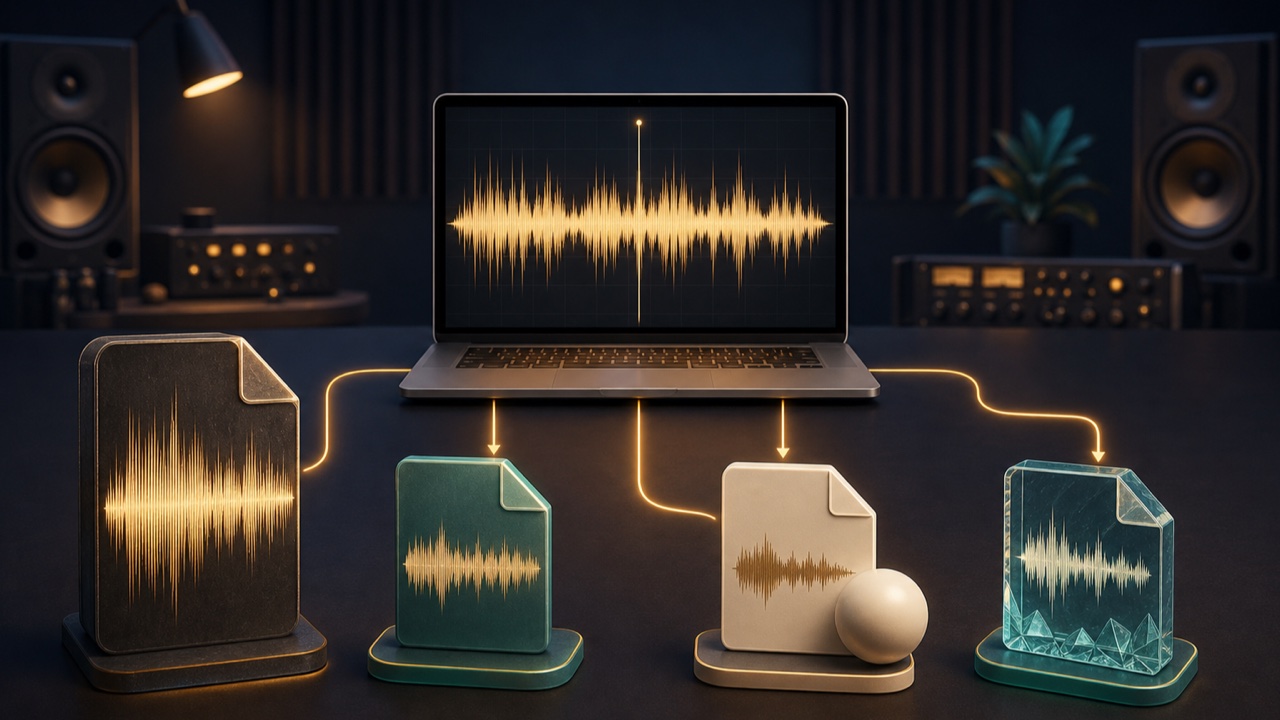
After exporting a finished song from your DAW, you may need another audio format to meet delivery requirements or suit the way you plan to share it. Keeping a high-quality master and creating separate MP3, M4A, and other versions from it makes the files easier to manage.
The basic workflow is to export and save a WAV from your DAW, then convert that WAV to each format you need. Repeatedly converting compressed files compounds the loss of audio quality.
Use WAV as the Standard for Editing and Delivery
WAV commonly stores uncompressed PCM audio and is widely supported by DAWs, video editors, mastering software, and other applications. It is well suited for archiving the finished master and serving as the source for other formats.
24-bit files are commonly used for production and delivery, while 16-bit files are commonly used for general playback. If the recipient specifies a sample rate and bit depth, prioritize those requirements.
MP3 Is Easy to Share Across Many Devices
MP3 uses lossy compression to reduce file size, making it practical for email, review copies, and general distribution. If audio quality matters for a review file, a bitrate around 256 to 320 kbps is an accessible choice.
Converting an MP3 back to WAV does not restore information lost during compression. Do not keep an MP3 as your only archival master.
M4A Works Well with Apple Devices and Video Editing
M4A is commonly used as a container for AAC audio. It can retain good audio quality at a small file size and works well with smartphones, Apple devices, and video editing workflows.
If the recipient and their software support M4A, it may provide a better balance of file size and audio quality than MP3.
FLAC Reduces File Size Without Losing Audio Quality
FLAC uses lossless compression to reduce file size while preserving enough data to reconstruct the original audio. It is useful for archiving finished tracks, samples, and recorded material.
Support varies by playback device and editing software. If a recipient has not specified a format, providing a highly compatible WAV as well is a safe choice.
AIFF and OGG Are Also Useful for Certain Applications
Like WAV, AIFF handles uncompressed audio well and is used on Macs and in music production software. OGG (Opus) can maintain good audio quality at a small file size and is suitable for audio on websites and streaming platforms.
Before choosing a less common format, confirm that the recipient’s software or publishing destination supports it.
Convert Audio Formats with tadaoto
The Audio Format Converter can load WAV, MP3, M4A, FLAC, AIFF, OGG, and other files and convert them to a format suited to your needs. You can apply the same settings to up to ten tracks and save them individually or in a ZIP file.
For WAV and AIFF, you can choose 16-bit or 24-bit audio. For compressed formats, you can choose the bitrate or quality. The sample rate can remain unchanged or be set to 44.1 kHz or 48 kHz, and the audio can be converted to mono when necessary.
Conversion Does Not Improve Audio Quality
Converting a low-quality MP3 to 24-bit WAV or FLAC does not add information that was absent from the source. Format conversion changes how audio is stored and its compatibility; it does not recover lost sound.
Instead of repeatedly converting between lossy formats, such as MP3 to M4A and then M4A to MP3, create each version again from the original WAV.
Basic Format Choices by Use
- Editing, delivery, and master archiving: WAV
- Sharing across many devices: MP3
- Video editing and Apple devices: M4A
- Space-efficient archiving without quality loss: FLAC
- Transferring files between DAWs on Mac: AIFF
- Lightweight delivery on the web and supported services: OGG (Opus)
For WAV and MP3 export settings, also see WAV or MP3: Which Should You Choose?
