
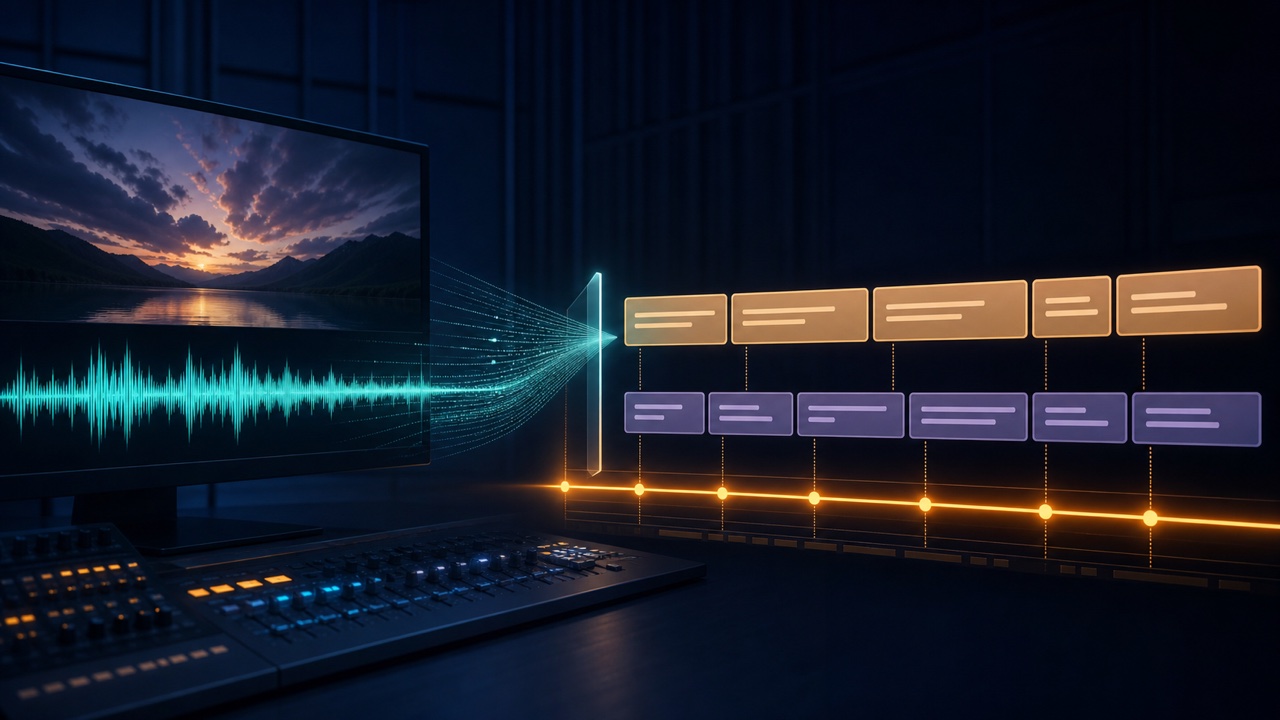
Video subtitles are not finished as soon as speech has been converted to text automatically. You still need to correct transcription errors, divide spoken language into readable segments, and align the text with the video. Making the audio easier to understand first will improve both transcription accuracy and editing efficiency.
Keep the Original Video and Audio While You Work
Before converting the file or reducing noise, make a copy of the original video and save it. Audio processed for transcription may be easier for a recognition tool to understand, but it is not necessarily the final audio you should use in the completed video.
Include the recording date, video name, and version number in the filename so you can match it to the transcription.
Extract Audio from the Video for Transcription
If your transcription tool does not support video, use the tool for extracting audio from video to create an audio file. Video quality does not affect speech recognition, so working with audio alone makes the file easier to handle.
If you only need part of a long video, first trim the video to the section you want, or divide the audio into the necessary sections after extracting it.
Make Speech Easier to Understand
Loud background music, air-conditioning noise, and steady background noise can increase recognition errors. Apply light processing with the voice noise reduction tool, taking care not to thin out voices or remove consonants.
Scenes where several people speak at once, distant voices, and speech overlapping music are difficult to separate accurately with automatic processing alone. Plan to correct these sections while listening to the original video.
Run the Transcription
Load the audio into the audio transcription tool, confirm the language, and start processing. Dividing long material by chapter or topic reduces the amount of work you need to redo if something fails and makes corrections easier to locate.
Proper nouns, people’s names, product names, technical terms, and numbers are especially prone to transcription errors, so prepare a list of likely terms in advance.
Correct Transcription Errors While Listening to the Original Audio
Do not judge the transcription only by whether it reads naturally. Always compare it with the audio. A similar-sounding but incorrect word, a missed negative, or the wrong unit or digit can substantially change the meaning.
Do not replace a speaker’s mistake with something they did not say. Decide whether to preserve their exact words or edit them for readability based on the purpose of the subtitles.
Split the Text into Readable Subtitle Segments
Do not use the transcription paragraphs as subtitles without editing them. Divide the text at meaningful phrase boundaries, breaths, and scene changes. Packing a long sentence into one subtitle can cause the next one to appear before viewers finish reading.
Do not leave a short connecting word by itself in the next subtitle. Create units whose meaning can be understood at a glance. Keep punctuation, numbers, Latin characters, and speaker labels consistent throughout.
Align the Timecodes with the Video
Do not display subtitles far ahead of the speech or remove them before viewers have time to read them. Check that adjacent subtitles do not overlap and that a brief acknowledgment does not flash on screen for only an instant.
Use automatically generated timecodes as a starting point, then fine-tune them throughout the video after importing the subtitles into your editing software.
Choose Between Subtitle Files and Burned-In Captions
Subtitle files such as SRT let viewers turn subtitles on or off and are easy to revise. Captions burned directly into a video are guaranteed to appear, but replacing only the text later is more difficult.
Check the format, character encoding, and filename requirements of the platform where you will publish. When the subtitles are finished, play the video from beginning to end and check for typos, display timing, and text extending beyond the visible frame.
