

This guide explains how to reverse an audio file in Logic Pro.
Reversing audio lets you turn a cymbal hit into a reverse effect, for example, or reverse a loop to create an unusual transition.
Three Ways to Reverse Audio in Logic Pro
As far as I know, Logic Pro offers three ways to reverse an audio file. Here they are in order.
Select the Reverse Checkbox
Open the Inspector and select Reverse in the More section.

That single step reverses the audio file. This method is also nondestructive, so you can try it without altering the source file.
Reverse Part of a File in the Audio File Editor
To reverse only part of an audio file, double-click the audio region and open the File tab in the editor that appears below.
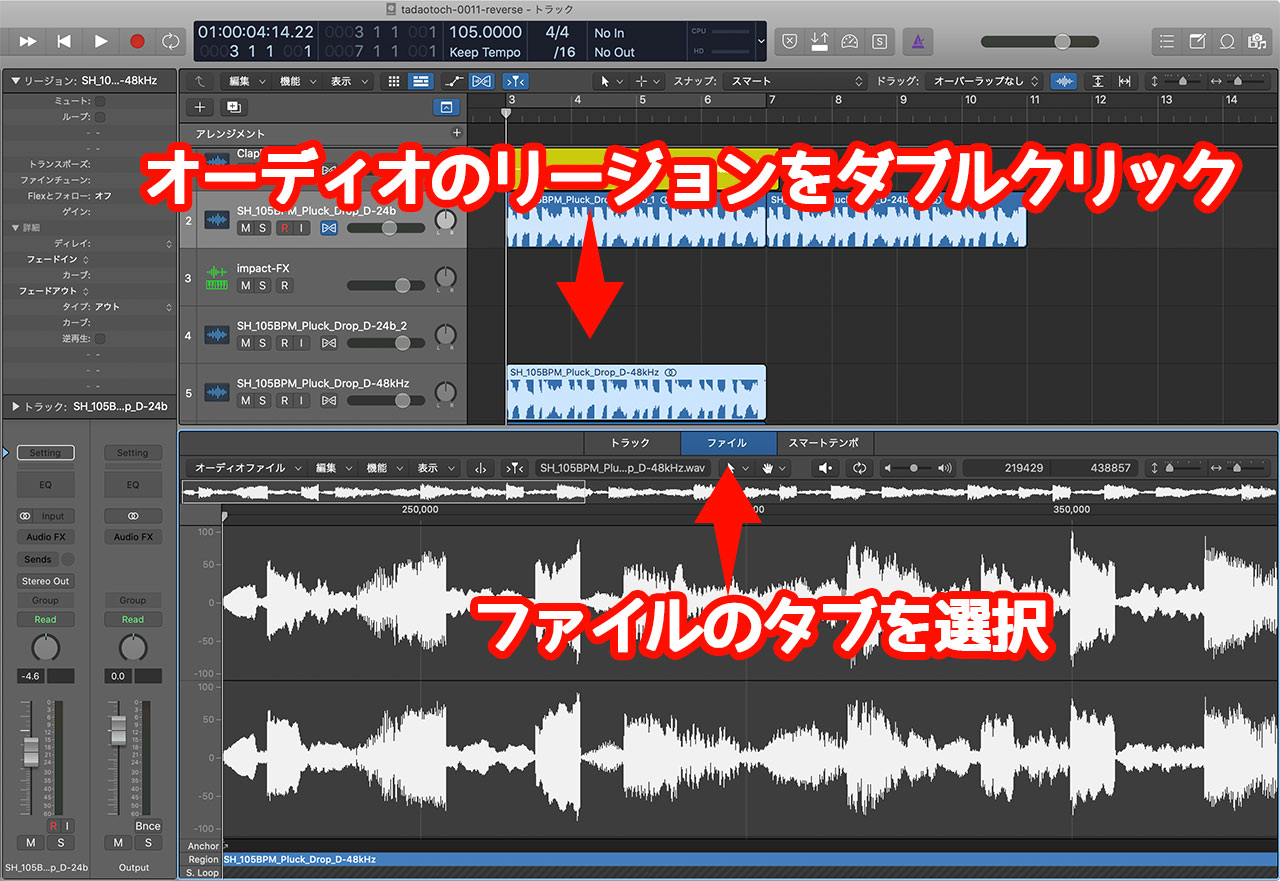
Select the range you want to reverse, open the Functions menu, and choose Reverse.
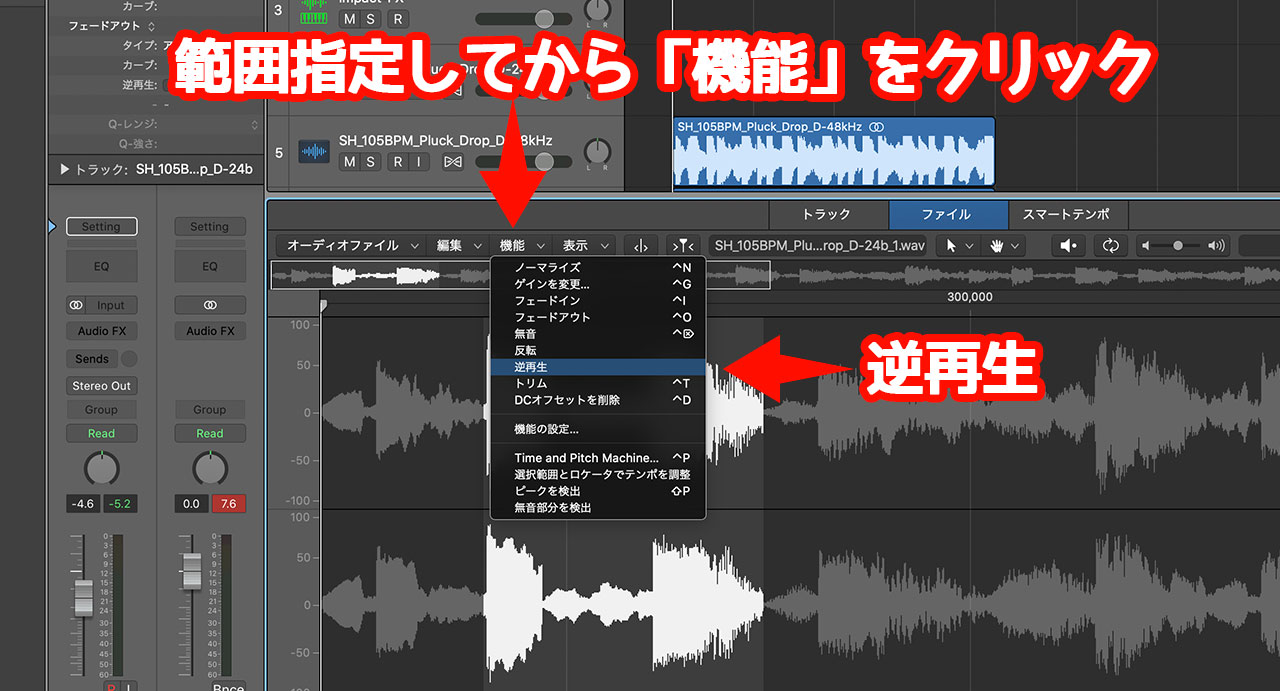
This method has the advantage of editing only a selected section, but it changes the file itself. In other words, it is destructive editing, so be aware that the underlying audio file will be modified.
It is safer to duplicate the file before performing this operation.
Enable Reverse in Sampler
Another option is to load the audio file into Sampler and reverse it there.
Open Sampler and click the Zone button. When the sampled audio file appears, enable Reverse.

This method takes more work than placing the file directly on an audio track, but it is useful for keeping a collection of sounds you use frequently.
You can build a preset containing reverse effects and reuse it in many songs. Keeping the sounds in Sampler also makes them easy to audition.
Finding Ready-Made Reverse Sounds on Splice
If you need to reverse one particular file, use one of the three methods above. If you simply need a reverse effect, however, finding a sound that is already reversed is also worth considering.
Splice is a subscription-based sample library with a wide range of reverse effects. At the time this article was written, individual sounds cost roughly ¥8 in credits.
See the following article for more details.
