

When producing music as a team or taking tracks recorded at home into a recording studio, you may need to deliver a separate audio file for each track.
This guide explains how to export every track from Logic Pro as individual audio files.
Export Individual Tracks from Logic Pro
Open the song project, then choose File > Export > All Tracks as Audio Files.
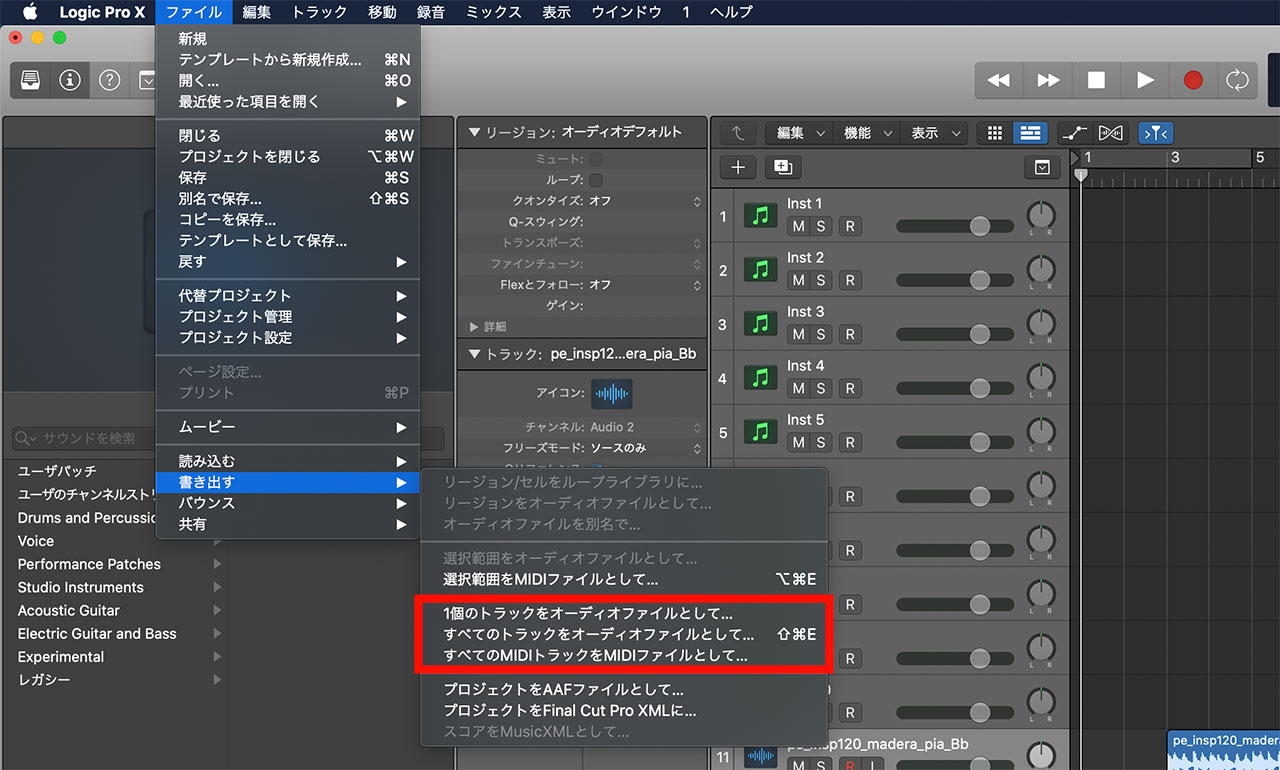
If you do not need every track, select the tracks you want and choose “Selection as Audio File” instead.
You can also export a single track as an audio file. This is more convenient than soloing and bouncing the track when you want a dry file without effects.
Settings for Exporting Audio Files
This is the Export Audio Files window.
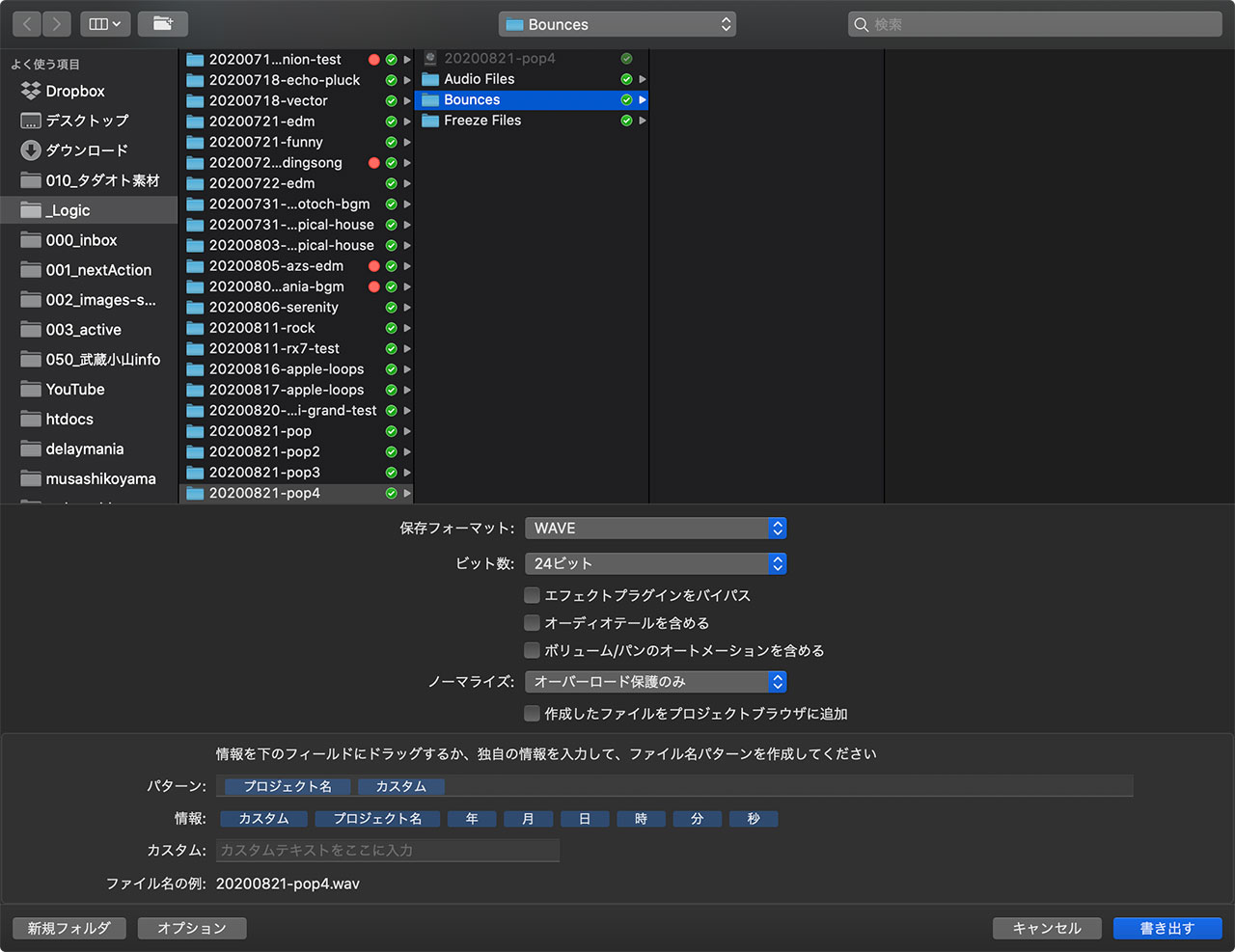
The options in the center of the window control the export.
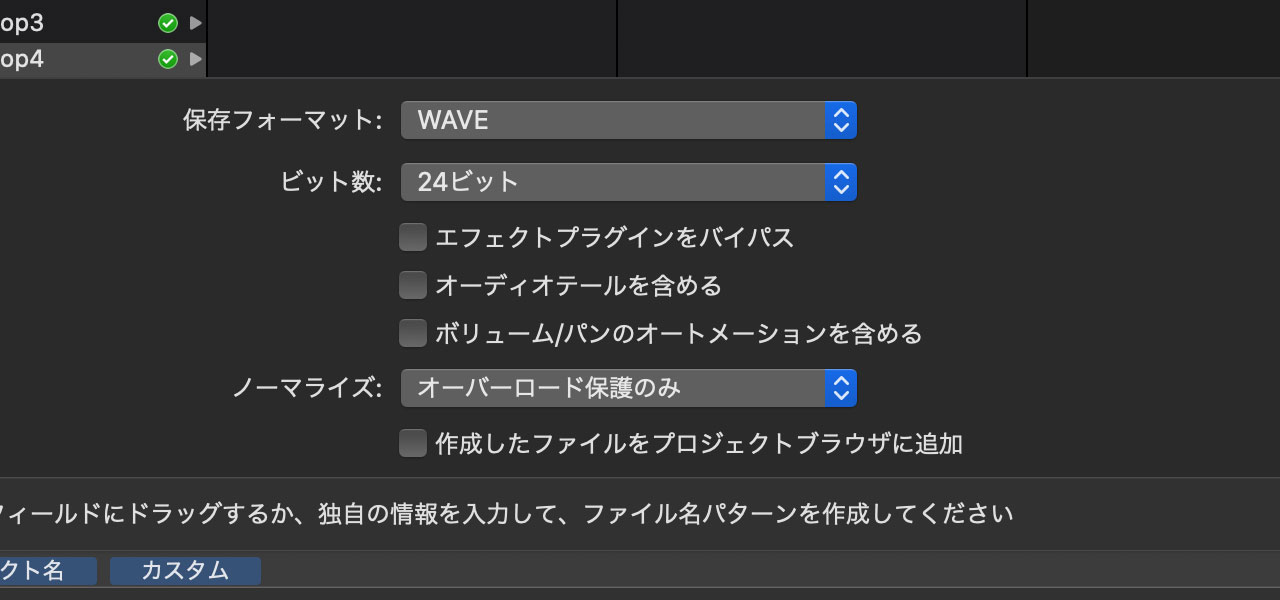
Unless someone has requested a specific format, leaving the Save Format set to WAVE is fine.
The bit depth should reflect your current Logic project settings. In most cases, exporting at 24-bit is a good choice.
Select any of the three options below it that fit your needs. For example, “Bypass Effect Plug-ins” is useful when you want to export dry tracks.
For Normalize, I recommend “Overload Protection Only.” Applying normalization unnecessarily can affect the audio.
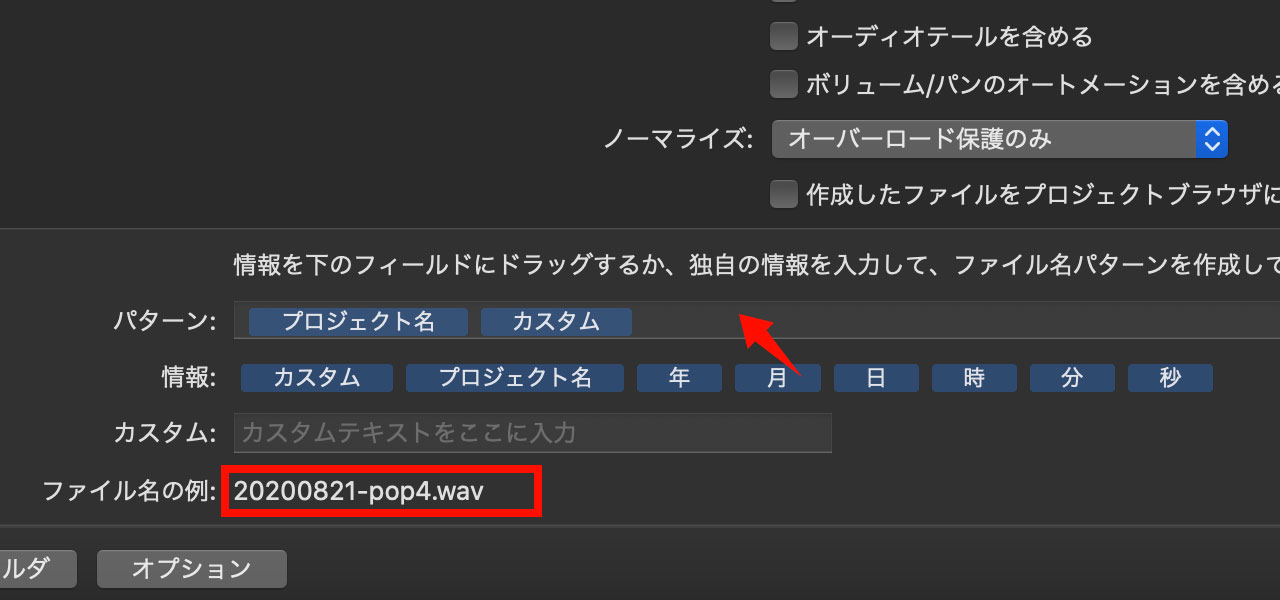
For the naming pattern, drag the elements you want into place and check the File Name Example at the lower left. You can also type text such as hyphens directly into the Pattern field.
When You Want to Bounce a Stereo Mix
To export a finished stereo mix rather than separate tracks, use the Bounce feature.
The following article explains the bouncing process in detail.
関連記事のIDを正しく入力してください