
Logic Pro is designed to let you switch between a primary tool and a secondary tool.
You can change the primary tool quickly with keyboard shortcuts. In addition, assigning a tool that becomes active while you hold Command can make editing much faster.
Set a Command-Click Tool in the Main Window
At the top of the main window, you will see two tool menus side by side.
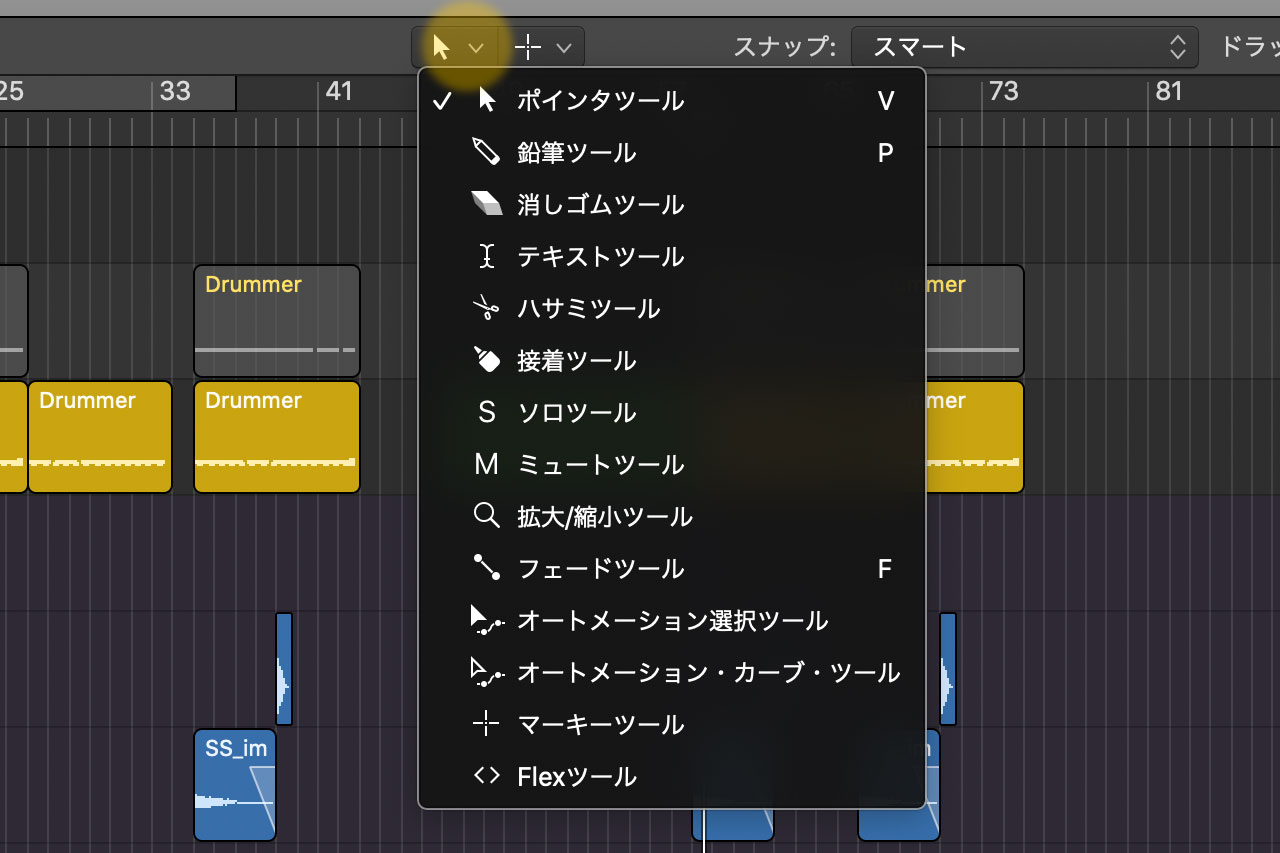
Place the pointer over the menu on the right and wait a moment. A “Command-Click Tool” label appears, indicating that this tool is available while you hold the Command key.
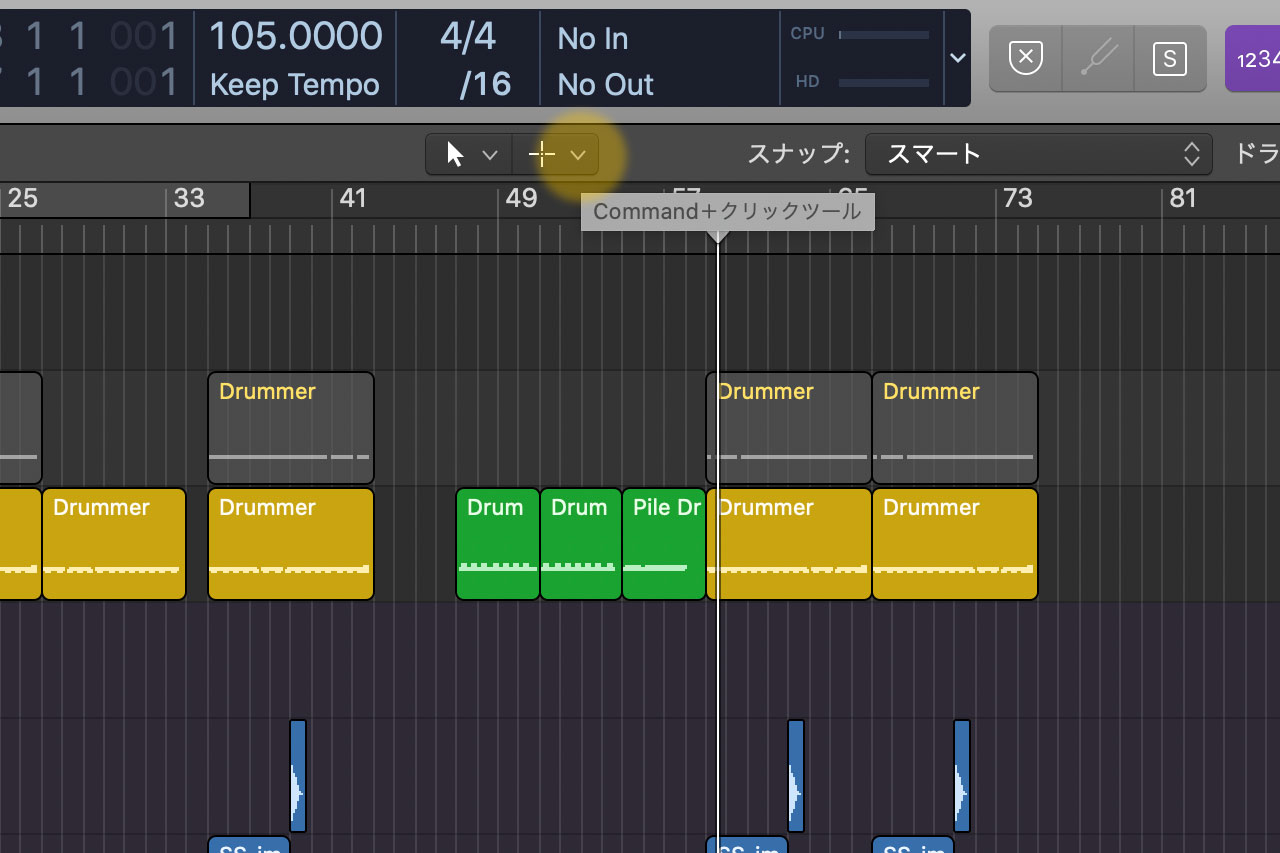
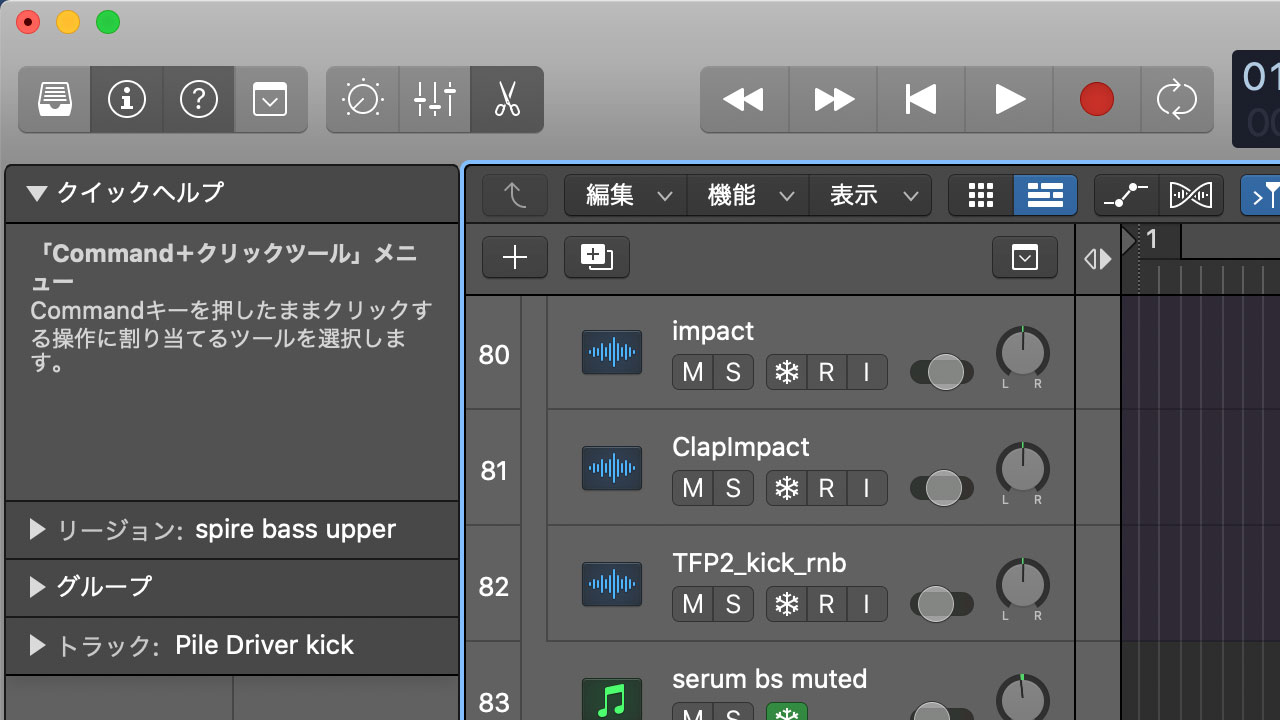
The same explanation also appears in Quick Help.
You can choose any tool to use with Command. I personally find the Fade tool especially convenient.
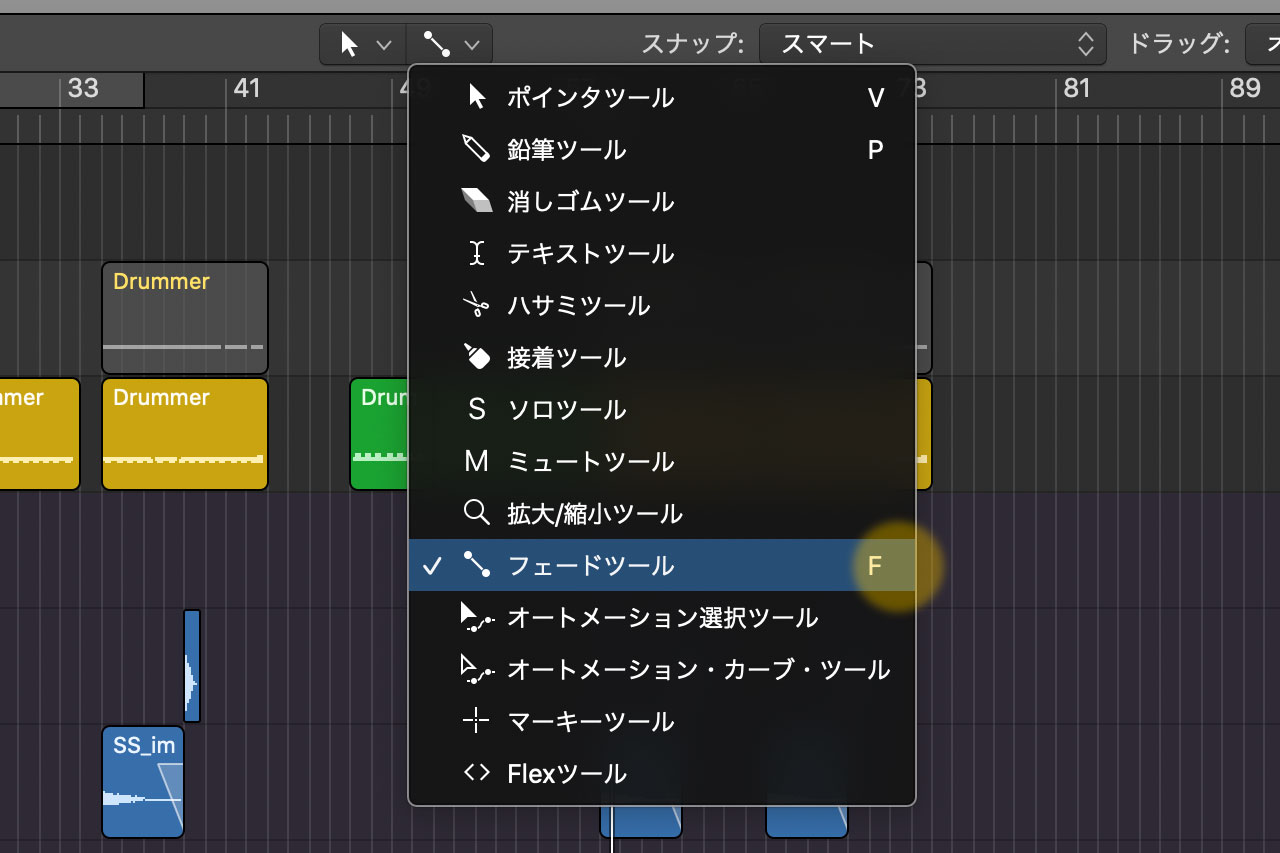
I use the Fade tool often, but I also switch back and forth between it and the Pointer tool. Holding or releasing Command feels faster than changing tools with separate keyboard shortcuts.
Set a Different Tool for the Piano Roll
You can configure the Piano Roll in the same way and assign a different Command-click tool from the one used in the main window.
For my workflow, the Velocity tool is particularly useful when assigned to Command in the Piano Roll.
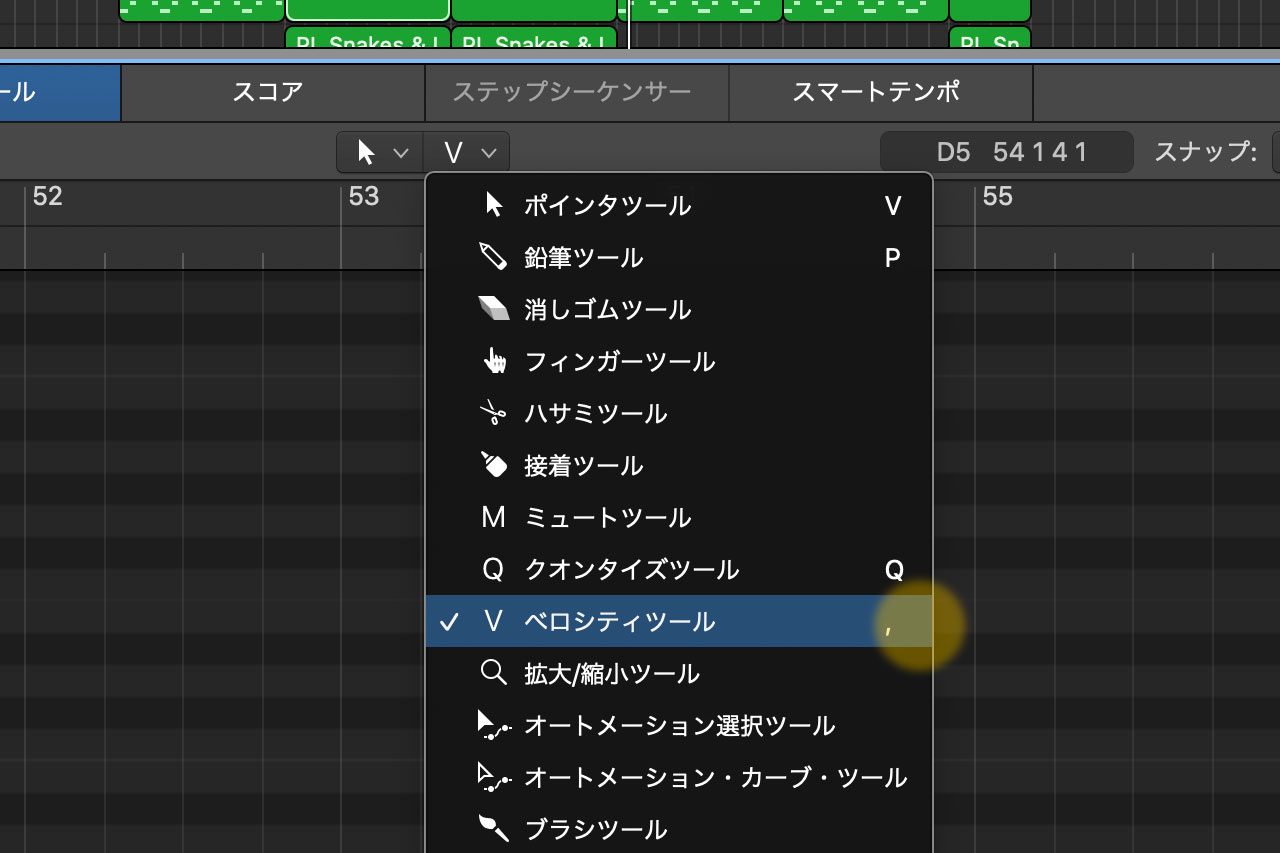
I also use the Pencil tool constantly. Because I switch between it and the Pointer tool so frequently, a dedicated keyboard shortcut feels smoother for that tool.
More Articles About Logic Pro
I have written many articles about Logic Pro operation, useful techniques, and plug-ins. See the complete list below.
