
Exporting a finished stereo mix as an MP3, WAV, or similar file is called bouncing. The Bounce window contains a surprising number of settings, which can make the process confusing.
This guide explains in detail how to bounce a project in Logic Pro.
Three Ways to Bounce a Project in Logic Pro
As far as I know, there are three ways to open the Bounce window.
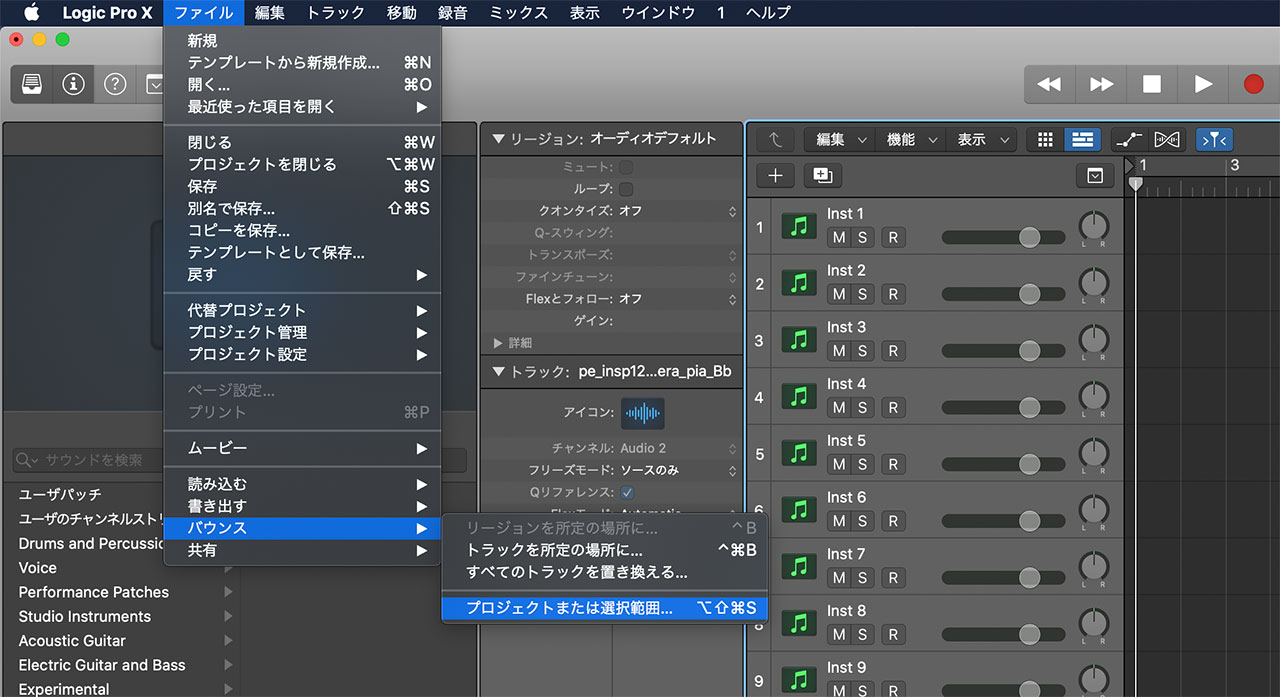
The first is to choose File > Bounce > Project or Section.
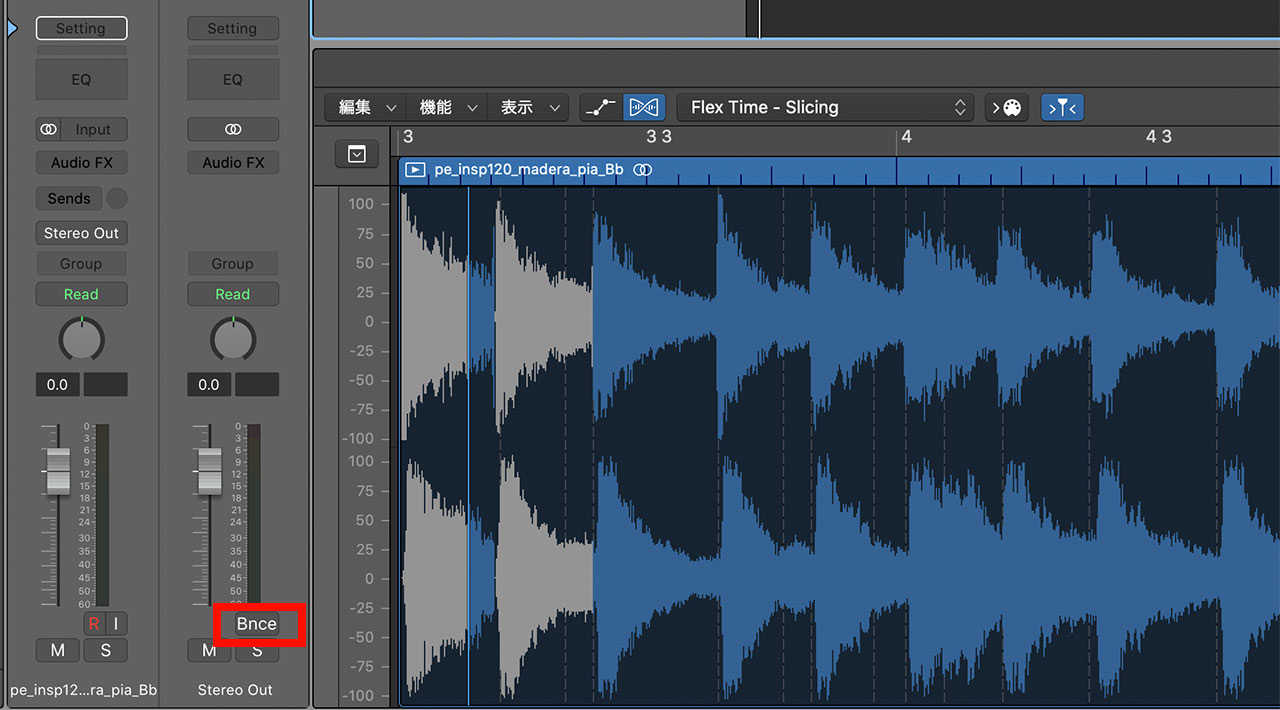
The second is to click the Bnce button below the master track. This is probably the quickest method.
Finally, you can assign a key command that opens the Bounce window. This lets you export at any time without moving the pointer.
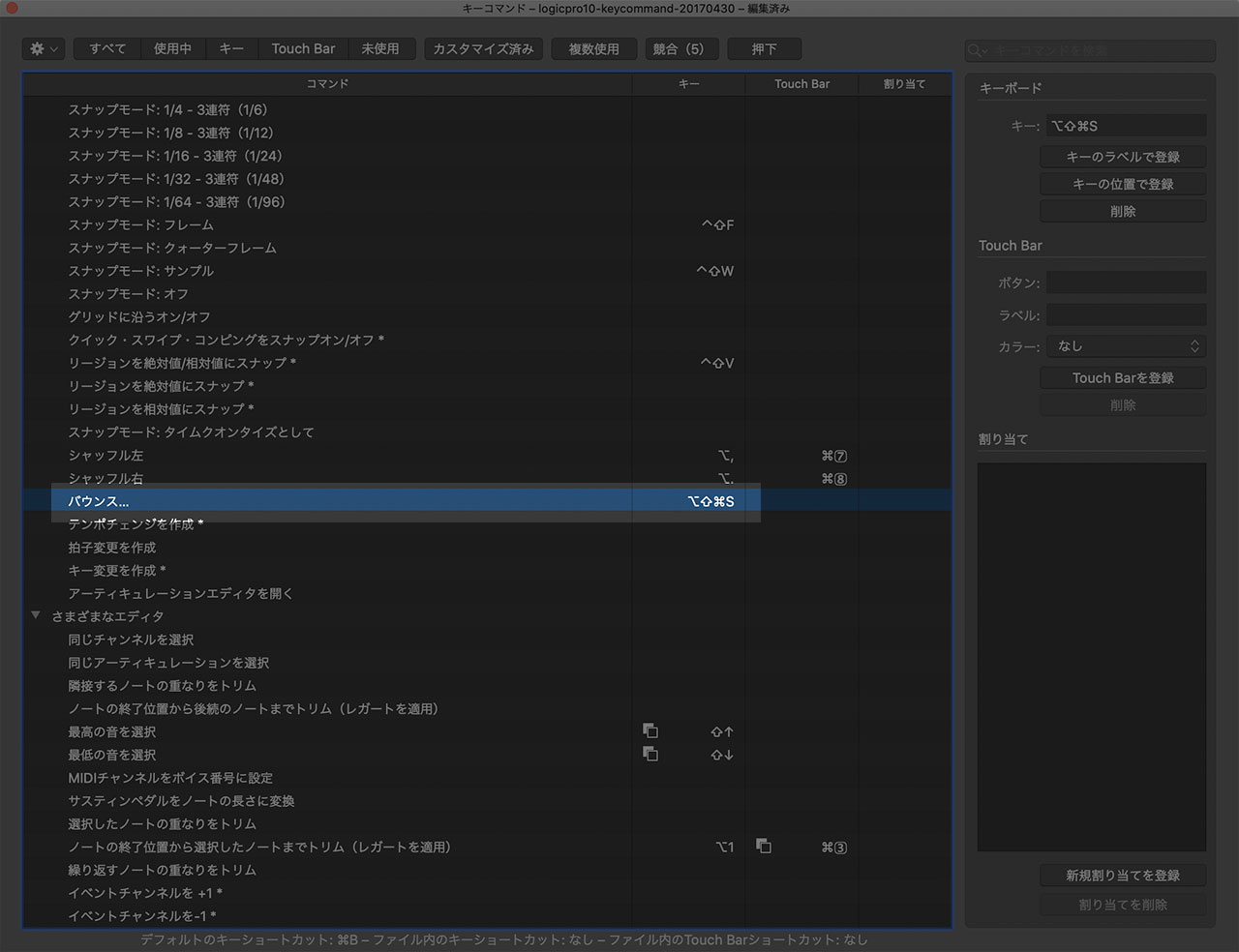
All three methods open the same Bounce settings, so use whichever one you prefer.
How to Set the Bounce Range
You can set the start and end positions in the Bounce window, but it is often more convenient to define them in the main window first.
The yellow bar at the top is the cycle area. Logic can bounce only the range covered by this area.

The “Set Locators/Loop by Regions/Events/Marquee and Enable Cycle/Loop” key command makes this easy, so I recommend assigning it a shortcut.
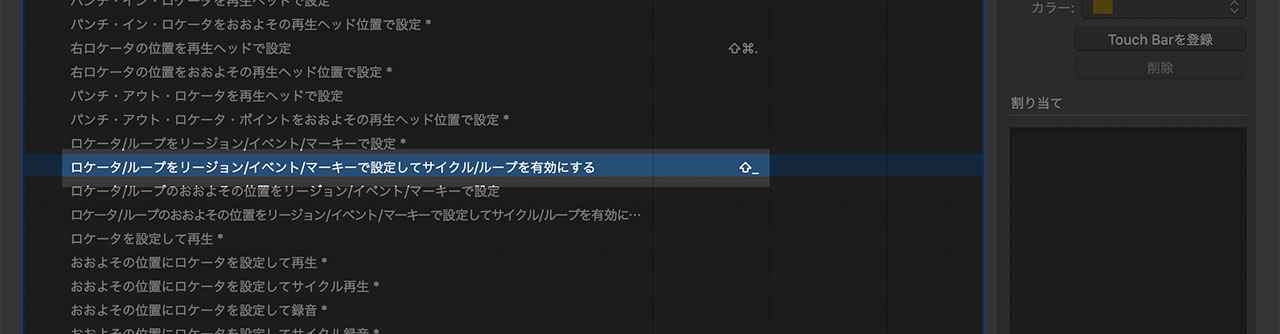
Bounce Settings
Here are the main settings available when bouncing.
First, consider exporting as PCM.
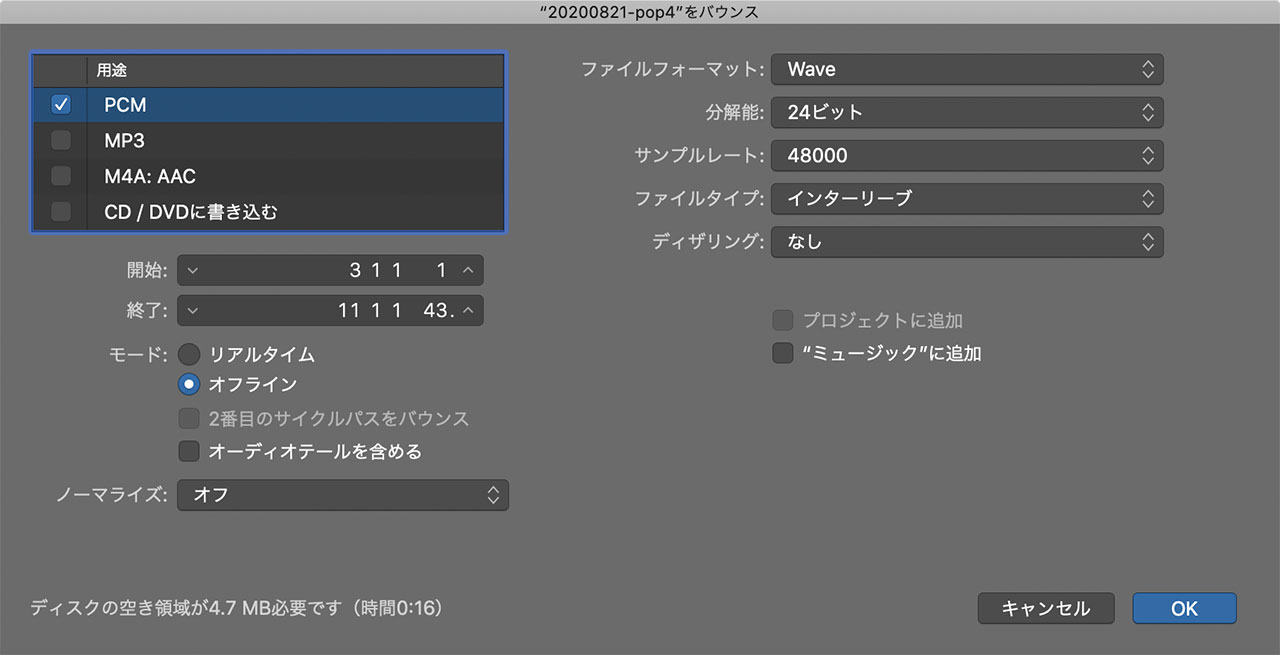
You can choose WAVE, AIFF, or CAF as the file format. Unless you have a specific reason to use another format, WAVE is usually the best choice.
For resolution and sample rate, 24-bit/48 kHz is a useful general setting. A master intended for an audio CD may need to be exported at 16-bit/44.1 kHz.
Offline is usually fine for the Mode setting and reduces export time. For especially important files, such as release masters, I recommend a real-time bounce because it is less likely to contain rendering errors.
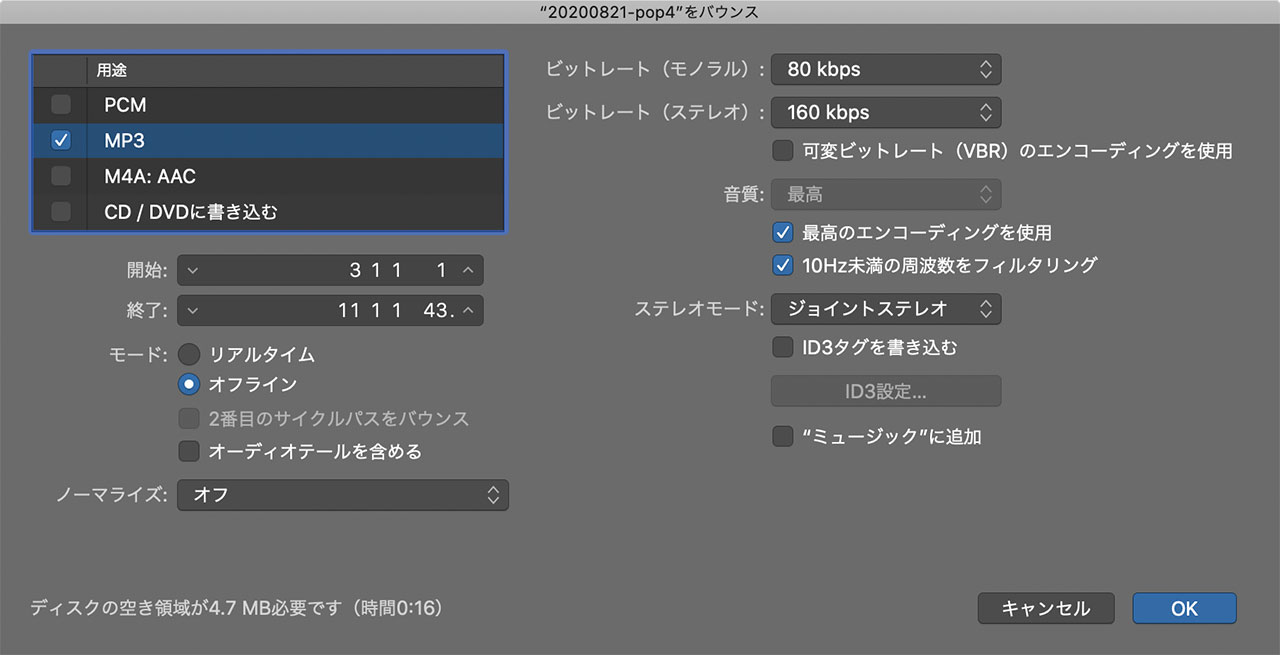
MP3 export also offers detailed settings. You may want to raise the bit rate when creating a high-quality file for distribution, but the defaults are generally fine for ordinary use.
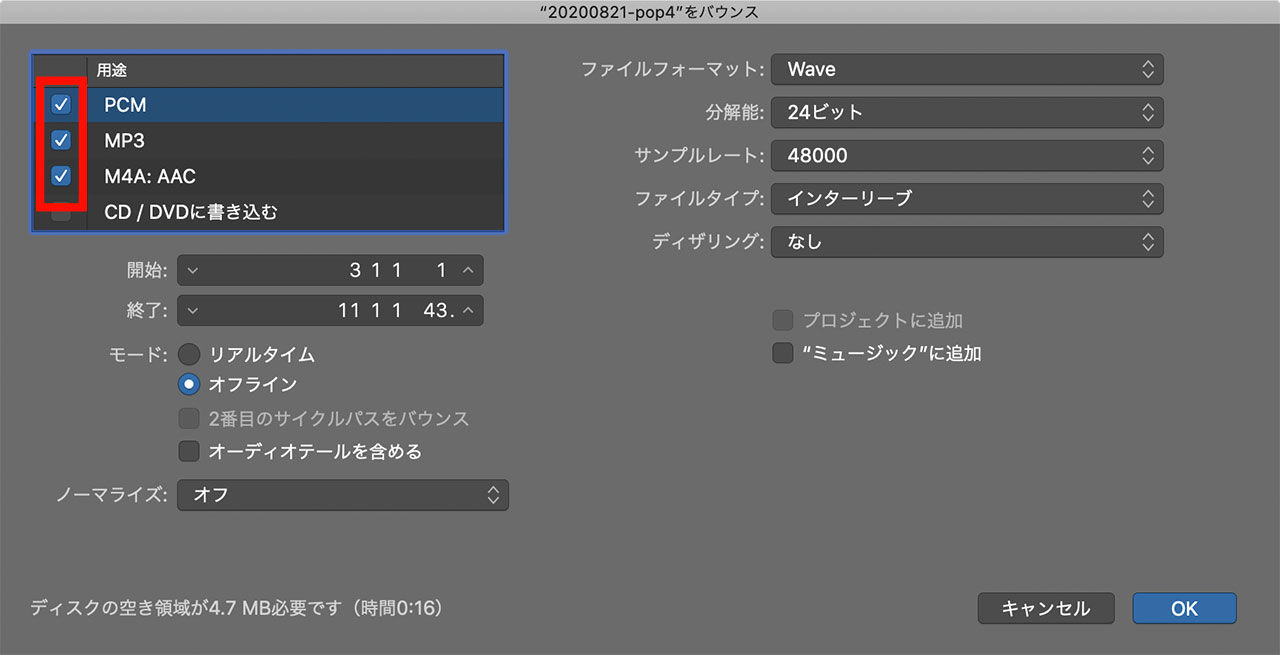
You can export PCM, MP3, and AAC versions at the same time. Select each format you need, then click OK at the lower right.
When You Need to Export Individual Tracks
Sometimes you may need separate files for each track rather than a finished stereo mix.
Bouncing every track individually would be tedious, so Logic provides a way to export them all at once.
The following article explains the complete procedure.
