
OBS, the familiar livestreaming application, can process recorded audio through music-production plug-ins in real time.
iZotope RX 8 is especially useful because it can substantially reduce the steady hiss from air conditioners and computer cooling fans.
Here is how to use the noise-reduction features of iZotope RX 8 in OBS.
How to Use iZotope RX 8 in OBS
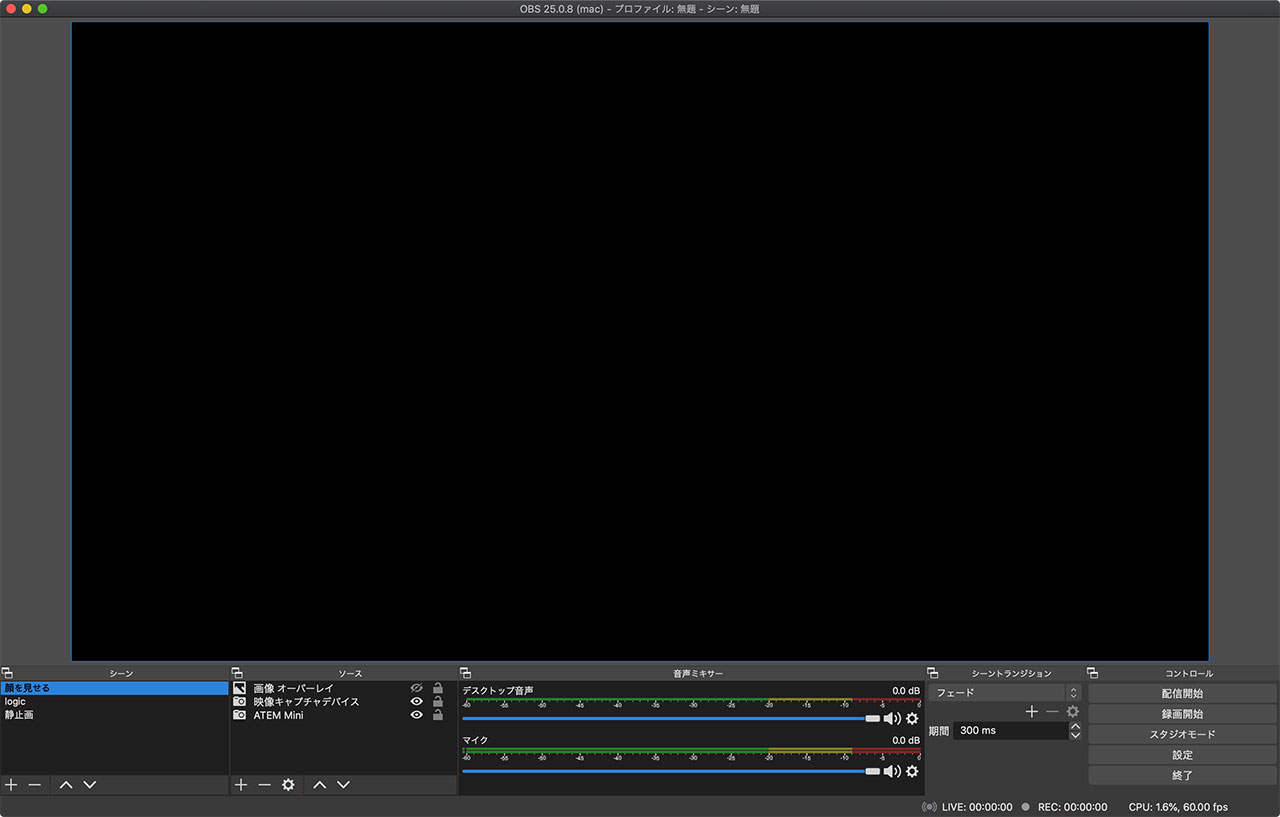
First, launch OBS. This is the main OBS window.
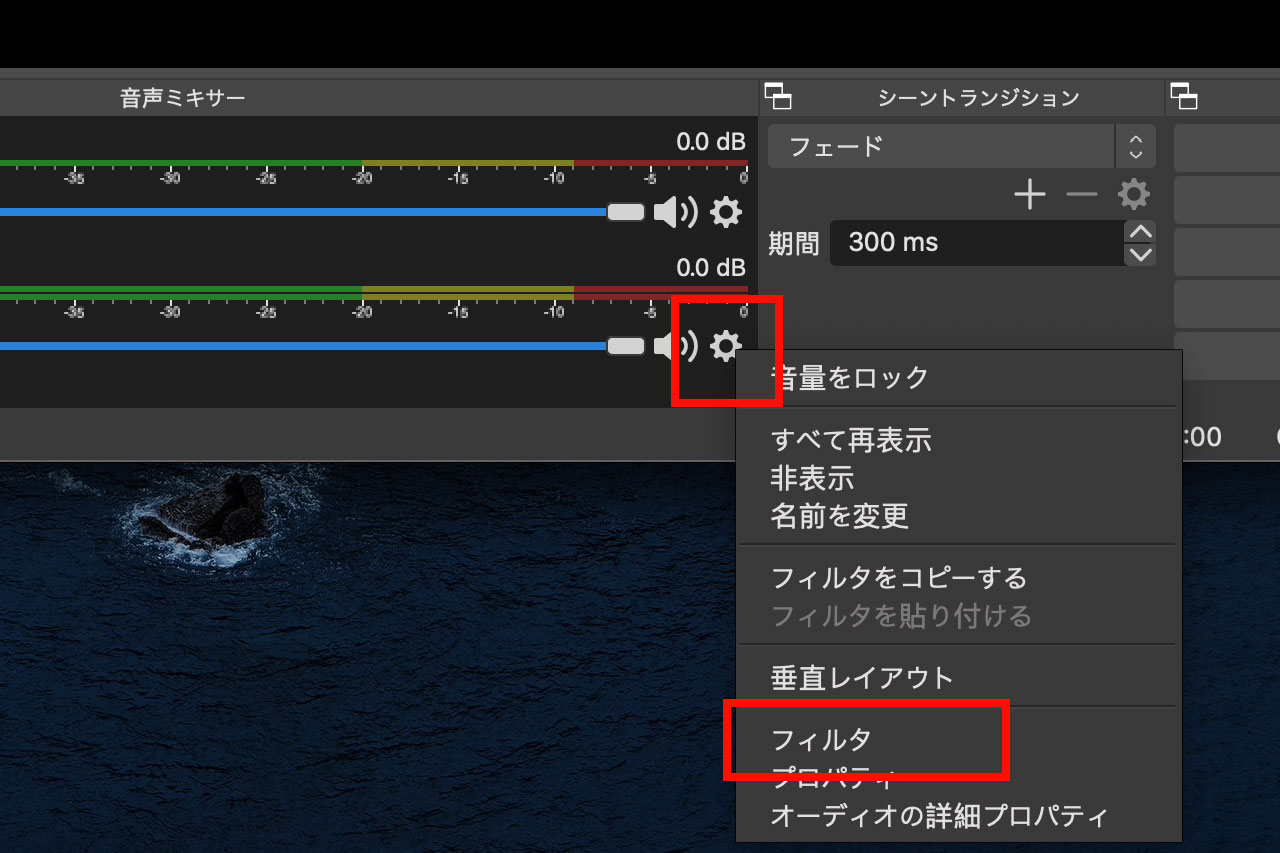
Click the gear icon to the right of the microphone in the lower part of the window, then select Filters.
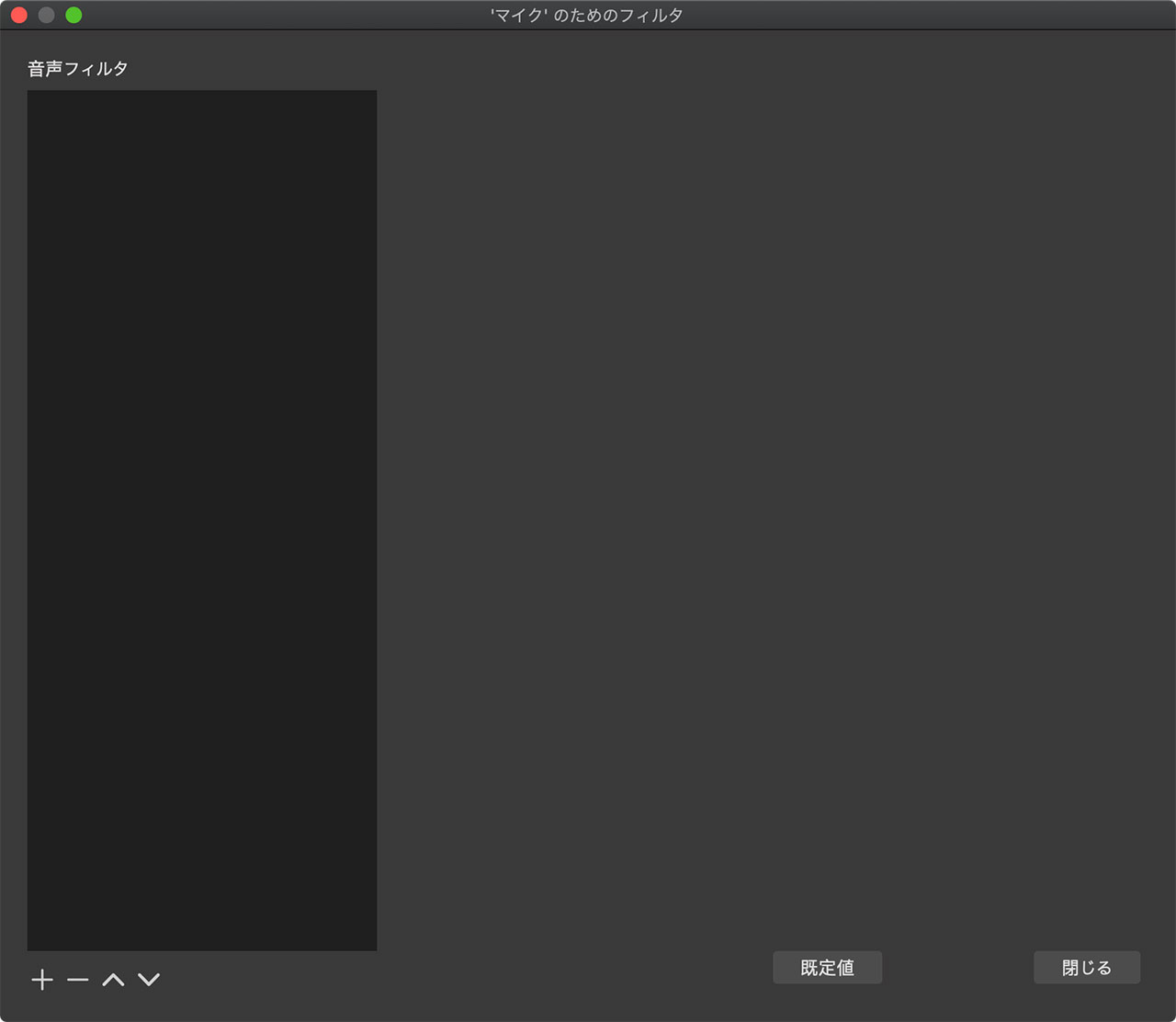
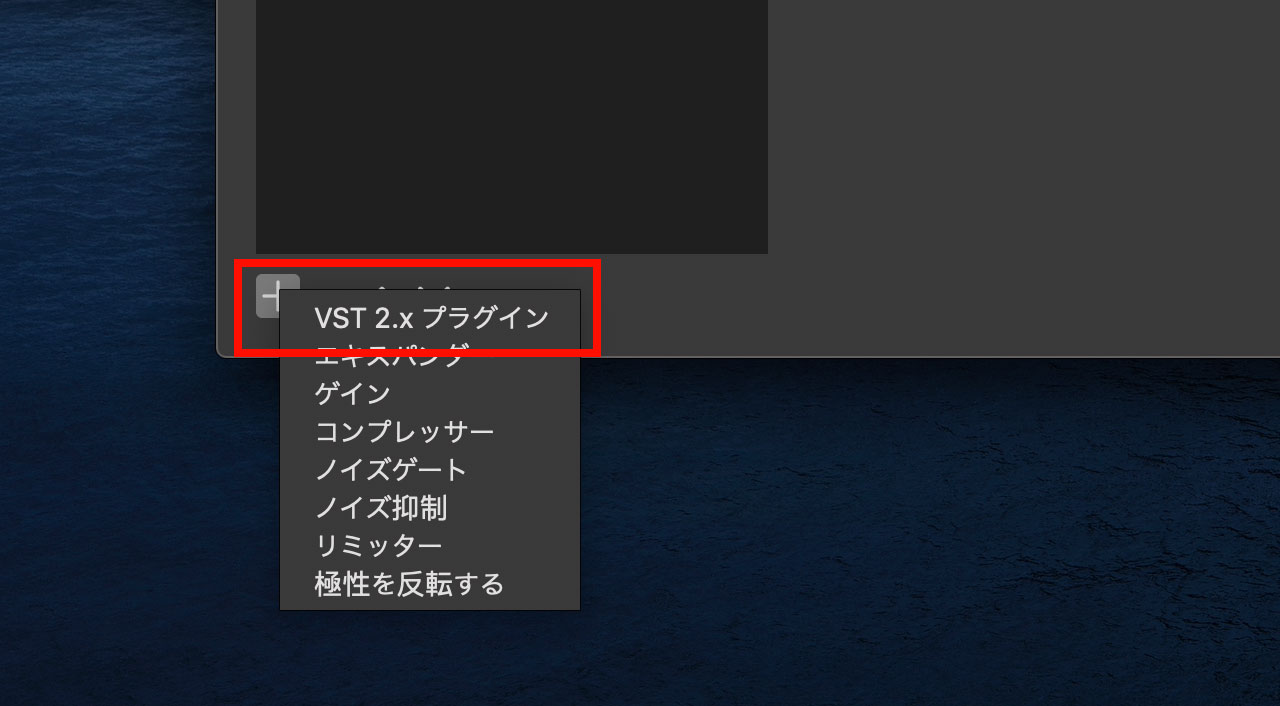
Click the + button in the lower-left corner of the Filters window.
Select VST 2.x Plug-in from the menu that opens.
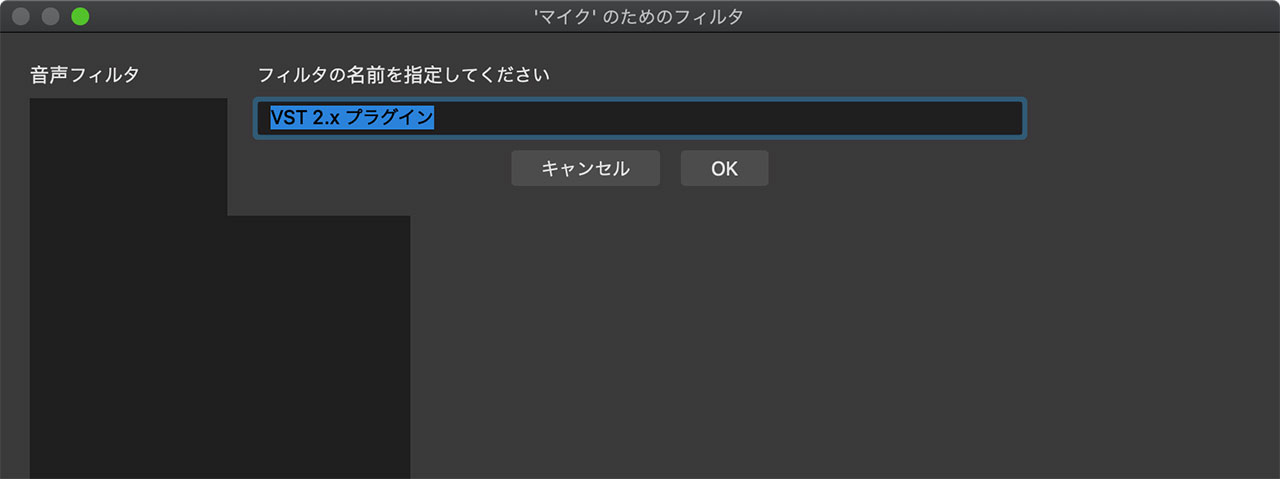
You can use any name that makes sense to you. If you do not plan to use other VST plug-ins, leaving the default name and clicking OK is fine.
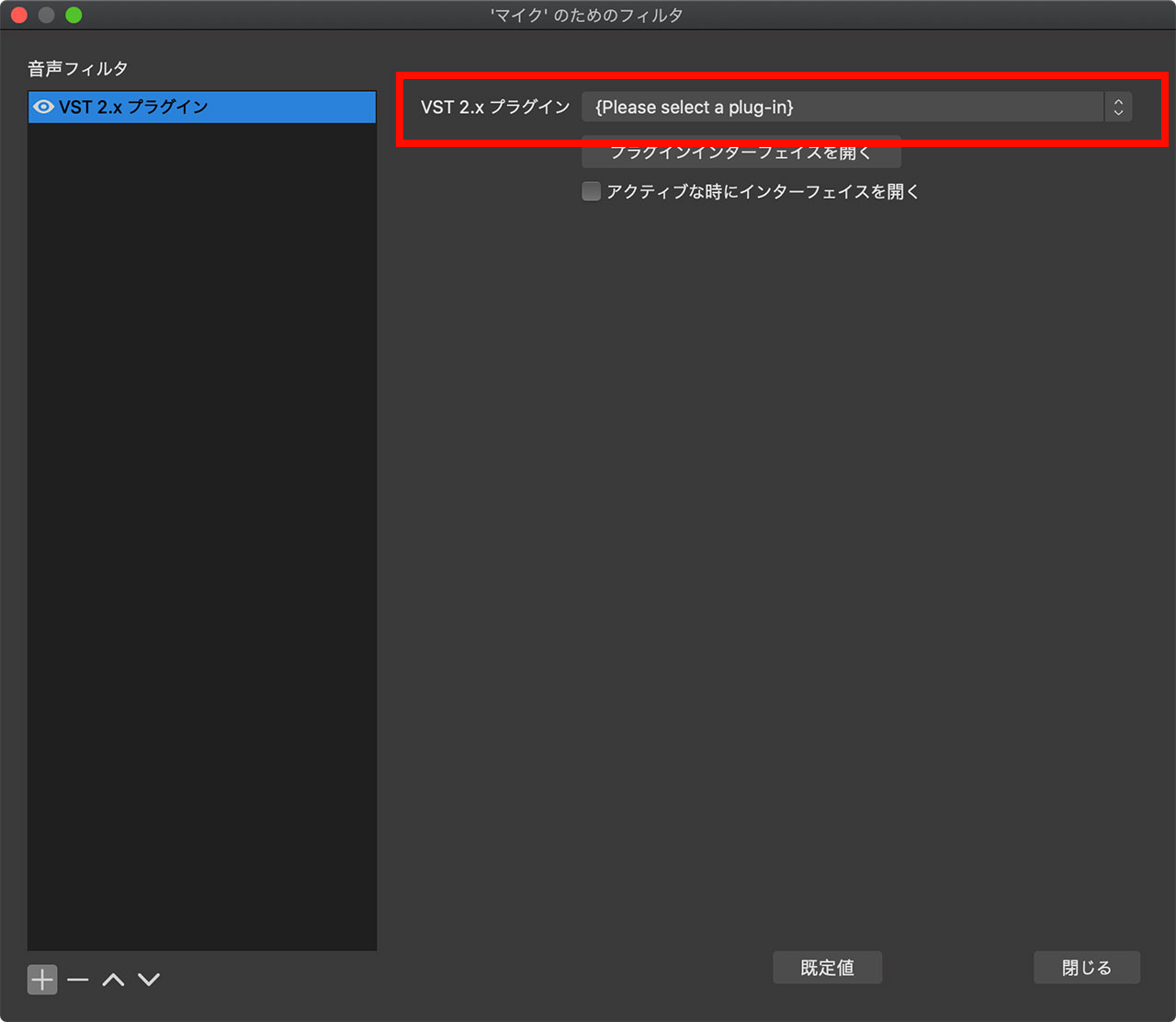
Open the plug-in selection menu.
OBS displays a list of installed plug-ins. Select RX 8 Voice De-noise.

Then click Open Plug-in Interface.
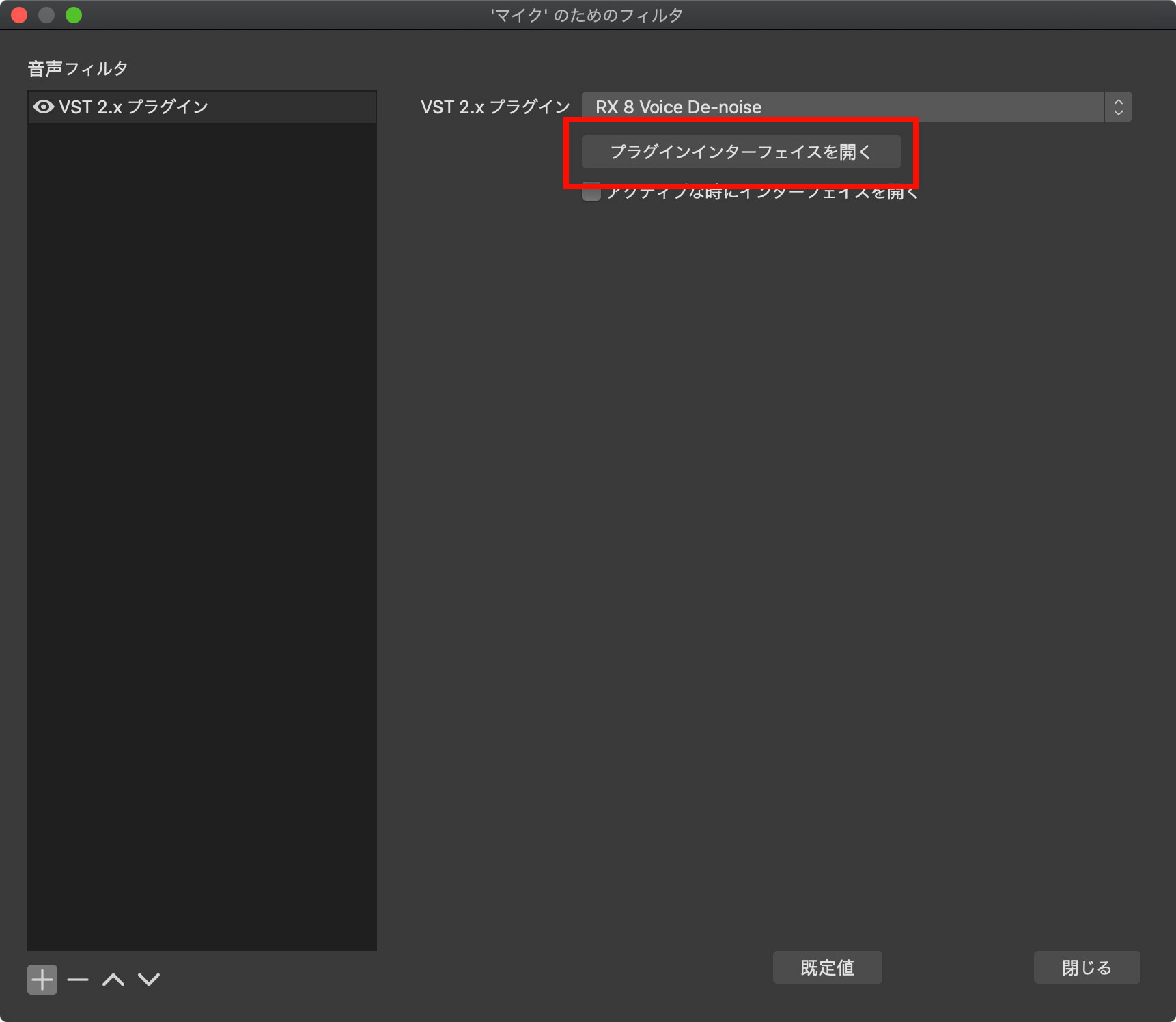
The Voice De-noise interface will open.
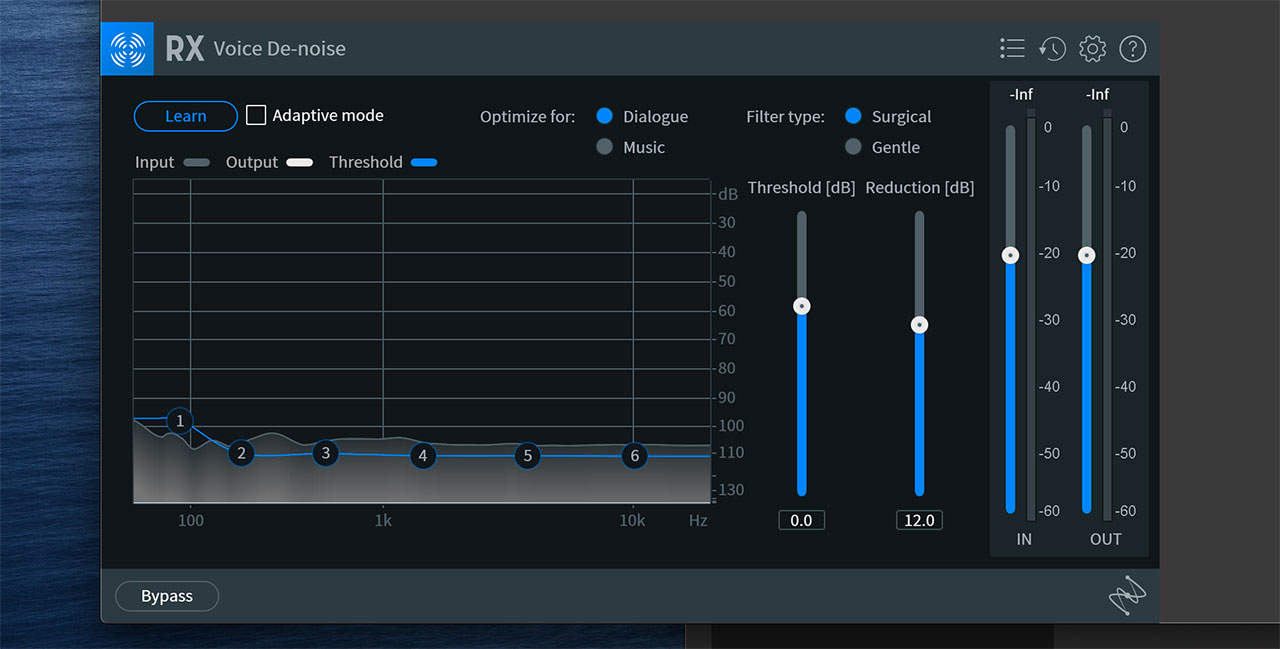
I explain the controls in detail in another article, but the basic setup is as follows.
- Turn off Adaptive mode
- While the microphone is capturing only the ambient noise, click Learn so the plug-in can analyze it
- Speak while adjusting Threshold and Reduction until the voice sounds natural
Once this is set up, you can simply start talking on your livestream. Even with the air conditioner running, Voice De-noise can reduce the steady hiss to a level that viewers are unlikely to notice.
How Much Noise Can Voice De-noise Remove?
I also tested removing air conditioner noise with Voice De-noise in the article below. It includes more detailed instructions for using the plug-in.
関連記事のIDを正しく入力してくださいThe effect is even easier to understand in a video, so take a look at this demonstration as well.
