

If you use a keyboard or pad controller to enter MIDI, you have probably had a moment when you thought, “That take I was casually playing just now was actually pretty good.”
Logic Pro’s Capture Recording feature can recover that performance. This guide explains how to use it.
What Is Capture Recording?
Capture Recording displays your most recent performance as MIDI data.
Unfortunately, it does not work when recording vocals, guitar, or other audio. With MIDI input, however, Logic can turn what you just played into MIDI data even if you were not recording.
Press Play and perform without starting a recording. When you finish, click the Capture Recording button.
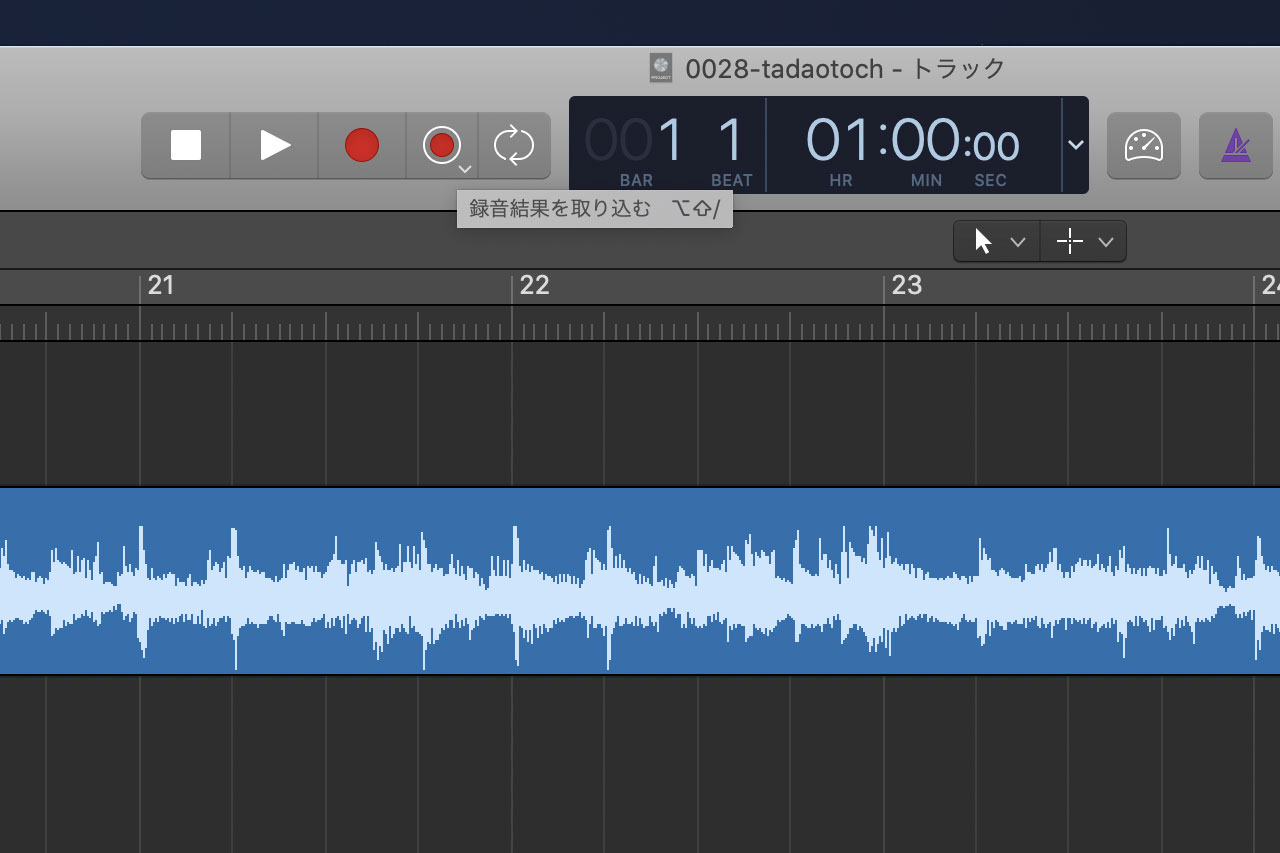
Even though you were not recording, the notes you just played will appear as MIDI data.
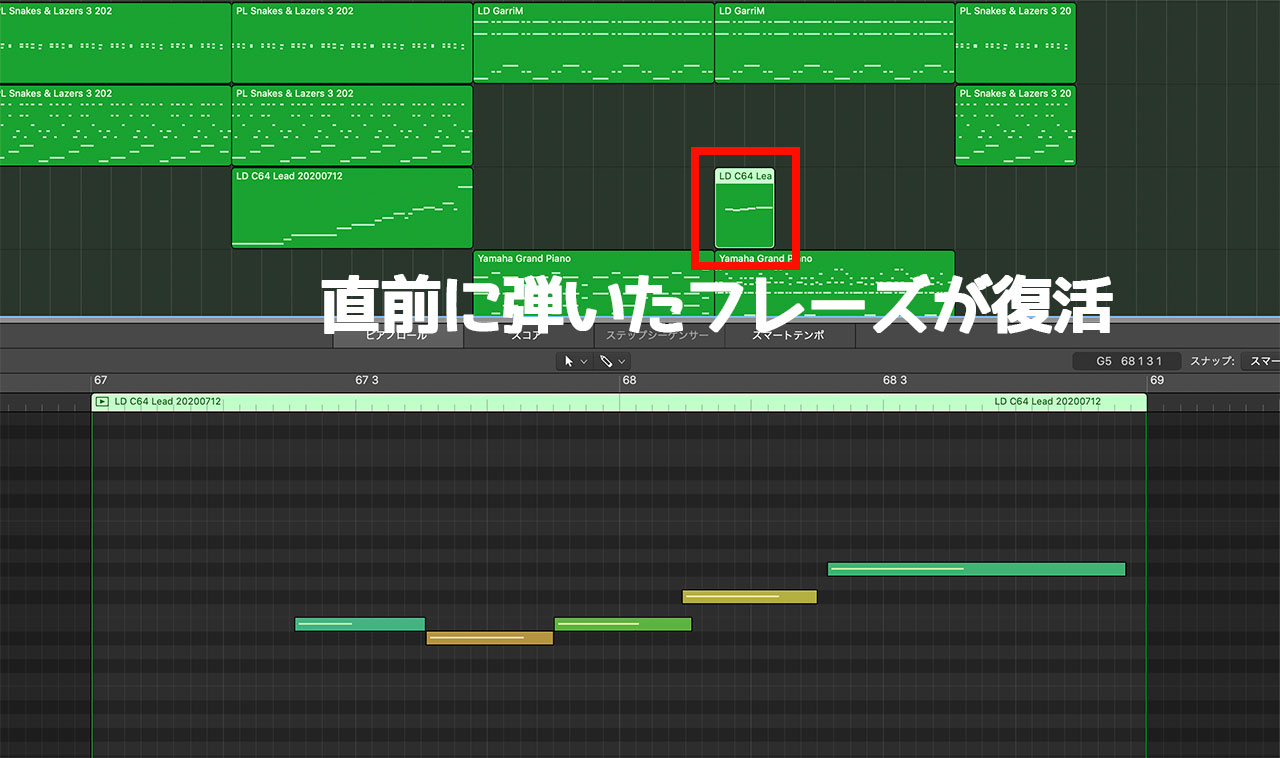
One important limitation is that this works only for your most recent take. The moment you press Play again, that performance becomes the take before last, so be sure not to press Play until you have captured it.
Add Capture Recording to the Control Bar
The Capture Recording button is hidden by default. To use it, customize the Control Bar.
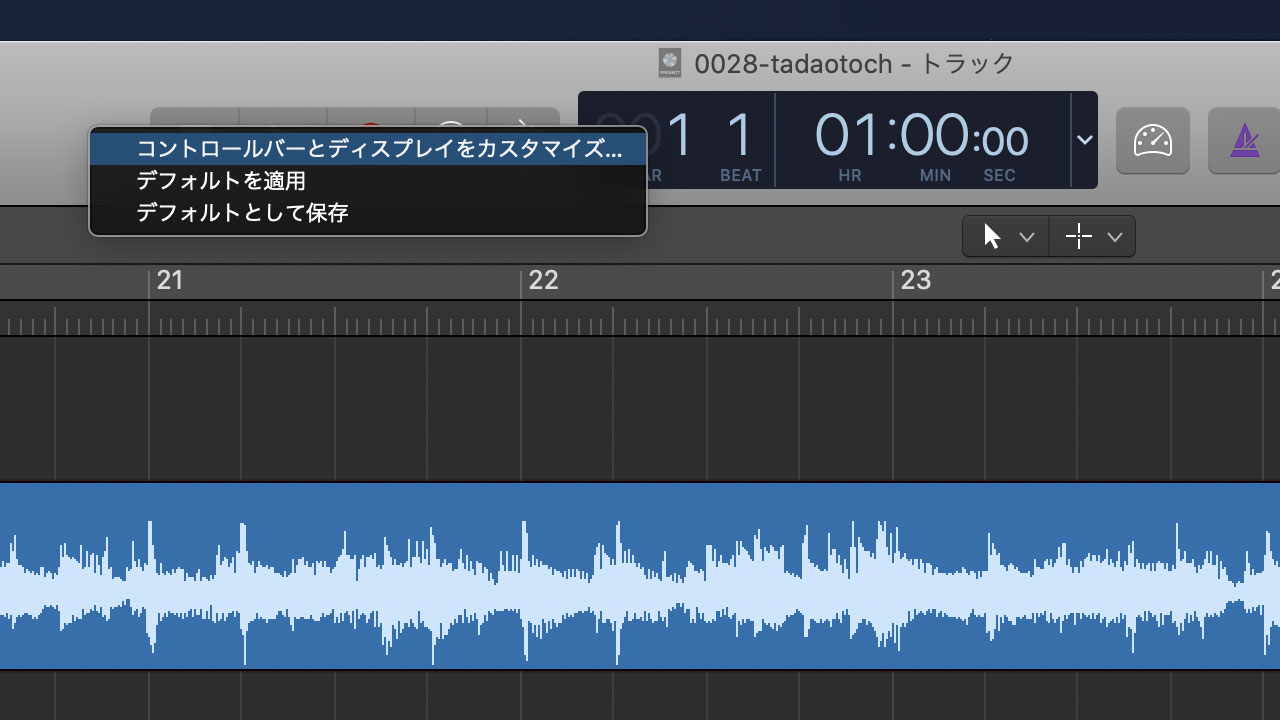
Move the pointer over the header area, secondary-click, and choose “Customize Control Bar and Display.”
In the second column from the left, find “Capture Recording” near the bottom of the Transport section and select its checkbox.
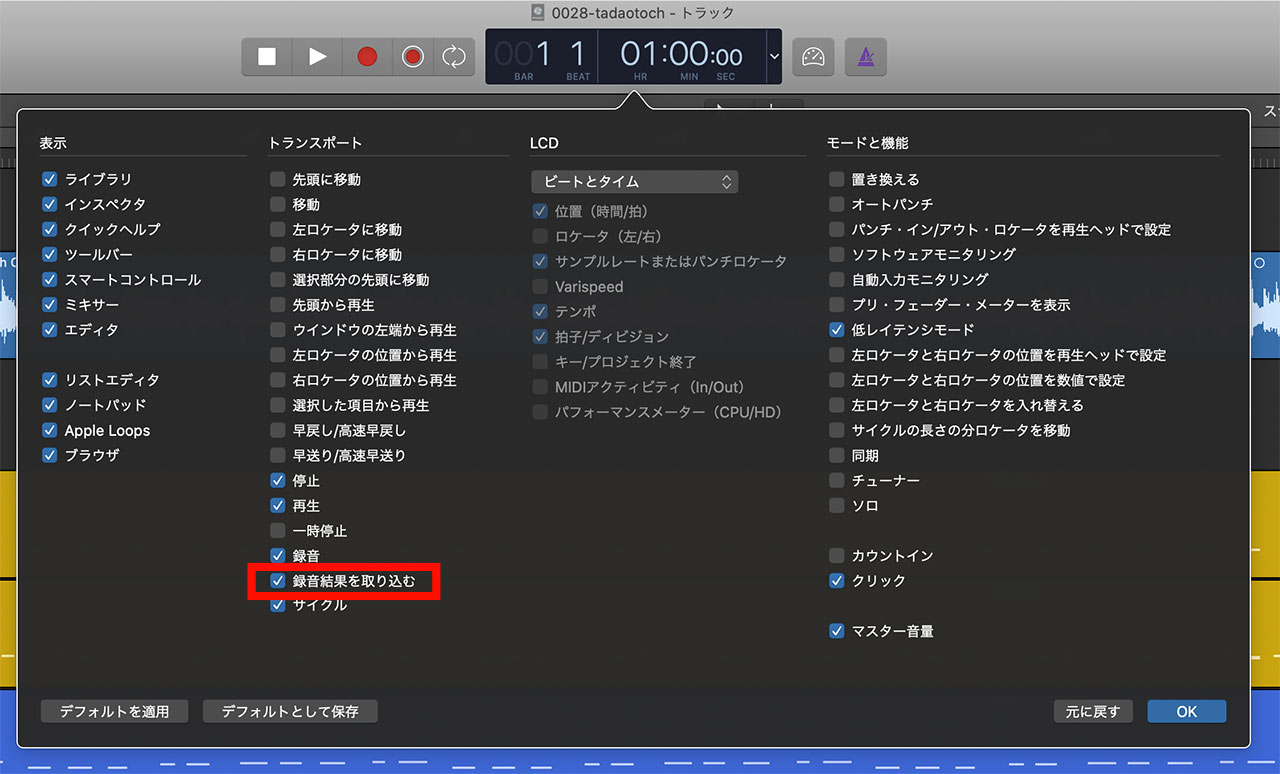
You can now use the button to capture your most recent performance.
You Can Also Assign a Keyboard Shortcut
If clicking the button feels inconvenient, assign the feature to a keyboard shortcut.
However, in Logic Pro X 10.5.1, the key command uses a slightly different name, which can make it difficult to find.
Search for “recording” in the Key Commands window. “Capture as Recording” is the same feature, so assign your preferred shortcut to that command.

The following article also covers my other recommended Logic Pro keyboard shortcuts.
