
I once installed a plug-in that Logic Pro failed to recognize.
These are the steps that solved the problem for me. I hope they help if you encounter the same issue.
Scan the Plug-In in Logic Pro
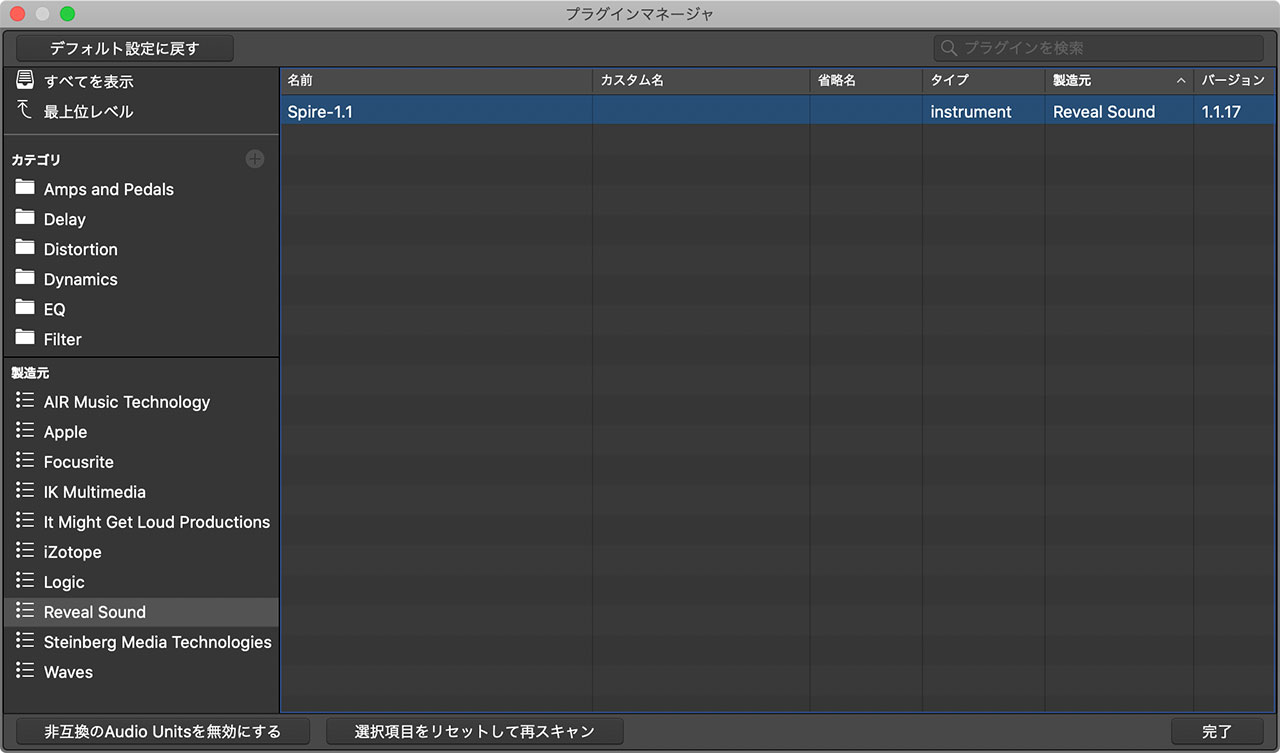
First, check Logic Pro’s Plug-in Manager.
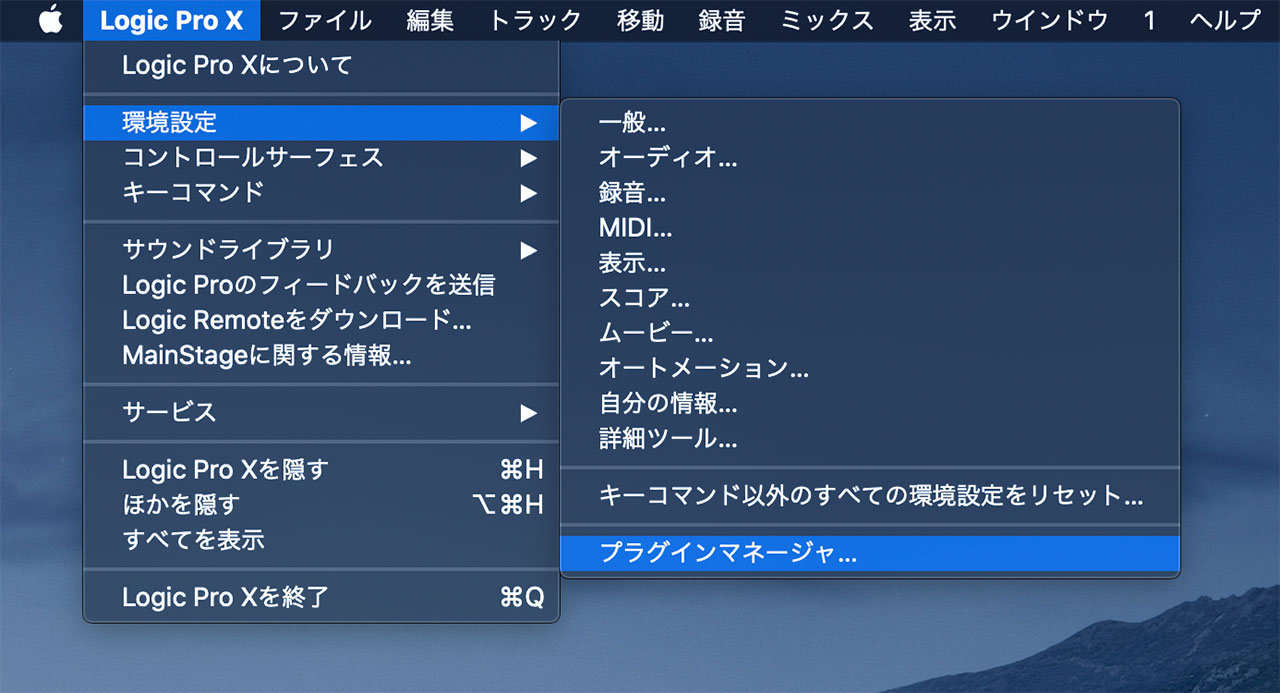
Choose Logic Pro > Preferences > Plug-in Manager to open the Plug-in Manager.
If the plug-in you installed appears in the list but is unavailable, select it and click Reset & Rescan Selection at the bottom.
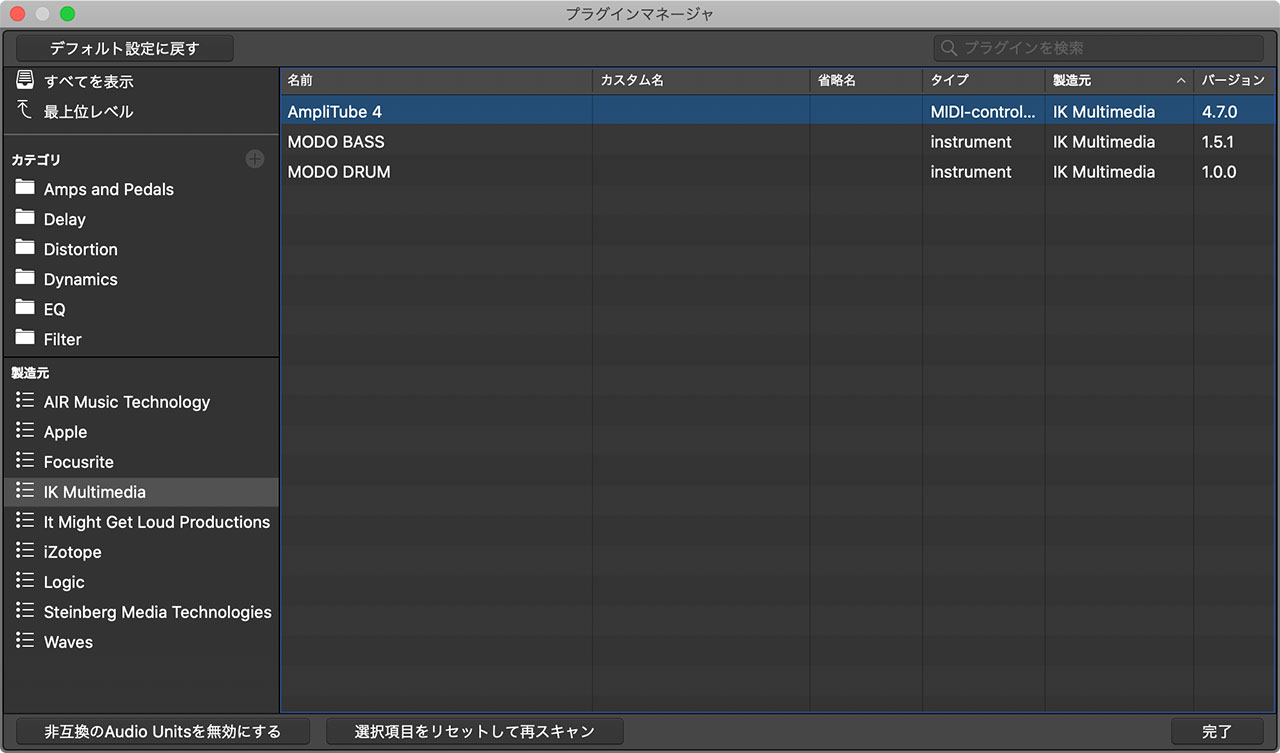
The plug-in should now be available.
When the Plug-In Does Not Appear in the List
The steps above do not always work, so here is another method.
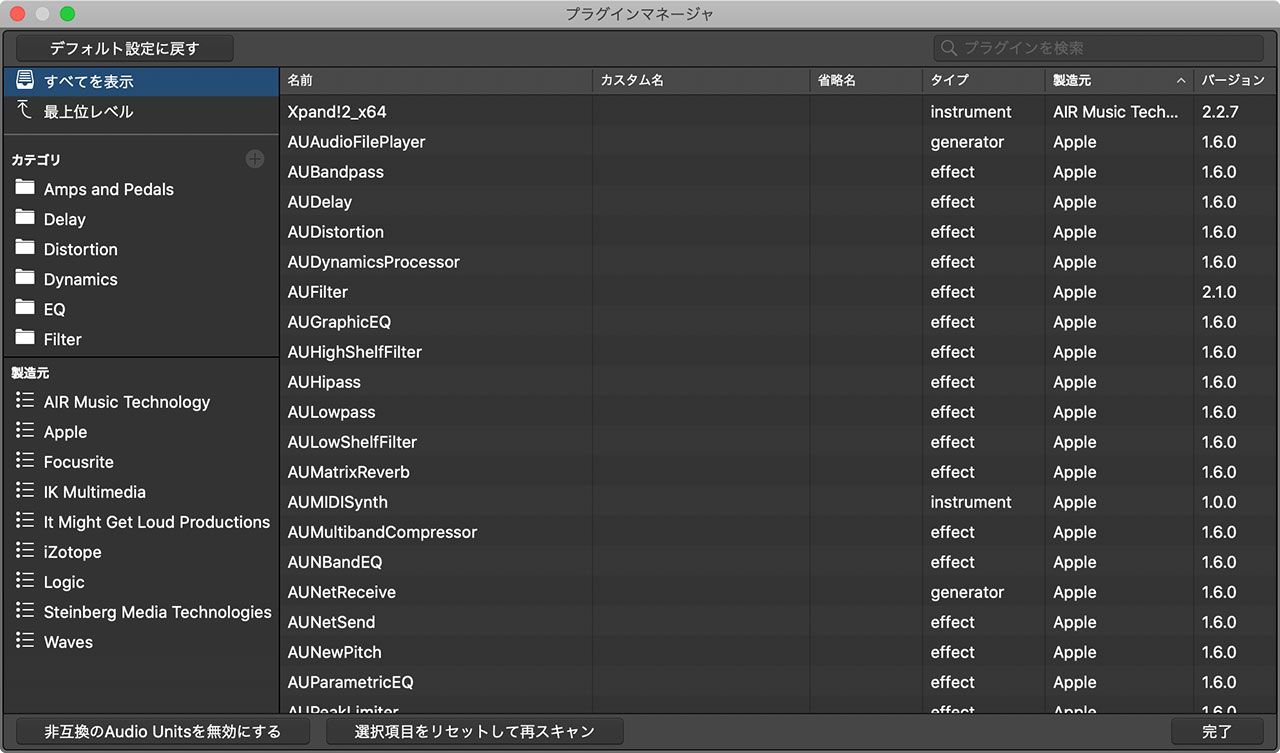
Manufacturers appear on the left and plug-ins on the right. In my case, I had just installed Reveal Sound’s Spire, but neither its name nor the plug-in appeared where expected.
Open Macintosh HD/Library/Audio/Plug-Ins/Components and move the file with the .component extension out of the folder. The Desktop or any other temporary location is fine.
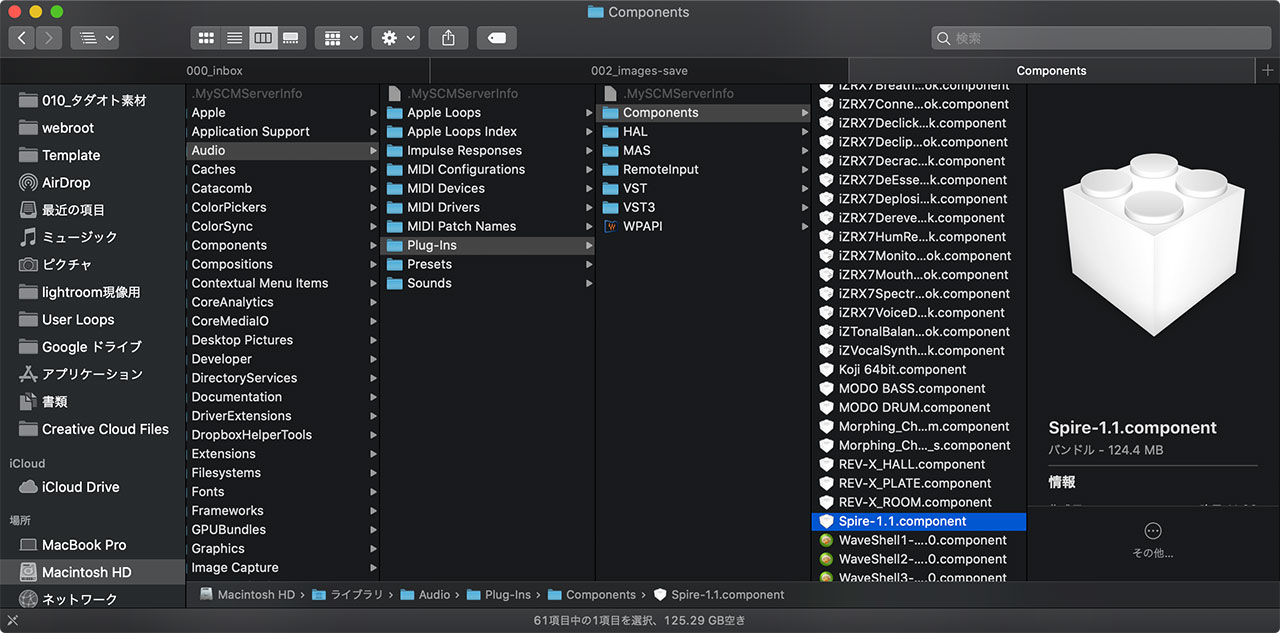
After moving the component file, launch Logic and then quit it again.

Move the component file back to its original folder, then launch Logic again.
The manufacturer and plug-in should now appear in the Plug-in Manager.
If It Still Does Not Work, Restart Your Mac
I also encountered a case where the preceding steps were not enough, so here is what finally worked.
After completing all of the steps above, I simply restarted the Mac.
Spire, which had not worked on my system, appeared and became available for music production.
If you are having the same problem, try these steps in order.
