Here are several useful techniques for changing the length of MIDI notes in Logic Pro’s Piano Roll.
Even if you are not a skilled keyboard player, learning these editing methods can turn a rough performance into a convincing phrase.
Force Selected Notes to Legato
You can extend selected notes right up to the point where the following notes begin, creating legato phrasing.
Legato is a musical term meaning to play smoothly and connected.
The command is in the Trim submenu of the Edit menu. I use it frequently, so I have assigned it a keyboard shortcut.
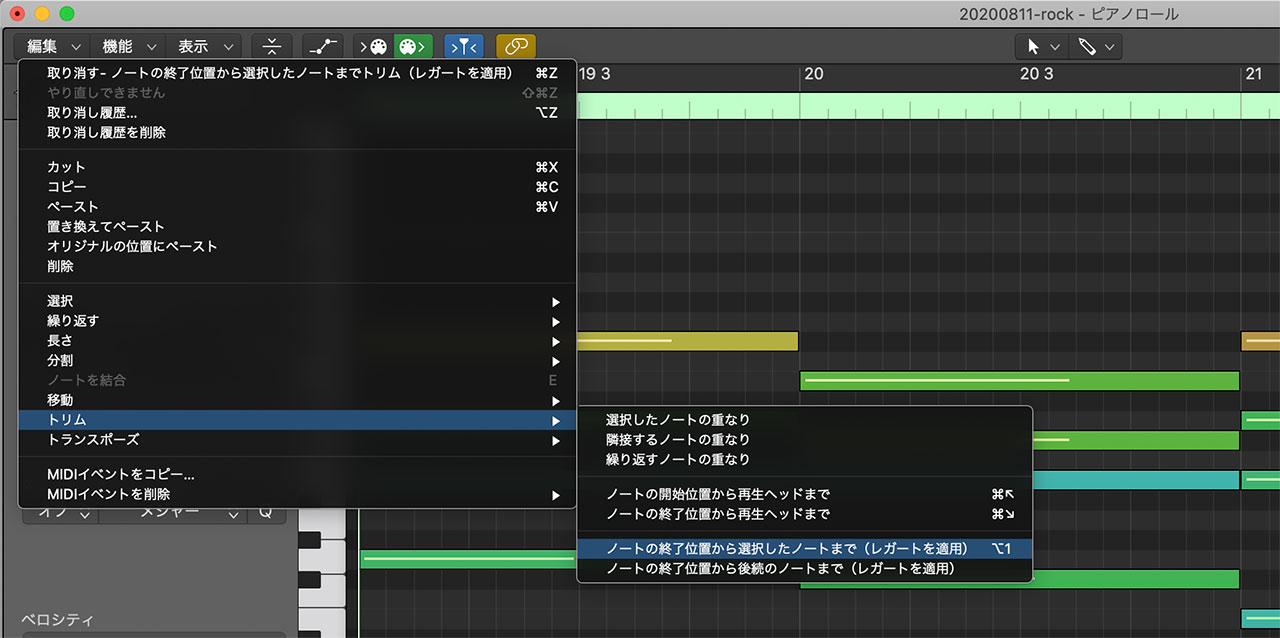
Select the notes you want to make legato,

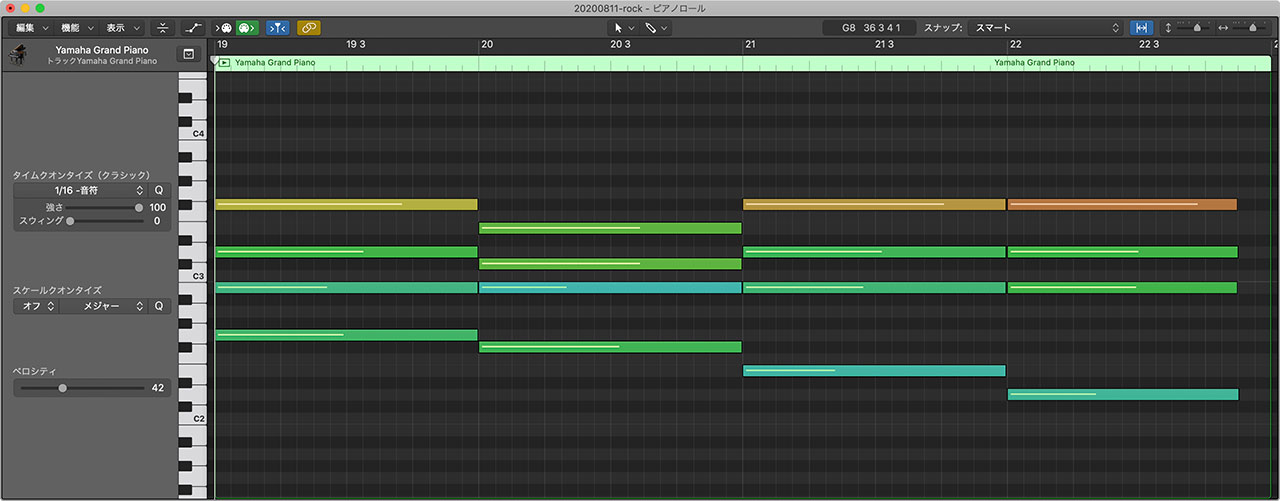
and each note extends to just before the next note begins.
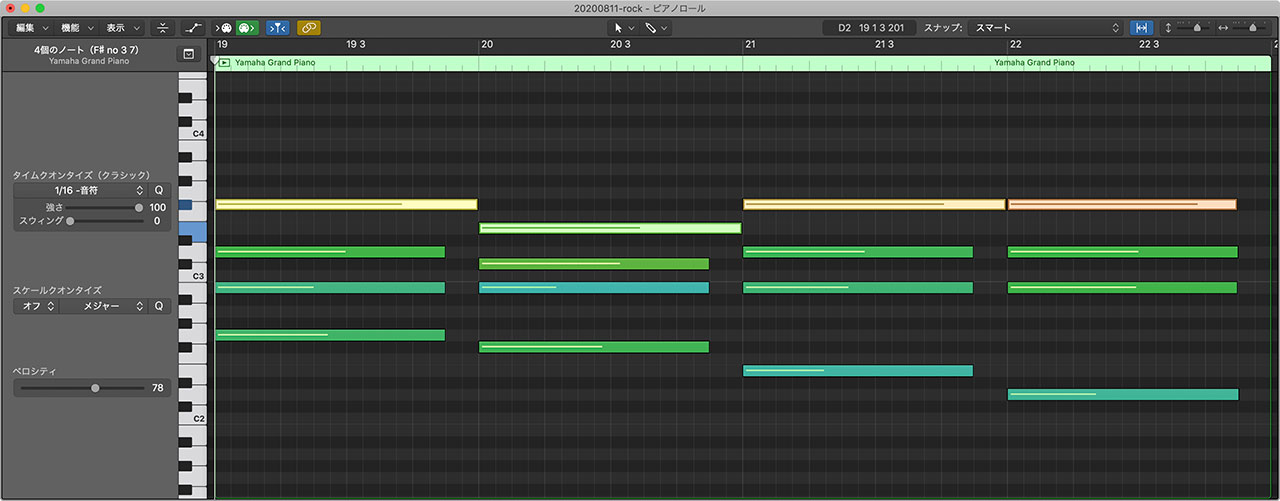
The command works with chords as well as single notes.
Align the End Positions of Notes
Hold Shift while dragging the end of a note to align the end positions of all selected notes.
If the ends of several notes are slightly uneven like this, select them and drag while holding Shift.
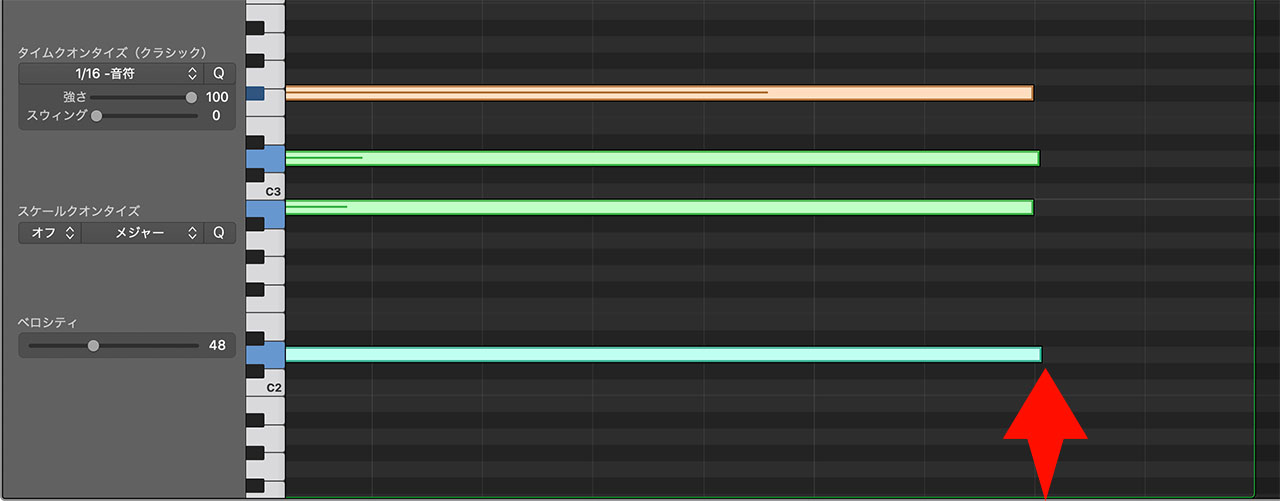
Their end positions will line up precisely.
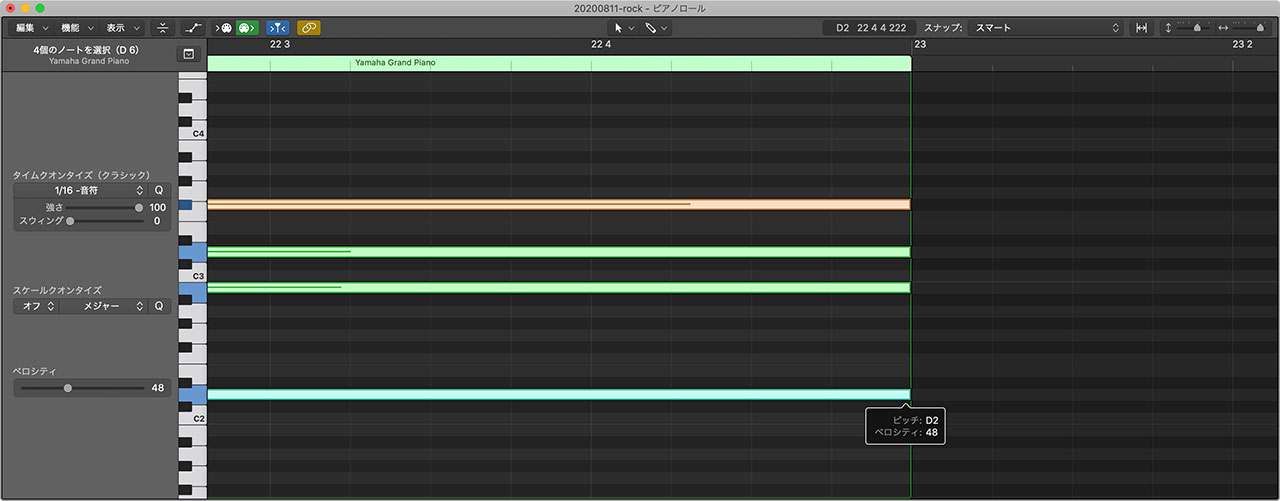
The final note cannot be extended by the Legato command because no note follows it. This technique works well in combination with legato editing.
Make Every Note the Same Length
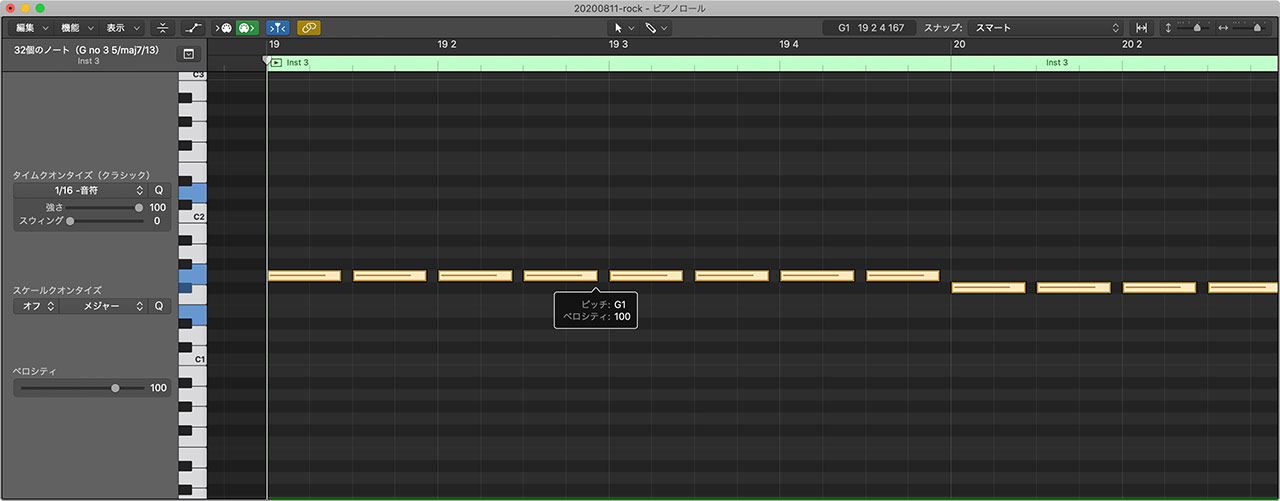
Shift-Option-drag makes every selected note the same length.
Even when the notes have different lengths like these, hold Shift and Option while dragging the end of one note,
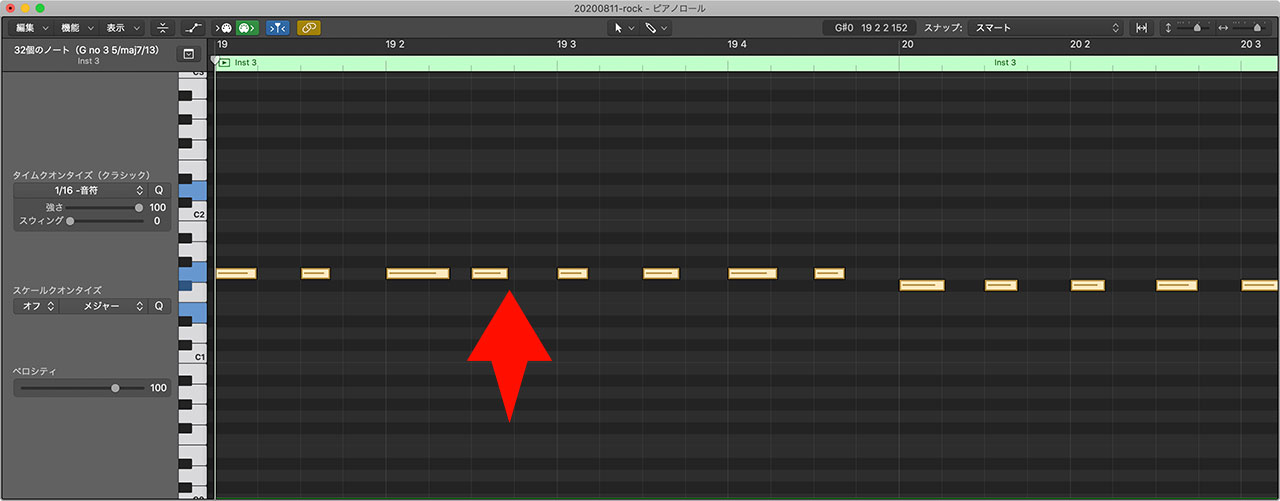
and all selected notes become the same length.
You Can Also Change Note Lengths with Keyboard Shortcuts
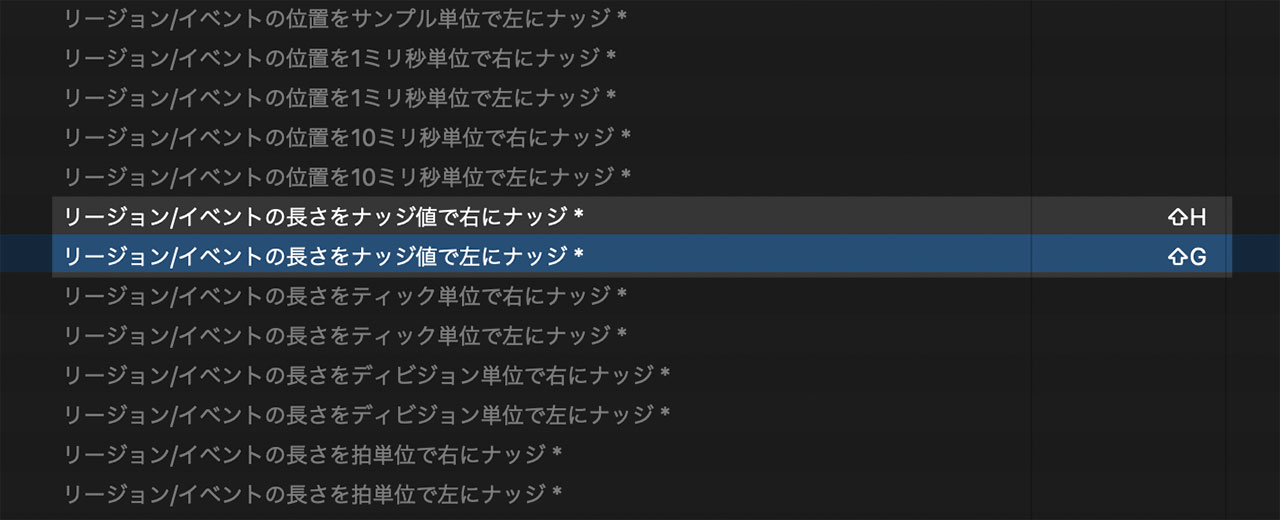
Assigning keyboard shortcuts for changing note lengths is useful too.
The “Nudge Region/Event Length Right by Nudge Value” and “Nudge Region/Event Length Left by Nudge Value” commands extend or shorten notes.