
Here are several useful techniques for selecting MIDI data in Logic Pro’s Piano Roll.
You can select only the top notes of chords or every note at the same rhythmic position. Learning these techniques makes MIDI editing a little easier.
Select the Highest or Lowest Notes
Let’s start with the most broadly useful option: selecting the highest or lowest notes.
The Edit > Select menu at the upper left of the Piano Roll contains many selection commands.
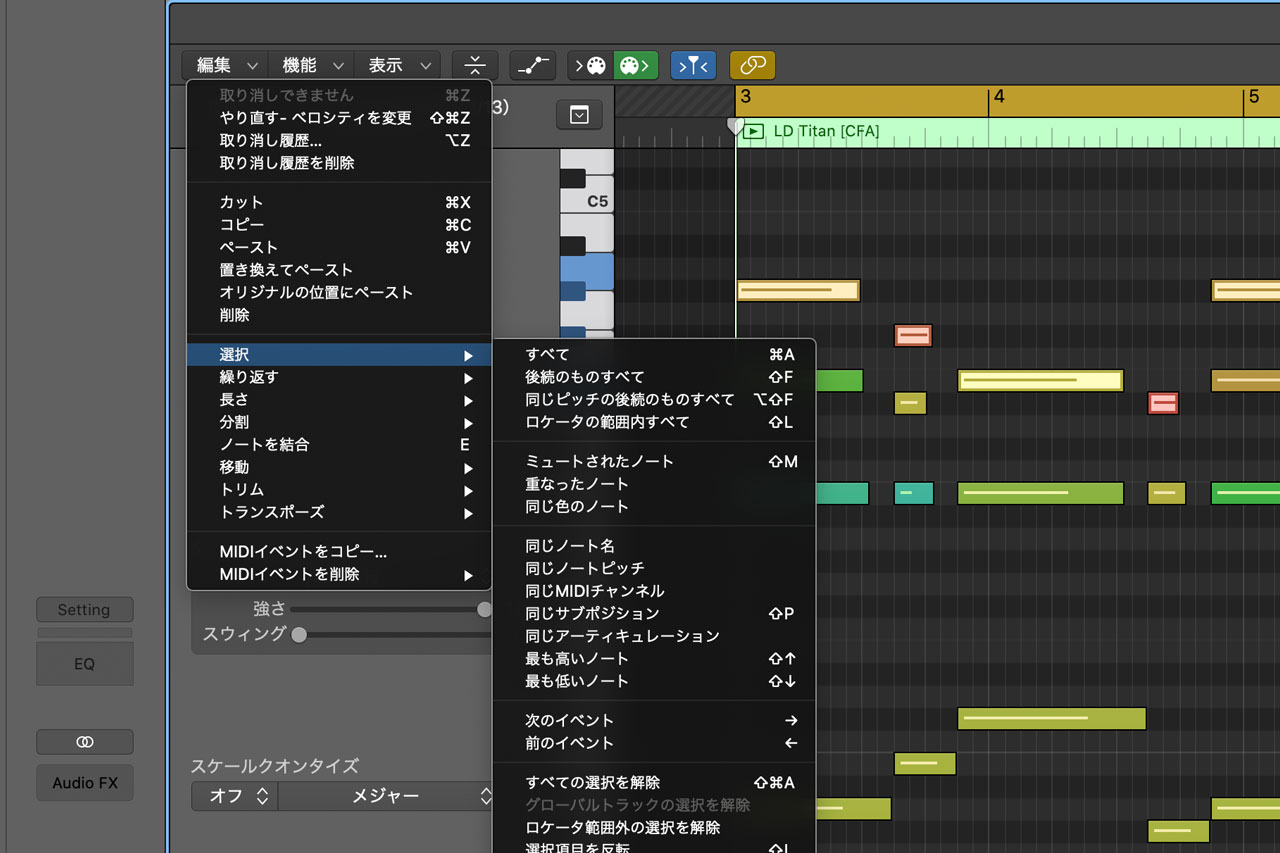
Choose Highest Notes or Lowest Notes,
and you can select only the top note of chords like these.
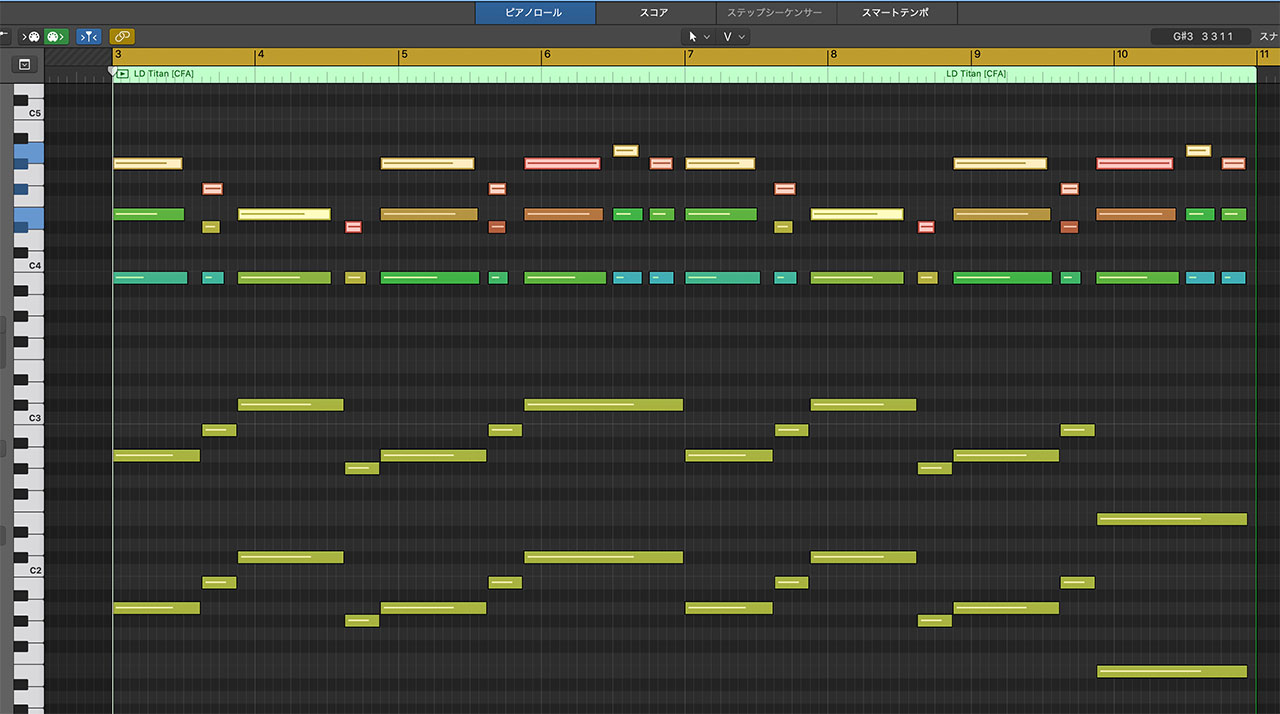
I probably select the lowest notes more often. It is useful when you want to give every bass note the same velocity, or copy the selected notes and add them an octave lower.

Select Notes with the Same Subposition
“Same Subposition” means notes that occur at the same rhythmic position, such as the upbeat of beat four.
This is useful when you want to reduce the velocity only at a particular subdivision.
Select one note and choose “Notes with Same Subposition,”
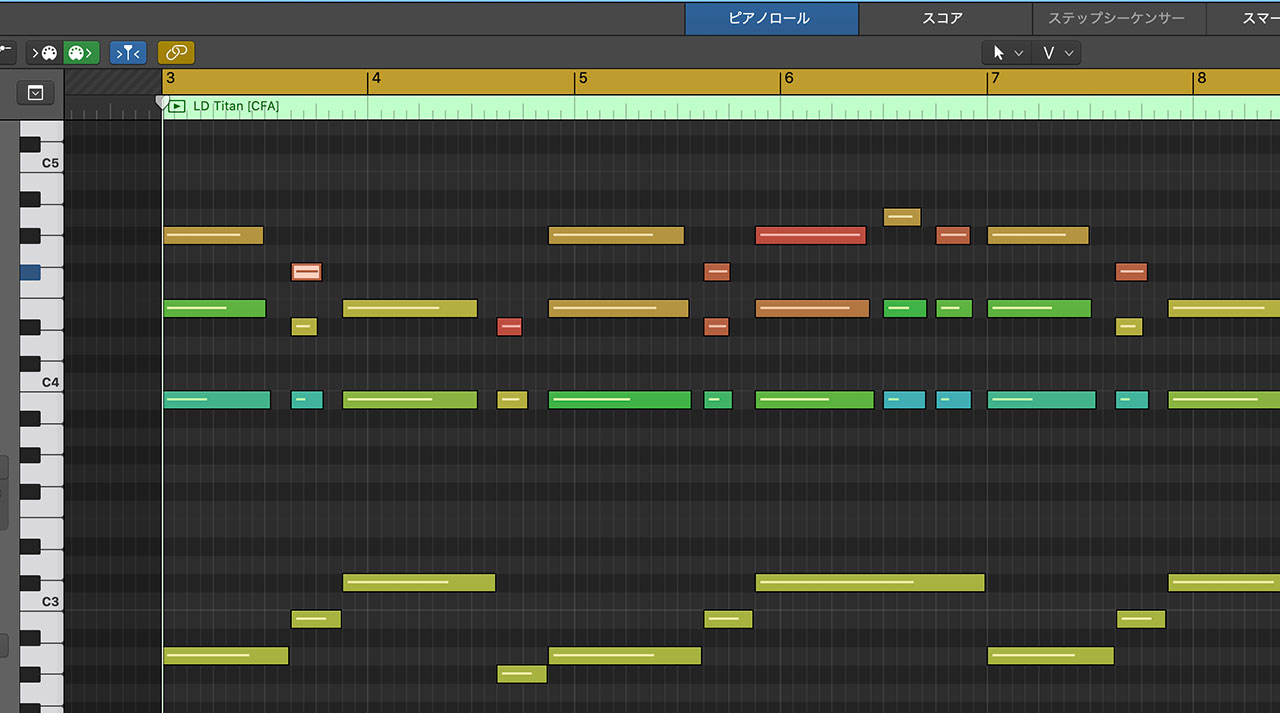
and Logic selects every note at the same subposition.
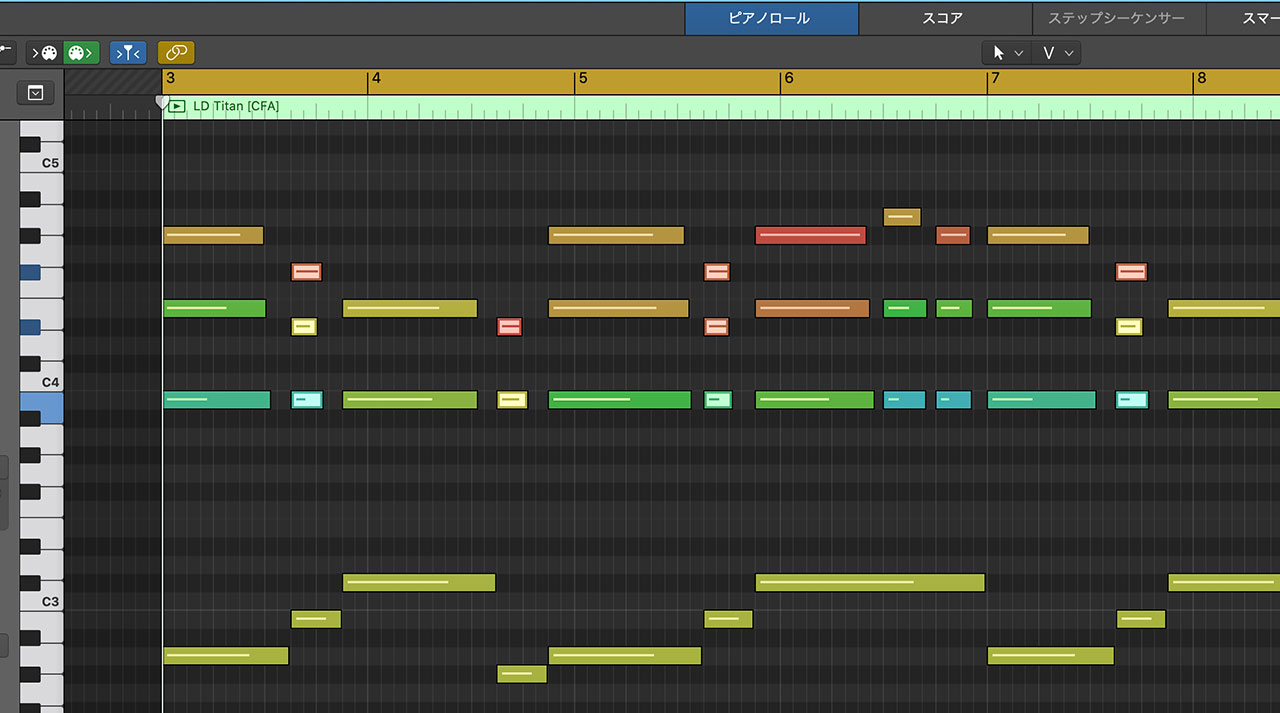
This is especially helpful when programming drums.
Select Notes of the Same Color
In the Piano Roll, notes with the same color have the same velocity value. This means you can select notes that play at the same volume.
Select one note and choose “Notes with Same Color,”
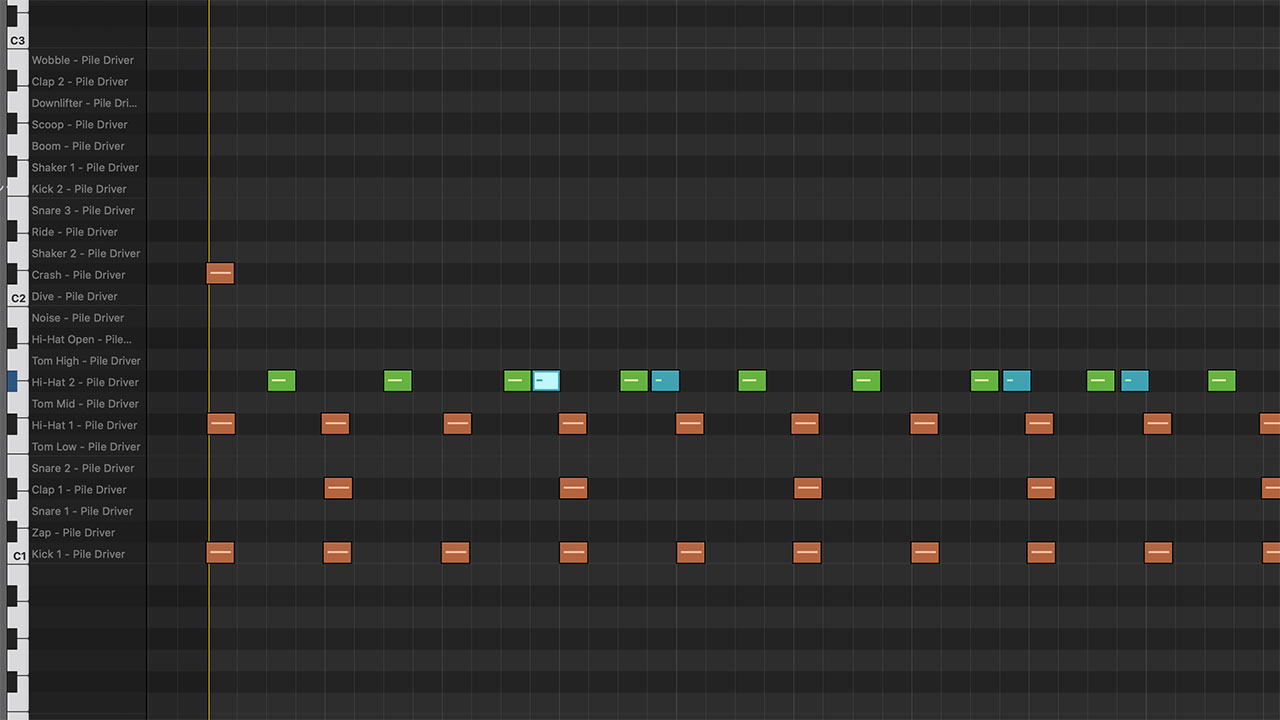
and all notes with that exact color will be selected.
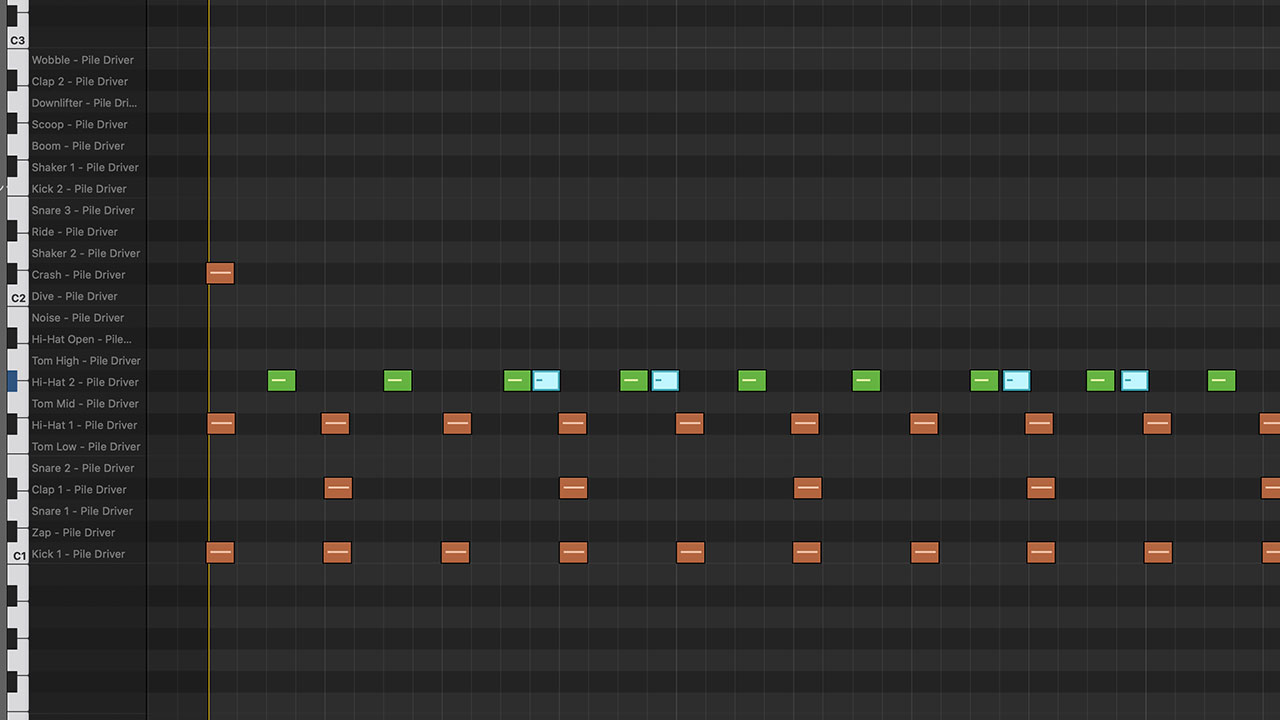
The matching is stricter than it may look. Even if two notes appear to have nearly the same color, Logic uses all 127 velocity values for the color scale. Only notes with exactly the same value are selected.
This is useful when selecting notes whose velocities you have already edited.
For example, you could give every snare ghost note the same velocity so that you can select all of them at once later.
Move to Selected Notes or Move Selected Notes
Finally, you can move the playhead to a selected note or do the reverse and move a note to the playhead.
First, consider “Go to Beginning of Selection” and “Go to End of Selection.”
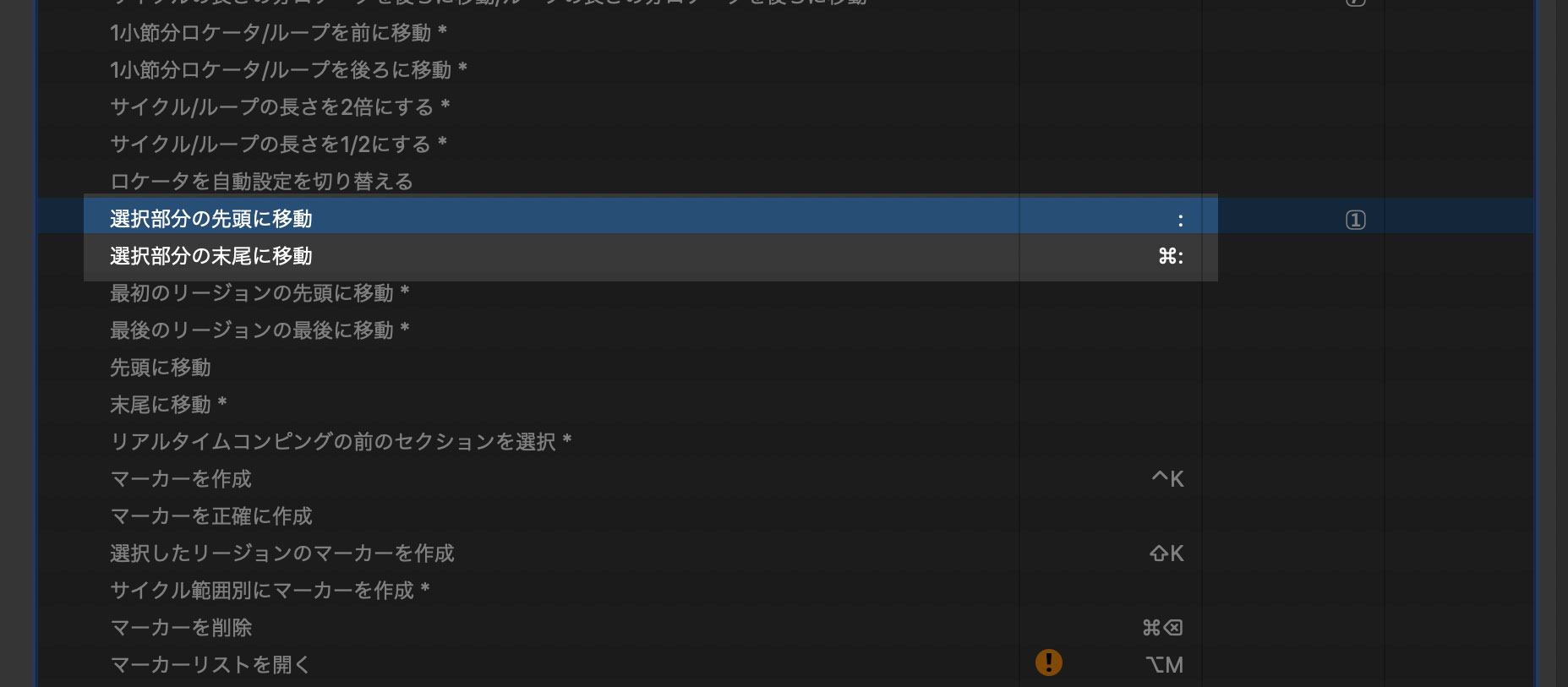
Both move the playhead. “Go to Beginning of Selection” moves it to the beginning of a region or note, which is useful when starting playback.
I often use “Go to End of Selection” when drawing fades on audio files.
Conversely, you can move notes or regions to the current playhead position.
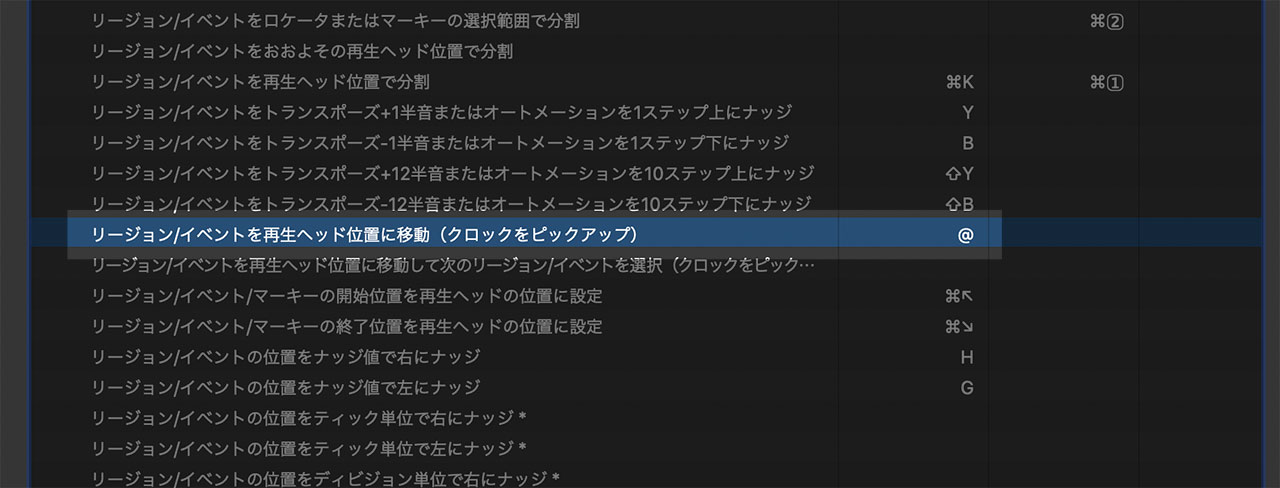
Both functions can be assigned to keyboard shortcuts. In fact, they are awkward to use without shortcuts, so I recommend assigning them to keys that work for you.
If it is difficult to picture how these commands behave, see the video demonstration.
