
One of Logic Pro’s strengths is the flexibility of its keyboard shortcuts. You can configure them in great detail, and many useful functions are awkward to access without one.
After nearly 20 years of using Logic, these are the shortcuts I use most often and recommend setting up.
Logic Pro calls its keyboard shortcuts “key commands.” In this article, I use “key command” when referring to Logic’s feature by name and “keyboard shortcut” elsewhere.
Rewind and Fast Forward
The commands I use most are Rewind, Forward, Fast Rewind, and Fast Forward.
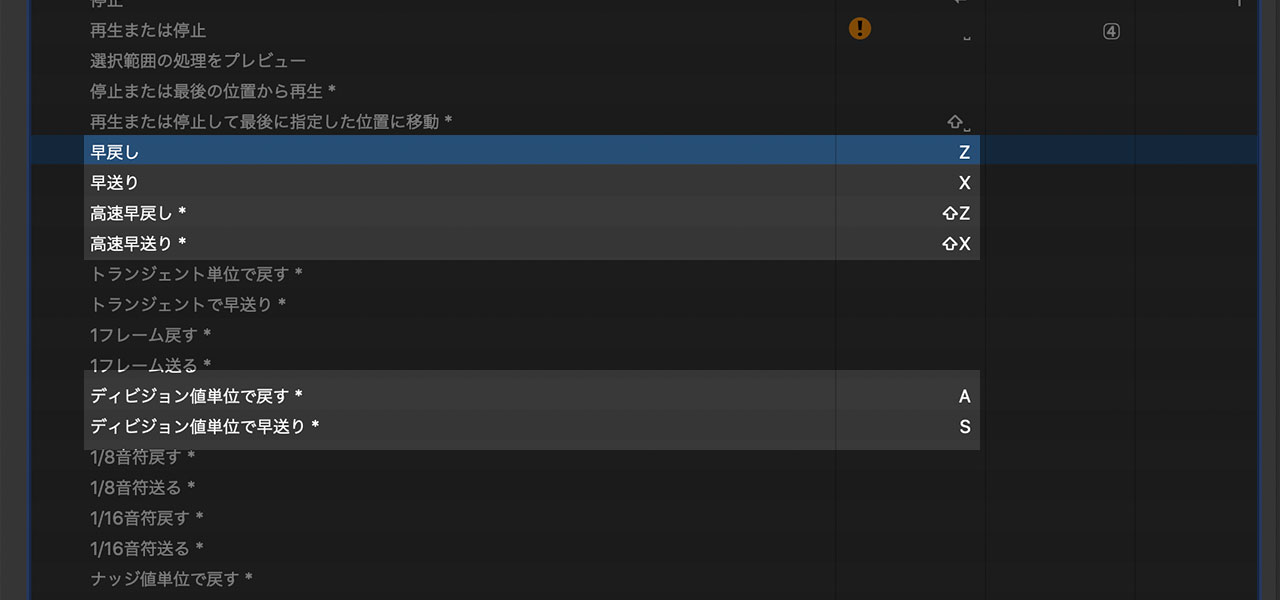
Rewind and Forward move the playhead by one bar, while Fast Rewind and Fast Forward move it by eight bars.
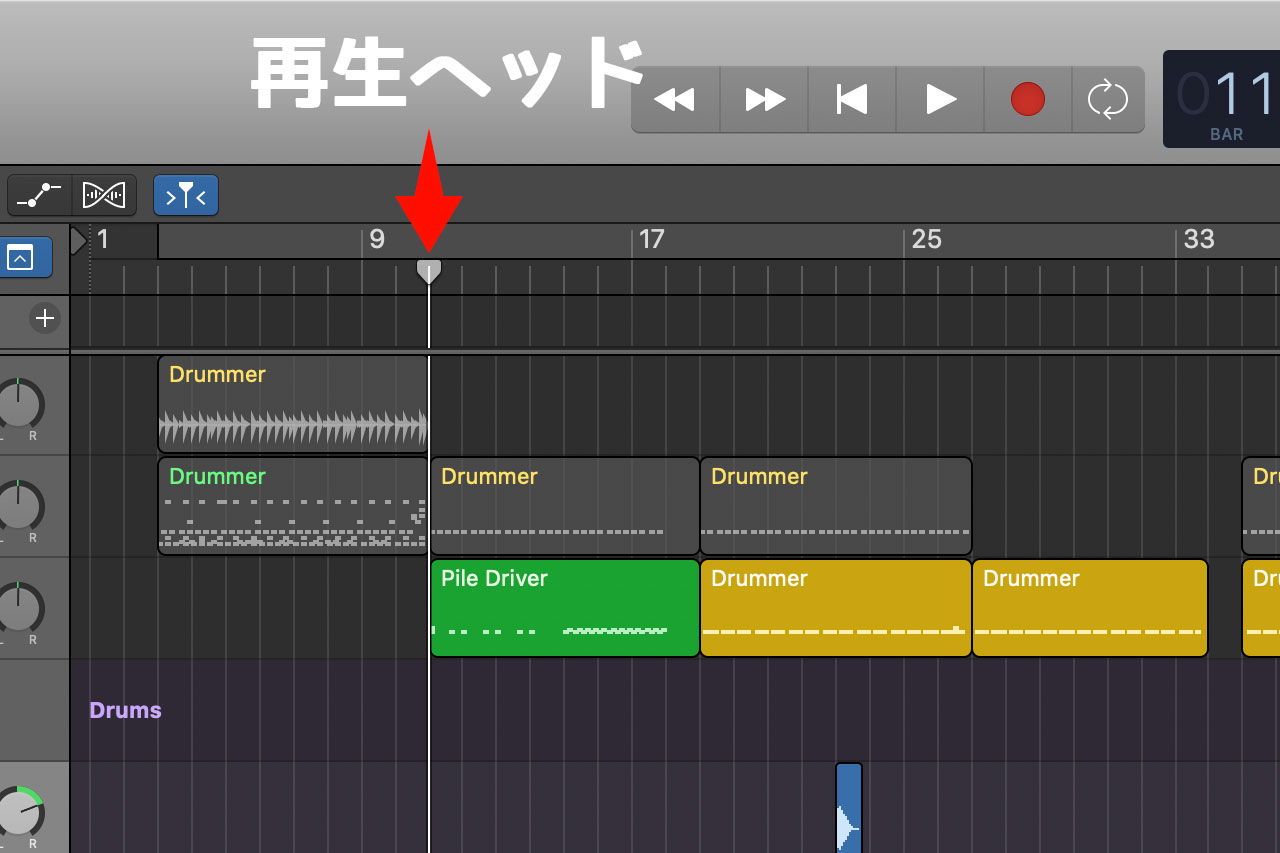
I use these commands to move the playback position and replay the song from wherever I need.
Controlling them with my left hand feels natural, much like using direction controls in a game, so I assign Rewind and Forward to Z and X.
I then assign Shift-Z and Shift-X to Fast Rewind and Fast Forward.
Move the Playhead to the Beginning or End of a Selection
Shortcuts that move the playhead are also very useful.
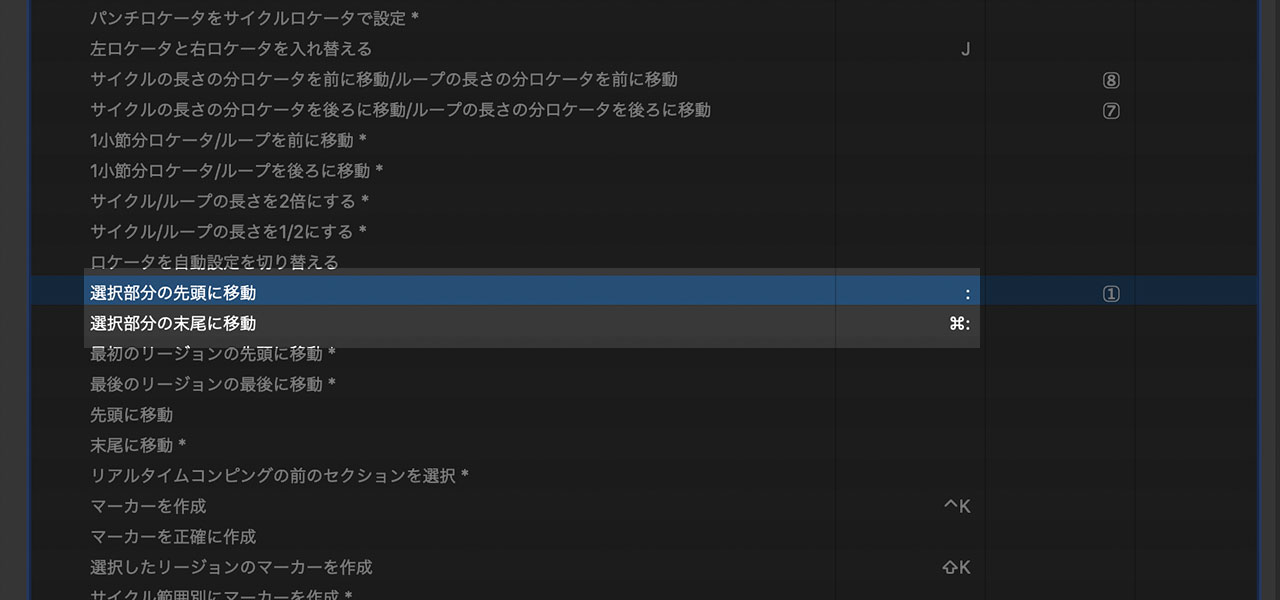
Select a region,
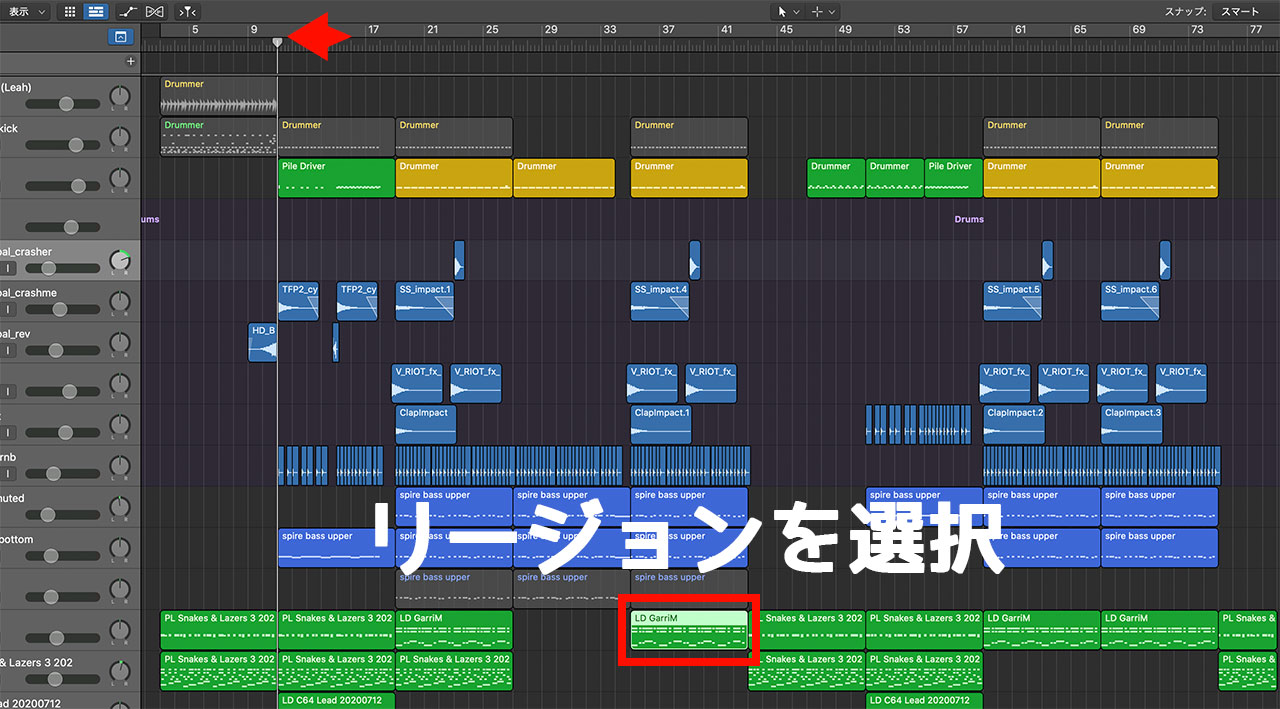
and the command moves the playhead to that position.
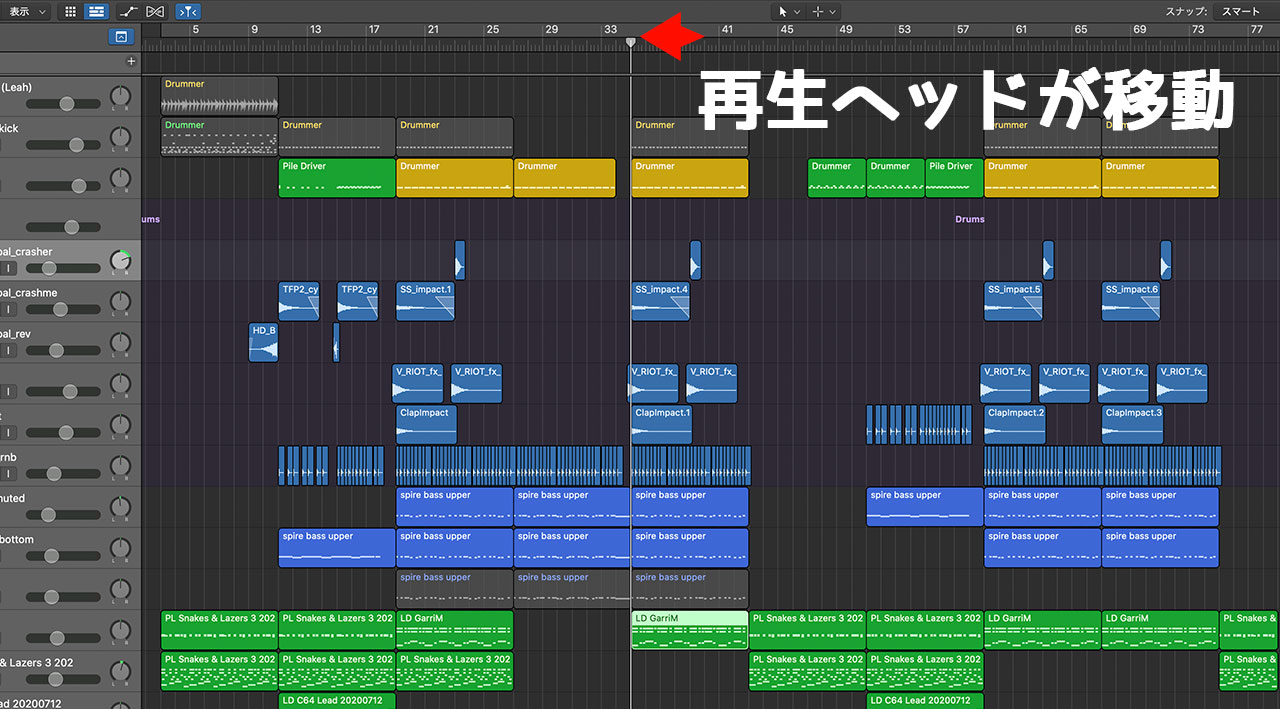
After recording guitar or vocals, the new region remains selected. One key press can take you back to its beginning for playback.
The commands work with MIDI notes in the Piano Roll as well as regions, making them useful during programming.
I often use “Go to End of Selection” when drawing fades.
Move Regions and Events to the Playhead
As the reverse of moving the playhead, “Move Region/Event to Playhead Position” moves the selected region or event to the playhead.
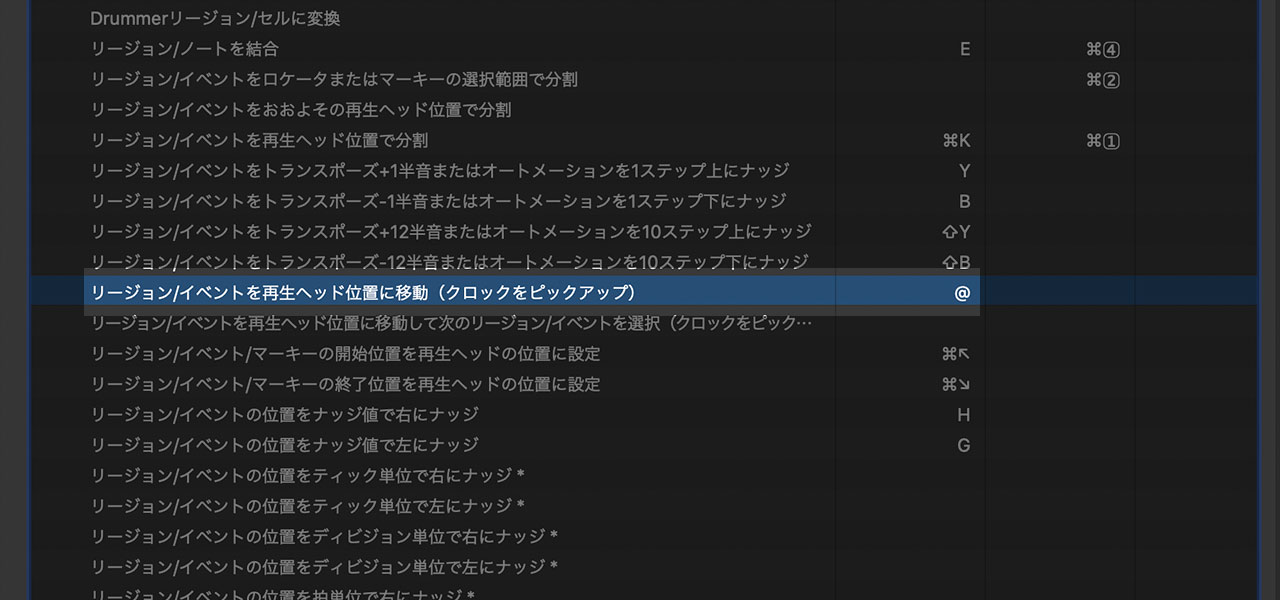
Position the playhead first and select the region,
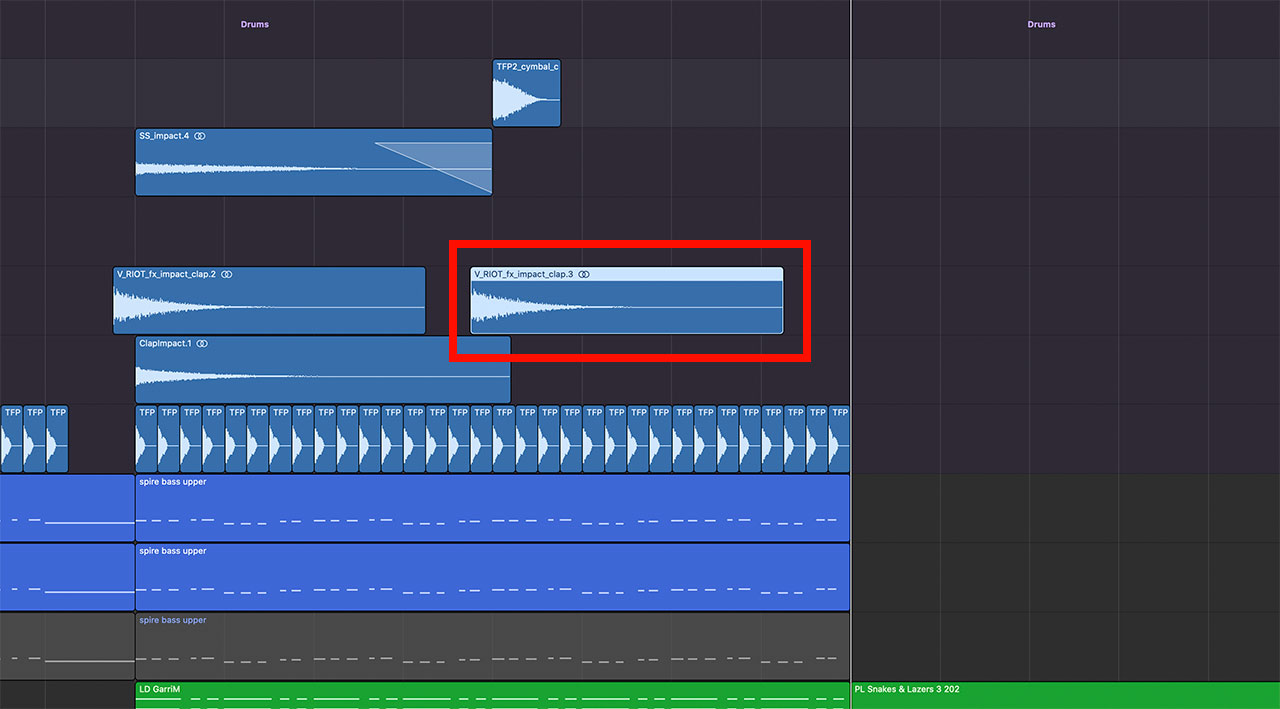
then move it into place with the shortcut.

Split and Join
“Split Regions/Events at Playhead Position” makes editing regions much faster.

Move the playhead to the point where you want to make the split and press the shortcut.

The region will be divided at that point. The same command works with MIDI data as well as regions.
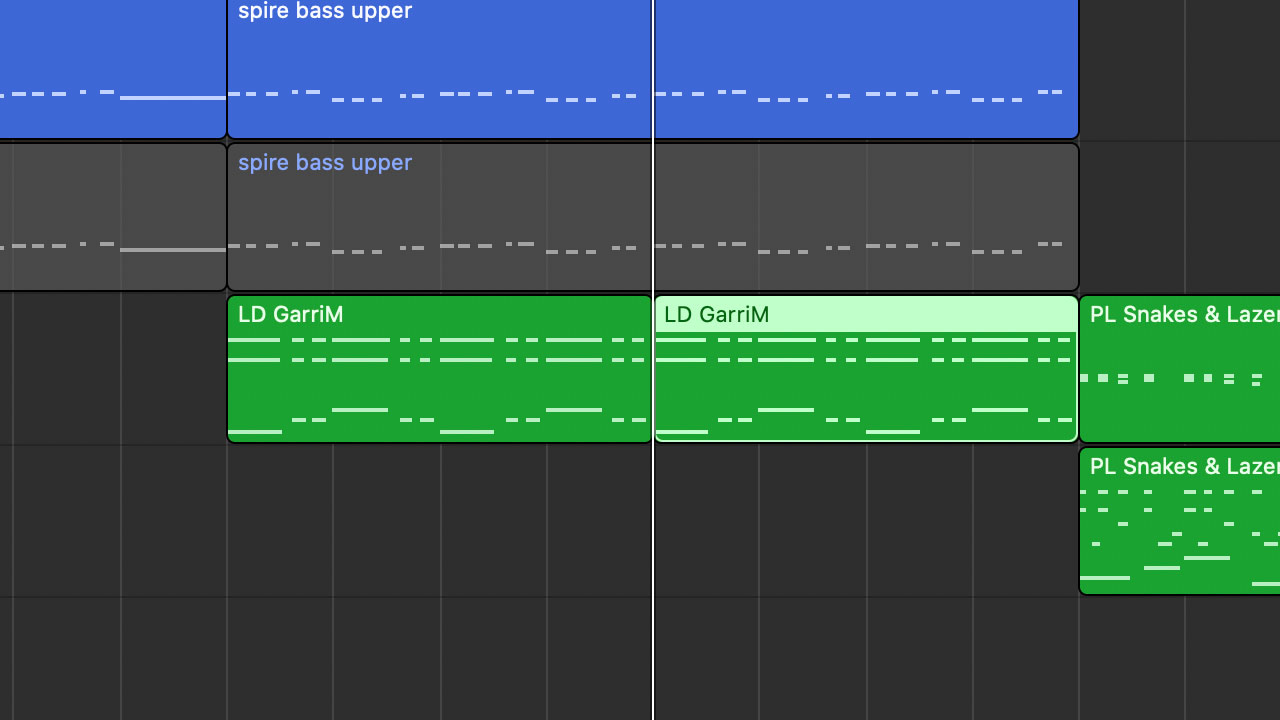
The Join command does the opposite, combining regions or notes. Assigning shortcuts for both commands makes a useful pair.
Move Notes Up, Down, Left, and Right
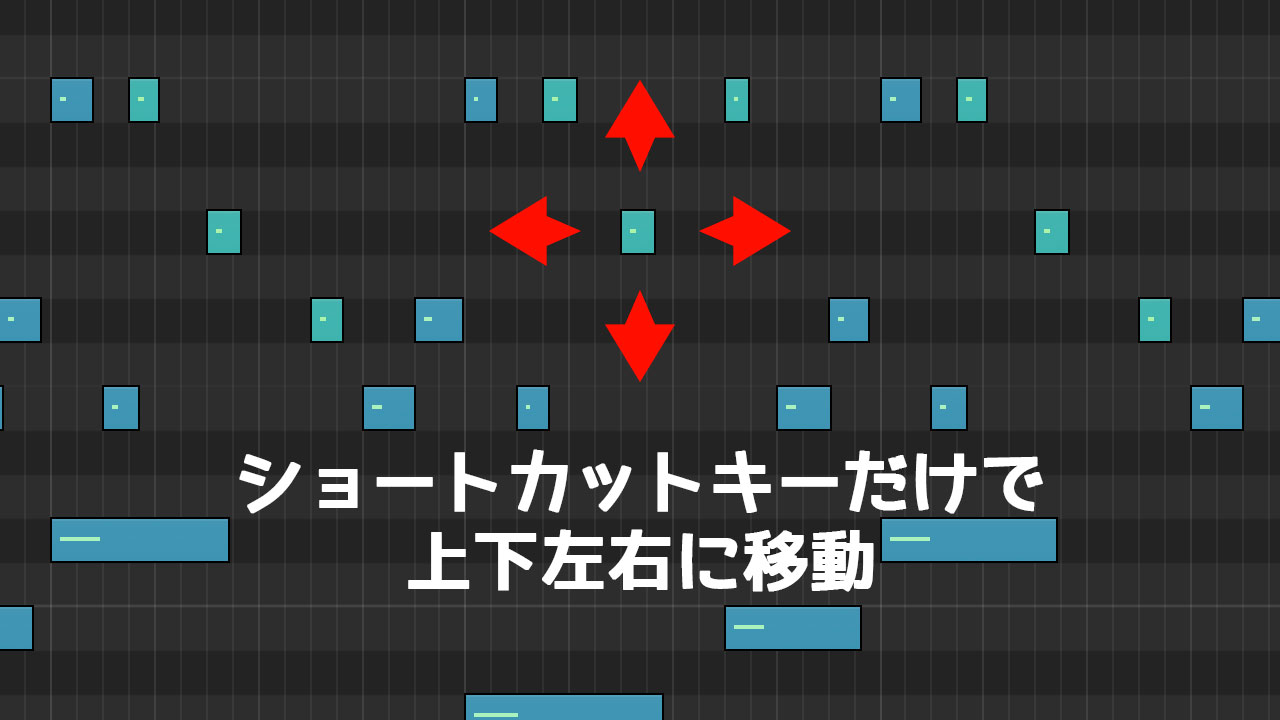
The Transpose Region/Event and Nudge Region/Event commands make it easy to move MIDI notes.
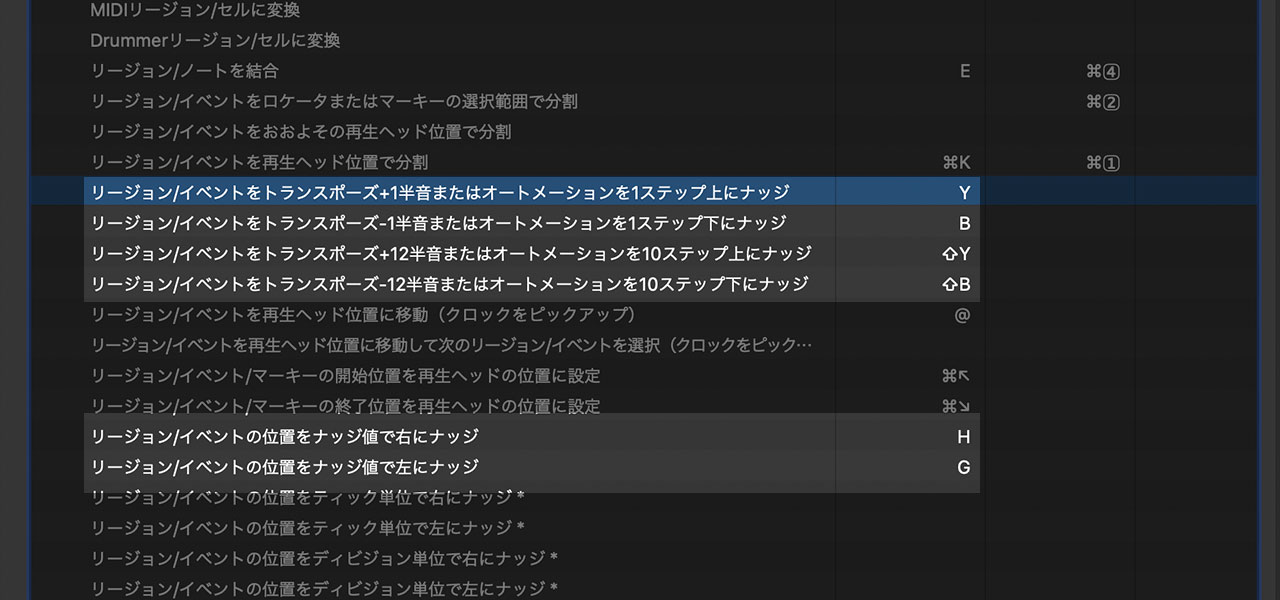
They let you move notes up, down, left, and right like this.
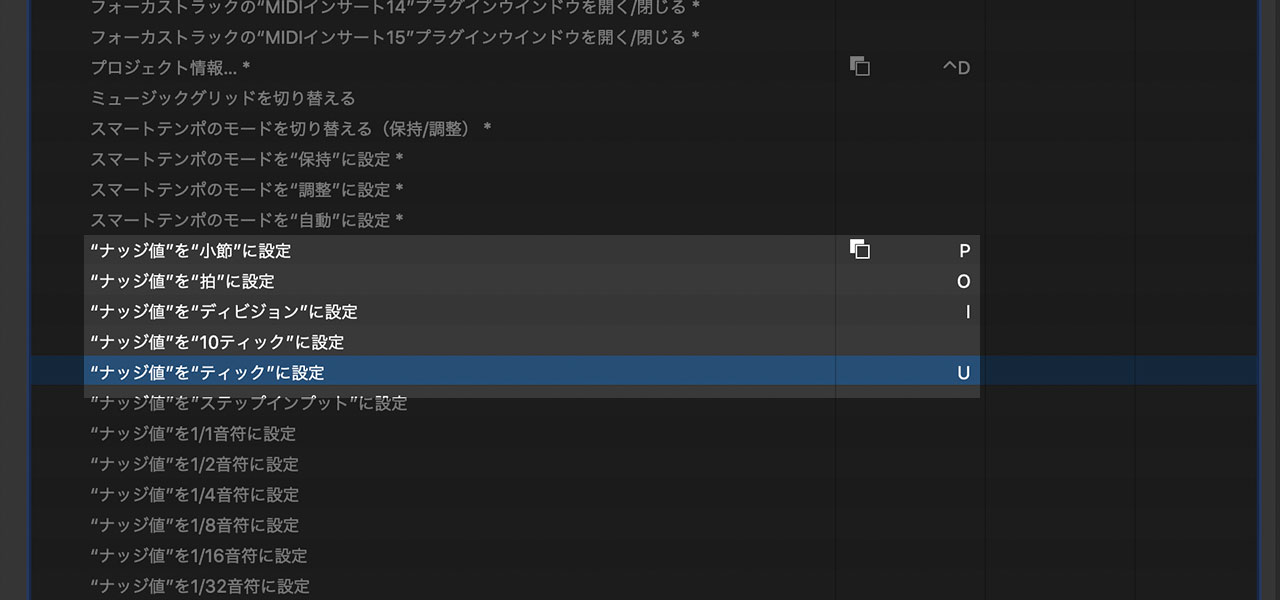
You can assign shortcuts for the Nudge Value too. Tick and Division are especially useful settings.
Make Regions and Events Longer or Shorter
In addition to moving regions and events, you can change their length with keyboard shortcuts.
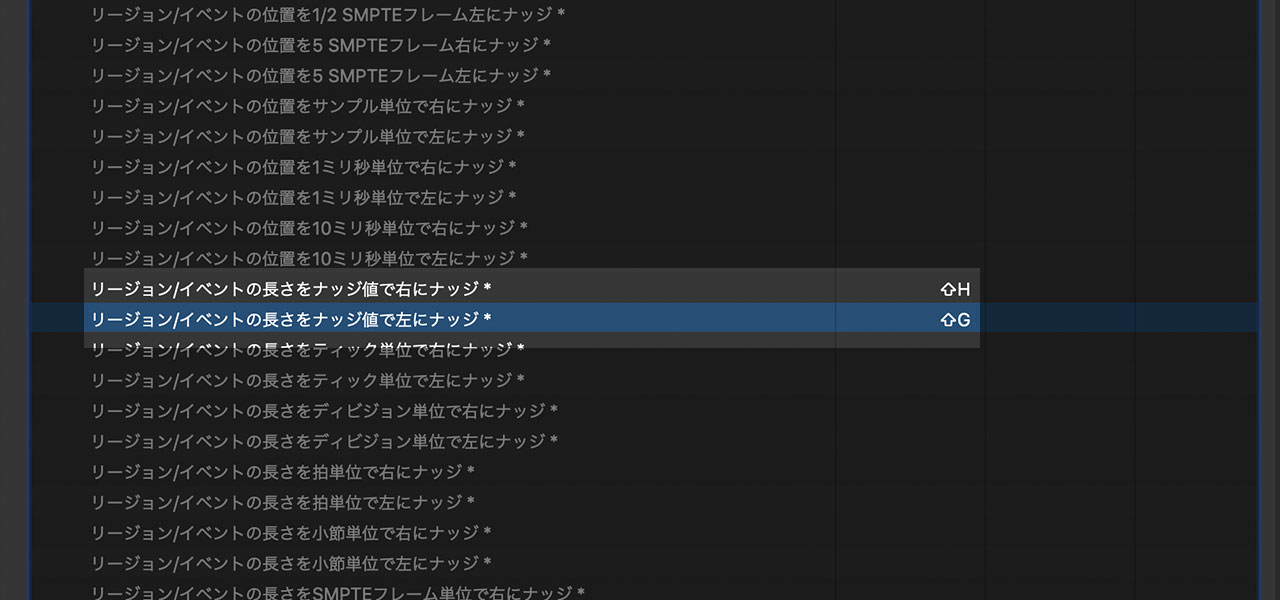
The relevant commands are “Nudge Region/Event Length Left by Nudge Value” and “Nudge Region/Event Length Right by Nudge Value.”
They are particularly useful when programming MIDI.
Set the Locators to the Region Length
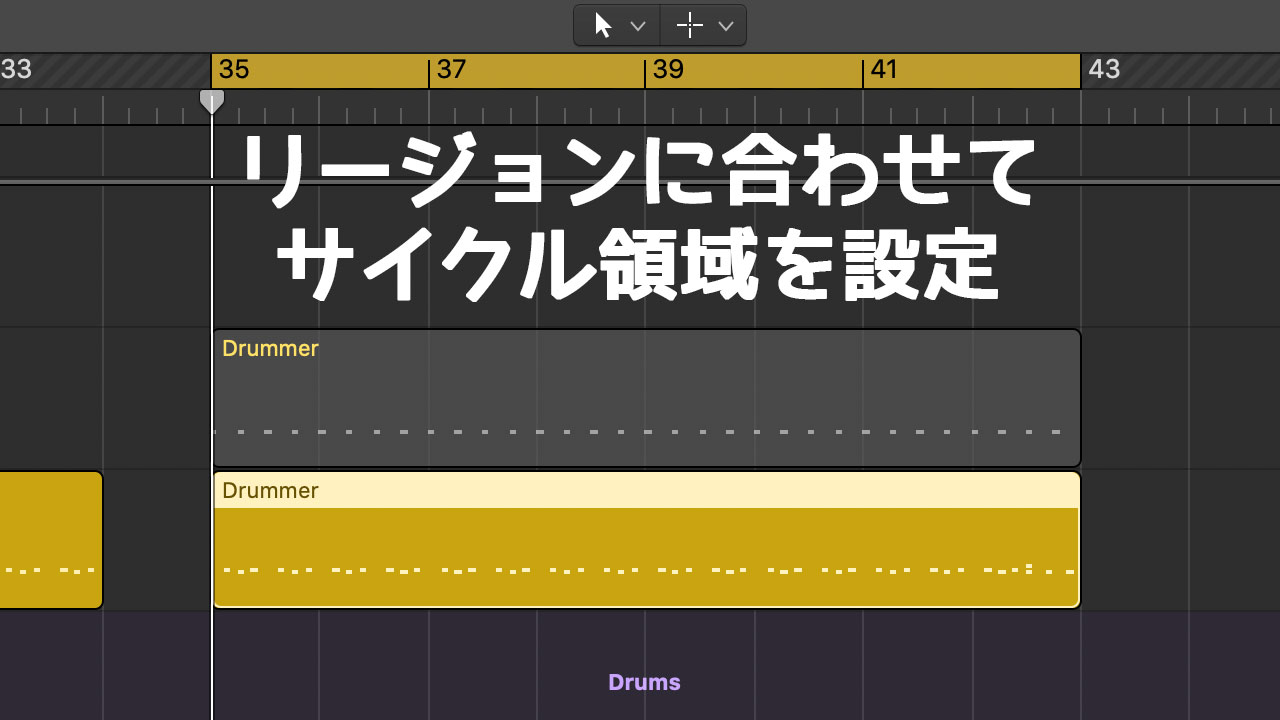
One command has a rather long name: “Set Locators/Loop by Regions/Events/Marquee and Enable Cycle/Loop.”

Select a region and press the shortcut once to set the cycle area and begin looped playback.
Switch Tools
You can switch tools from a menu assigned to right-click, but I give dedicated shortcuts to the tools I use most because I change them so frequently.
As in Adobe apps, I assign V to the Pointer tool. I use P for the Pencil tool and F for the Fade tool. These are the tools I reach for most often.
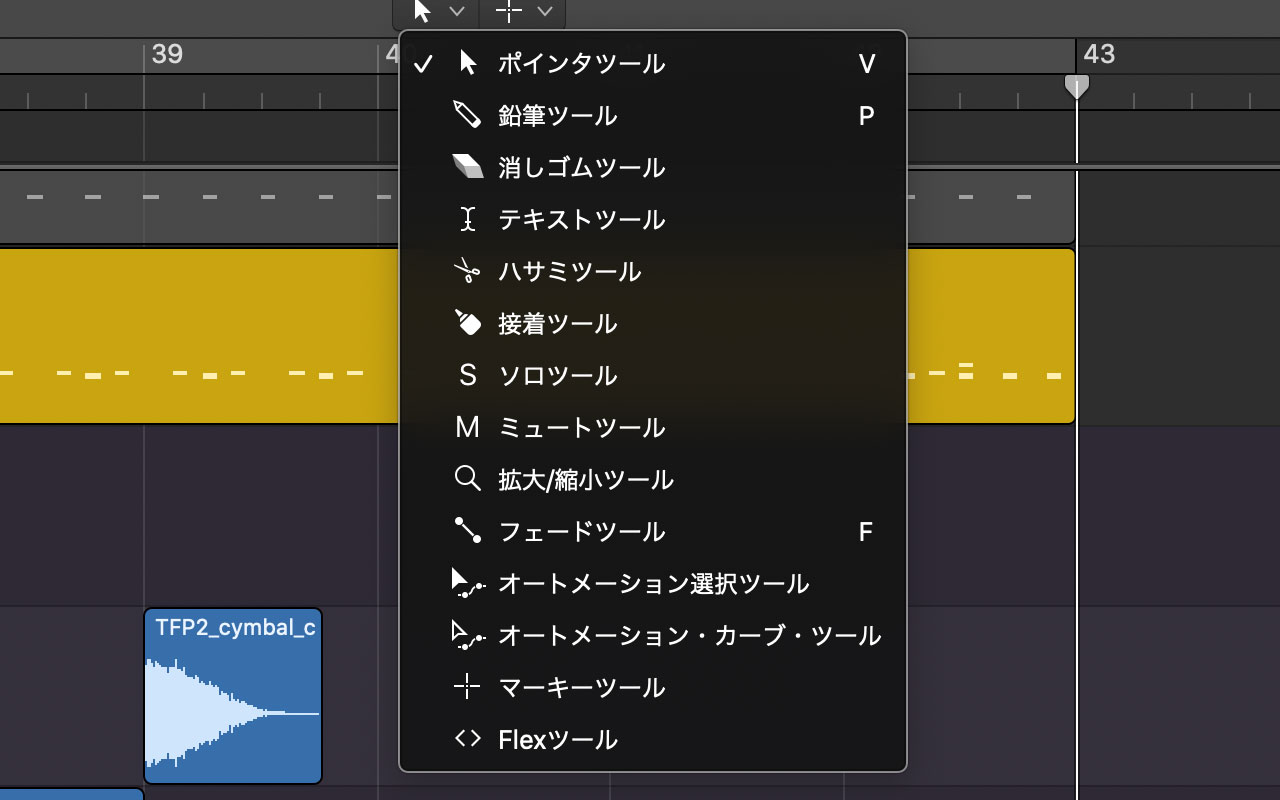
You can also assign a secondary tool that is available while holding Command, so you do not have to switch tools at all.
関連記事のIDを正しく入力してくださいOpen the Key Commands Window
Finally, the shortcut for opening the Key Commands window is Option-K.
Remembering it makes it easy to update your keyboard shortcuts whenever you need.
Other Logic Pro Settings Worth Configuring
I have also collected other useful Logic Pro settings in the following article. Give those a try as well.
